# PMP 13.4 –Microsoft RADIUS Support (Feature Brief)
**URL:** https://community.cambiumnetworks.com/t/pmp-13-4-microsoft-radius-support-feature-brief/40466
**Category:** PMP
**Created:** [May 13, 2015, 11:37am UTC](https://community.cambiumnetworks.com/t/pmp-13-4-microsoft-radius-support-feature-brief/40466 "2015-05-13T11:37:06Z")
**Posts on this page:** 2
**Page:** 1
### Author:  [@Chitrang](https://community.cambiumnetworks.com/u/Chitrang)
#### Post date: [May 13, 2015, 11:37am UTC](https://community.cambiumnetworks.com/t/pmp-13-4-microsoft-radius-support-feature-brief/40466/1 "2015-05-13T11:37:06Z")
**Microsoft RADIUS Support**
**Introduction**
This feature supports Microsoft RADIUS (Network Policy and Access Services a.k.a NPS) as Authentication server for SM and User authentication.
Since NPS official doesn't [support](https://social.technet.microsoft.com/forums/windowsserver/en-US/1ce3adcf-6305-467d-859c-e4ff1adfe94c/does-nps-work-with-eapttls) TTLS, SM Authentication will use **PEAP-MSCHAPv2**
EAP-MD5, which Canopy software uses for User Authentication, is [deprecated](https://support.microsoft.com/en-us/kb/922574/en-us?wa=wsignin1.0). To continue using EAP-MD5 on NPS, users has to enable EAP-MD5, See [this section](#MicrosoftRADIUSSupport-MD5) for details
All this configuration has been tested on **Windows Server 2012 R2** version.
**This feature is not supported on P9 or lower platforms**
**SM Authentication**
**Web UI**
There are no new configuration on AP.However on SM, user should select PEAP in following way.
Configuration → Security → AAA Authentication Settings → Phase 1, Select **eappeap.**

Note that as you select Phase 1 as EAP-PEAP, Phase 2 will change automatically to MSCHAPv2.Other Phase 2 protocols like PAP/CHAP will be disabled.
**SNMP**
User can configure existing OID in **WHISP-SM-MIB**
OID: .1.3.6.1.4.1.161.19.3.2.7.4.0 (phase1): Set this to **2** to use eappeap.
OID: .1.3.6.1.4.1.161.19.3.2.7.5.0 (phase2): Set this to **2** to use mschapv2.
**Windows Server Configuration**
**Import Certificate**
Certificate on SM and RADIUS server should match. So, user must import certificate in Windows Server.
1. Copy the certificate which is configured in SM under Configuration -\> Security -\>Certificate1 to Windows Server machine.
2. Right Click and Select 'Install Certificate', this will install the certificate and it's ready to be used. We will use this certificate while configuring PEAP-MSCHAPv2 in NPS.
3. Associate private key to this certificate.Note that Windows uses private key in form of \*.p12/pfx format, you may have to convert the private file from pem format to p12. You can use the following openssl command to do that.
openssl pkcs12 -export -out cert.pfx -inkey private.key -in cert.crt -certfile CACert.crt
Note: If server certificate is signed by an untrusted CA , users has to install CA first on Windows server first before doing above steps. See [https://technet.microsoft.com/en-us/library/cc754367](https://technet.microsoft.com/en-us/library/cc754367%28v=ws.10%29.aspx) for detailed procedure.
**NPS Configuration ([https://technet.microsoft.com/en-us/network/bb545879.aspx](https://technet.microsoft.com/en-us/network/bb545879.aspx))**
Following items should be configured in NPS Console
1. RADIUS Client [https://technet.microsoft.com/en-us/library/cc732929](https://technet.microsoft.com/en-us/library/cc732929%28v=ws.10%29.aspx)
2. Connection Request Policies [https://technet.microsoft.com/en-us/library/cc730866](https://technet.microsoft.com/en-us/library/cc730866%28v=ws.10%29.aspx) Choose 'Wireless-Other' in NAS-Port-Type
3. Network Policy [https://technet.microsoft.com/en-us/library/cc755309](https://technet.microsoft.com/en-us/library/cc755309%28v=ws.10%29.aspx) Choose 'Wireless-Other' in NAS-Port-Type
While configuring PEAP, select the certificate imported above

**User Authentication**
**Enabling EAP-MD5**
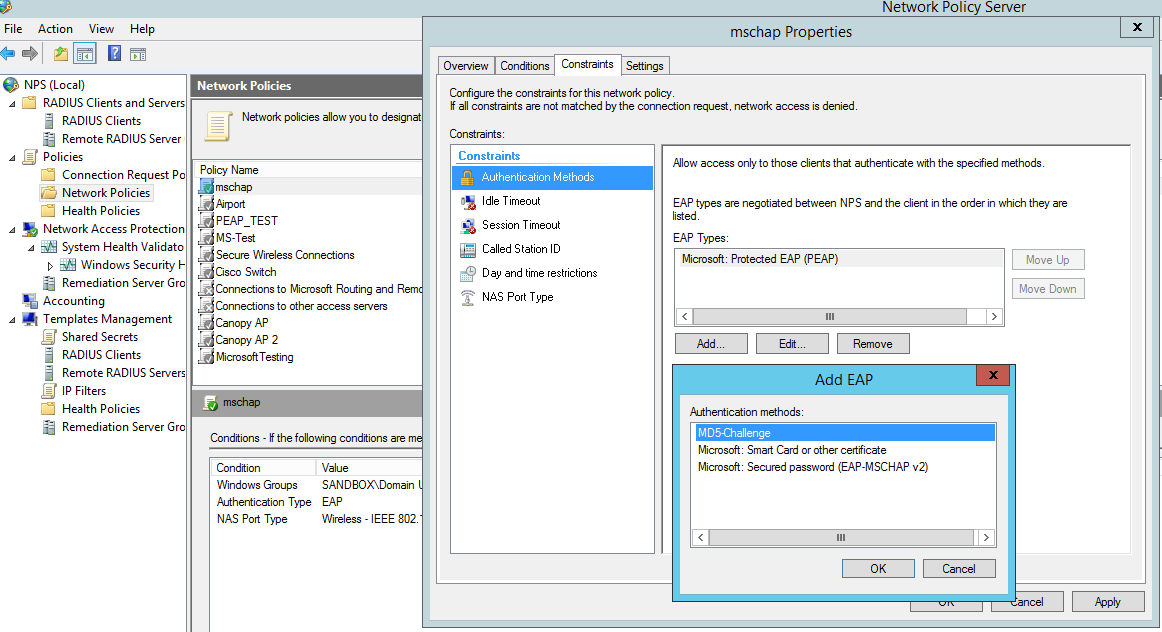
As it is mentioned that Microsoft has deprecated the support for MD5 from versions of Windows. To enable it there are some steps.
1. Please follow instruction [https://support.microsoft.com/en-us/kb/922574/en-us?wa=wsignin1.0](https://support.microsoft.com/en-us/kb/922574/en-us?wa=wsignin1.0)
2. Next from NPS Console Network Policy -\> \ -\> Properties -\> Constrains -\> Authentication Method and click Add , You will see MD5 there, select and click OK.
**User Configuration in Active Directory**
Next open ' **Active Directory Users and Computers'** and create user, Make sure user property is configured as shown.

Note: DO NOT do this SM Authentication user, otherwise it wil try to do EAP-MD5 instead of PEAP-MSCHAPv2.
**Radius VSA Configuration**
Before using we must configure **Cambium-Canopy-UserLevel(50)** VSA with some access level say ADMIN(3), Follow [https://technet.microsoft.com/en-us/library/cc731611](https://technet.microsoft.com/en-us/library/cc731611%28v=ws.10%29.aspx) , Our Vendor Code is 161.

**Accounting**
User can enable accounting in NPS, Under NPS Console -\> Accounting -\> Configure Accounting
For more details refer [https://technet.microsoft.com/library/dd197475](https://technet.microsoft.com/library/dd197475)
---
### Author:  [@system](https://community.cambiumnetworks.com/u/system)
#### Post date: [January 9, 2023, 4:10pm UTC](https://community.cambiumnetworks.com/t/pmp-13-4-microsoft-radius-support-feature-brief/40466/2 "2023-01-09T16:10:21Z")
This topic was automatically closed 365 days after the last reply. New replies are no longer allowed.