We are pleased to announce the cnMaestro 6.1.0 cloud release.
Key Features in cnMaestro 6.1.0
-
EasyPass Hospitality PMS: Integration with TigerTMS PMS service provider for the Hospitality market (Beta release)
-
NSE Cellular WAN: integration with Teltonika 4G/5G modems (Beta release)
-
NSE Two-Factor Authentication over Wireguard VPNs
-
NSE Enhancements: Virtual WAN Statistics, Per-WAN Firewall, and Inter-VLAN Routing
-
MarketApps: Per-site monitoring dashboards for MDU, Outdoor Hospitality, and Senior Living MarketApps
-
MarketApps: cnMatrix Device Replacement Support in Installer App
-
MarketApps: Installer App Enhancements including streamlined workflows
-
Switch Groups Enhanced with simplified port Configuration
-
Device Replacement support for cnMatrix and Wi-Fi Access Points while preserving key device context
-
60 GHz cnWave Enhancements: Inter-POP Insufficient Path MTU Alarm, L2GRE Events
-
PON Temperature Graph
-
Overdraft Subscription Reordering when subscription capacity is unavailable
-
Remote CLI Access Opt-In Consent from customers to Cambium Support
-
And more…
For a more details on these new features, see the video demo and release notes below, in addition to a summary of the key features.
Thank you,
cnMaestro Product Team
NSE Enhancements
Two-Factor Authentication over Wireguard VPNs
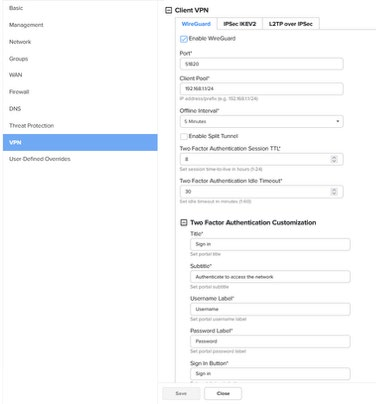
This release introduces two-factor authentication for WireGuard.
The NSE WireGuard remote VPN solution implements two-factor authentication in two steps:
-
WireGuard cryptographic keys are required to establish the VPN tunnel (something you have).
-
After the tunnel is established, the user must authenticate using a username and password before traffic forwarding is allowed (something you know).
By requiring both the VPN configuration with keys and user credentials, the NSE ensures that access is granted only after two independent authentication factors are verified.
The user can enable two-factor authentication on a per-client basis.
Virtual WAN Status
-
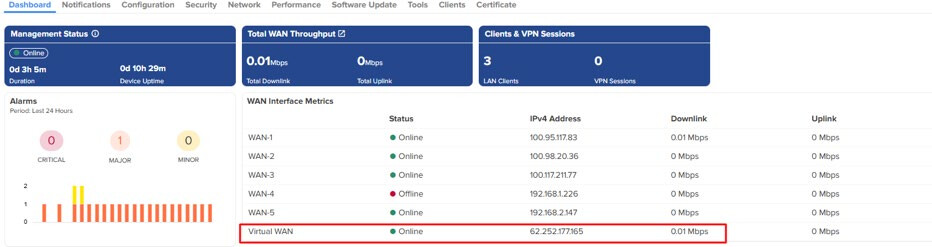
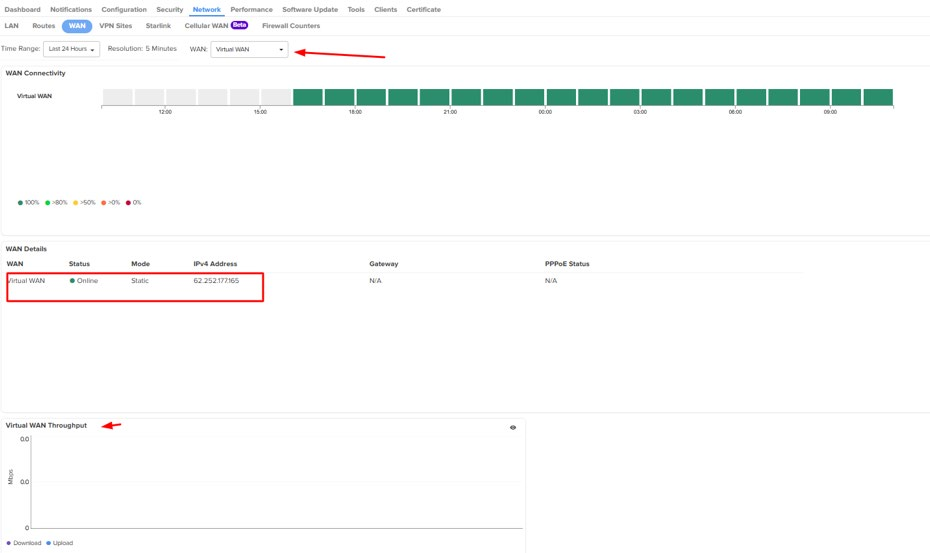
In the previous release, we introduced the Virtual WAN feature on NSE. In this release, we have added Virtual WAN statistics.
-
On the NSE dashboard, users can now view the status of the Virtual WAN interface, verify whether it is up or down, and confirm if traffic is being forwarded by checking the uplink and downlink counters.
-
On the network WAN page, you can view the usage of the virtual WAN link:
Per-WAN Firewall
In some deployments, the uplink router handles NAT, and the NSE operates mainly as a router.
If the firewall remains enabled on the NSE, the uplink router may not be able to reach the LAN subnets behind the NSE
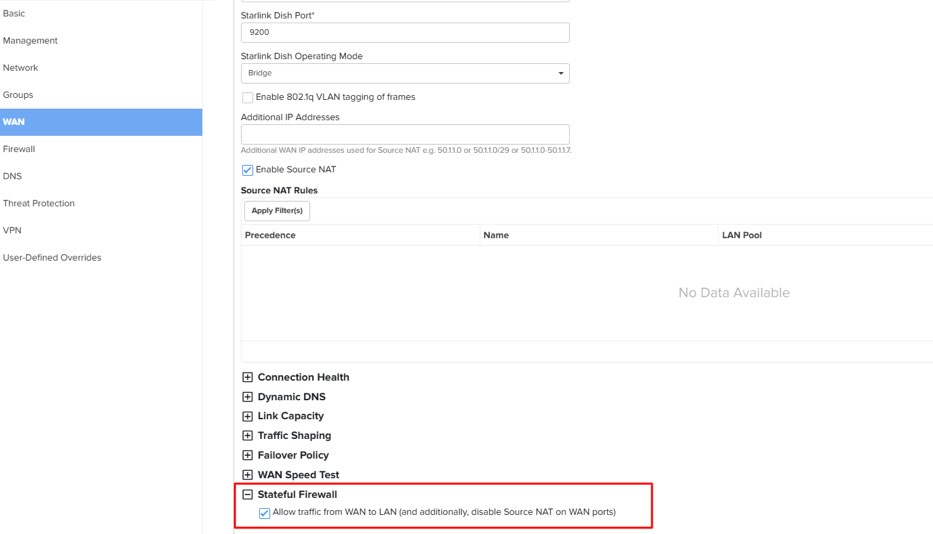
To address this, in 6.1.0, we introduced an option to disable the firewall on a per-WAN interface, allowing traffic from WAN to LAN.
By default, stateful firewalls are enabled on every WAN interface.
Inter-VLAN Routing
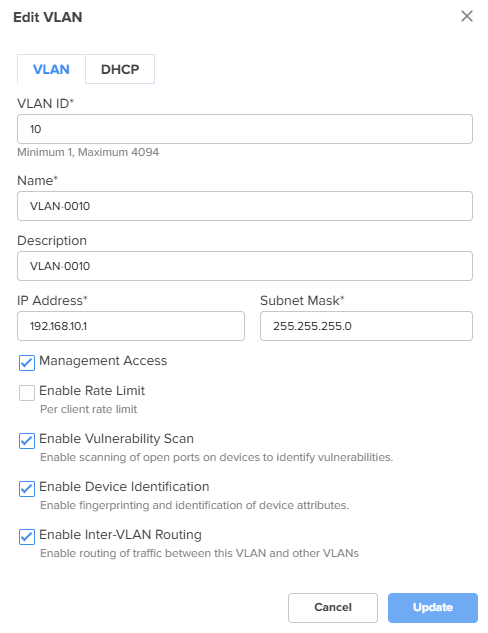
This release introduces an option to disable inter-VLAN routing, preventing communication between VLANs.
This is useful in scenarios such as a guest VLAN, where users should have internet access only but must be restricted from accessing devices in other local VLANs.
By enabling inter-VLAN blocking, traffic between VLANs is prevented while still allowing internet access, meeting this requirement effectively
The option to disable inter-VLAN routing is available while creating the VLAN interface. By default, inter-VLAN routing is enabled.
Cellular WAN Integration (BETA)
This release introduces integration with Teltonika LTE modems.
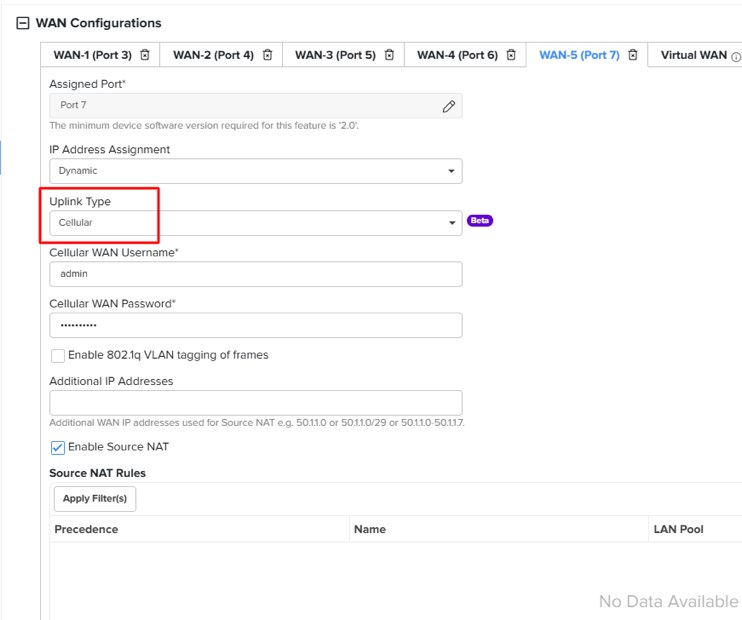
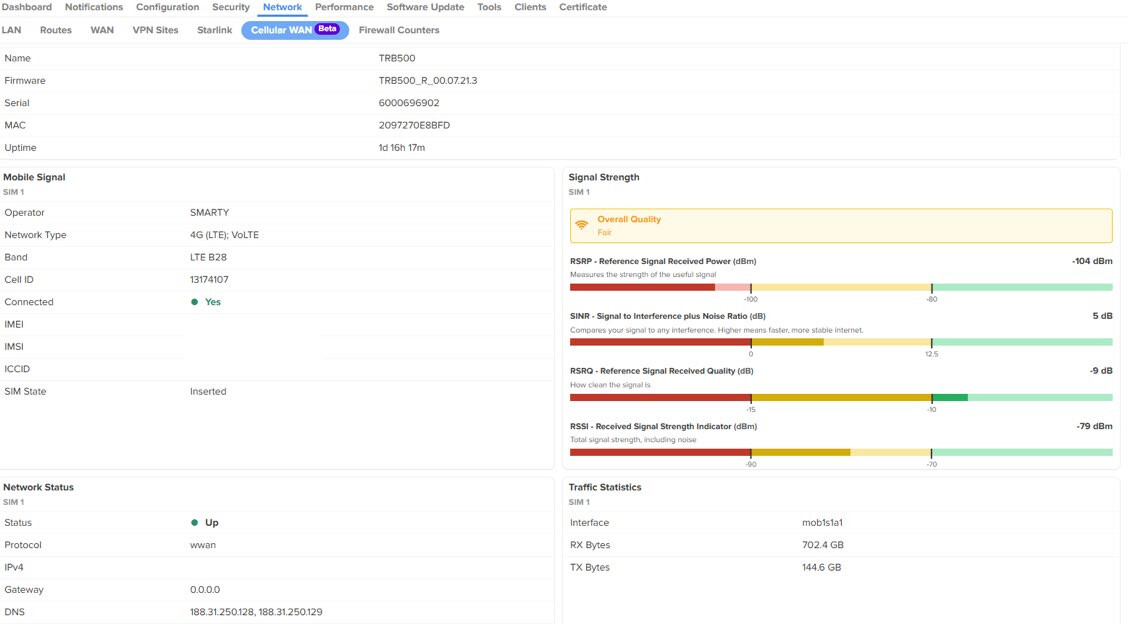
If the NSE is connected behind a Teltonika modem, it can fetch cellular statistics from the modem and display them in cnMaestro.
To configure this:
-
Set the uplink type to Cellular under WAN configuration
-
Provide the required username and password
Once configured, the NSE will fetch statistics from the modem and display them in cnMaestro.
Note: This feature requires NSE devices running software version 2.2 or later.
The statistics are available at Network > Cellular WAN.
As part of the statistics displayed, we provide the following details:
-
Hardware and software version of the modem
-
Mobile signal information
-
Cellular signal strength details
-
Network status
-
Traffic statistics
EasyPass: Hospitality PMS Integration (BETA)
TigerTMS is a PMS system service provider for Hospitality. They provide a full management system for property managers from check-in, billing, etc. They provide API for Captive Portal deployment in their systems through which guests are authenticated, and session is managed through it.
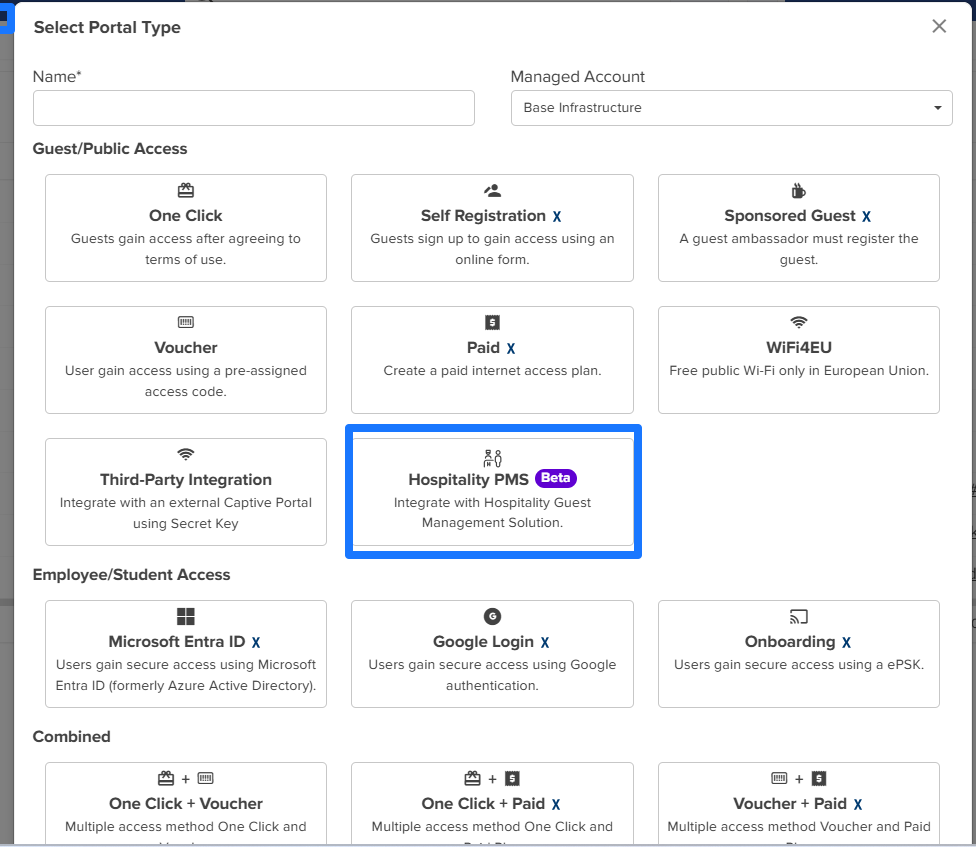
Navigate to EasyPass > Add Portal > Hospitality PMS
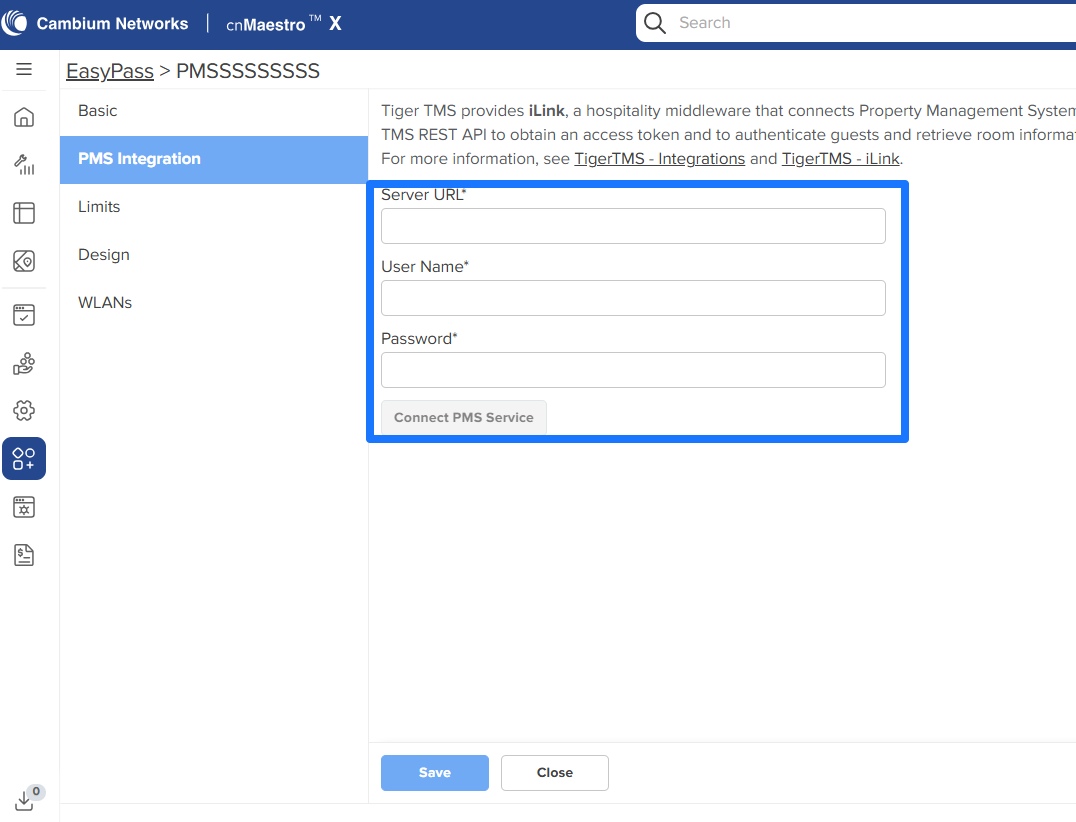
Configure Server URL, Username and Password under PMS integration page to connect with PMS service.
MarketApps: Per-site Monitoring Dashboards
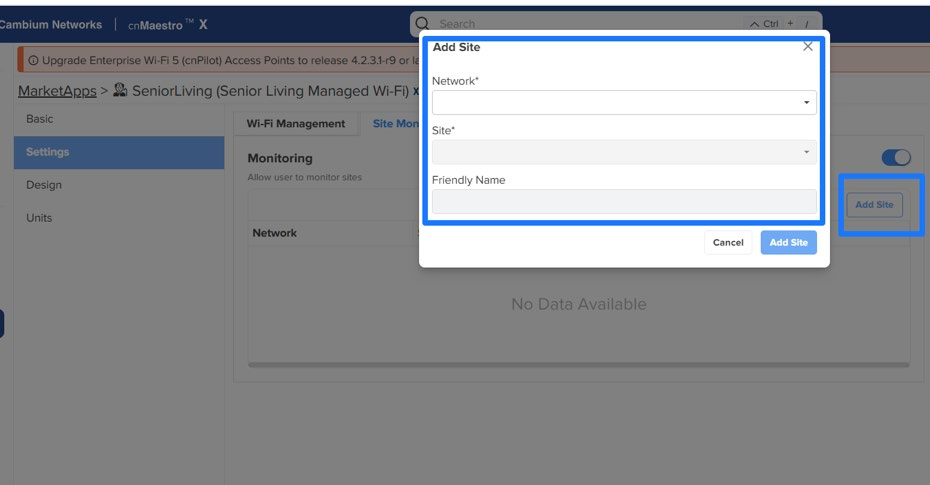
This feature enhances MarketApps by enabling property managers to configure which sites they wish to monitor within their network infrastructure. This feature is available for MDU Managed WiFi, Outdoor Hospitality Managed WiFi, and Senior Living Managed WiFi.
Navigate to MarketApps > Settings > Site Monitoring > Enable and add the sites that need to be monitored.
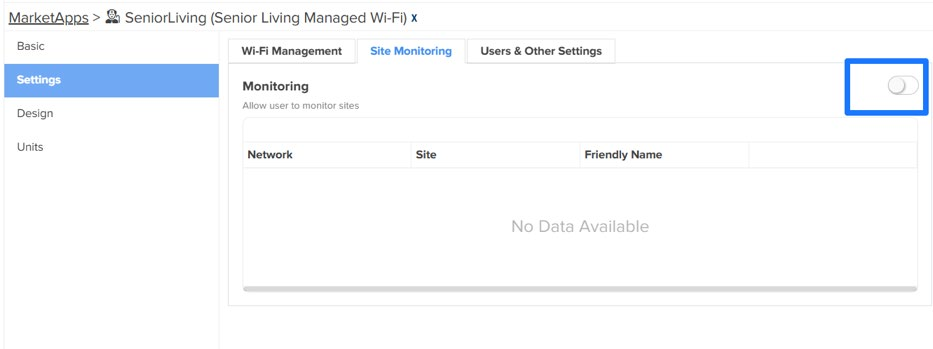
Once enabled, navigate to Add Site and select the intended Networks and Sites.
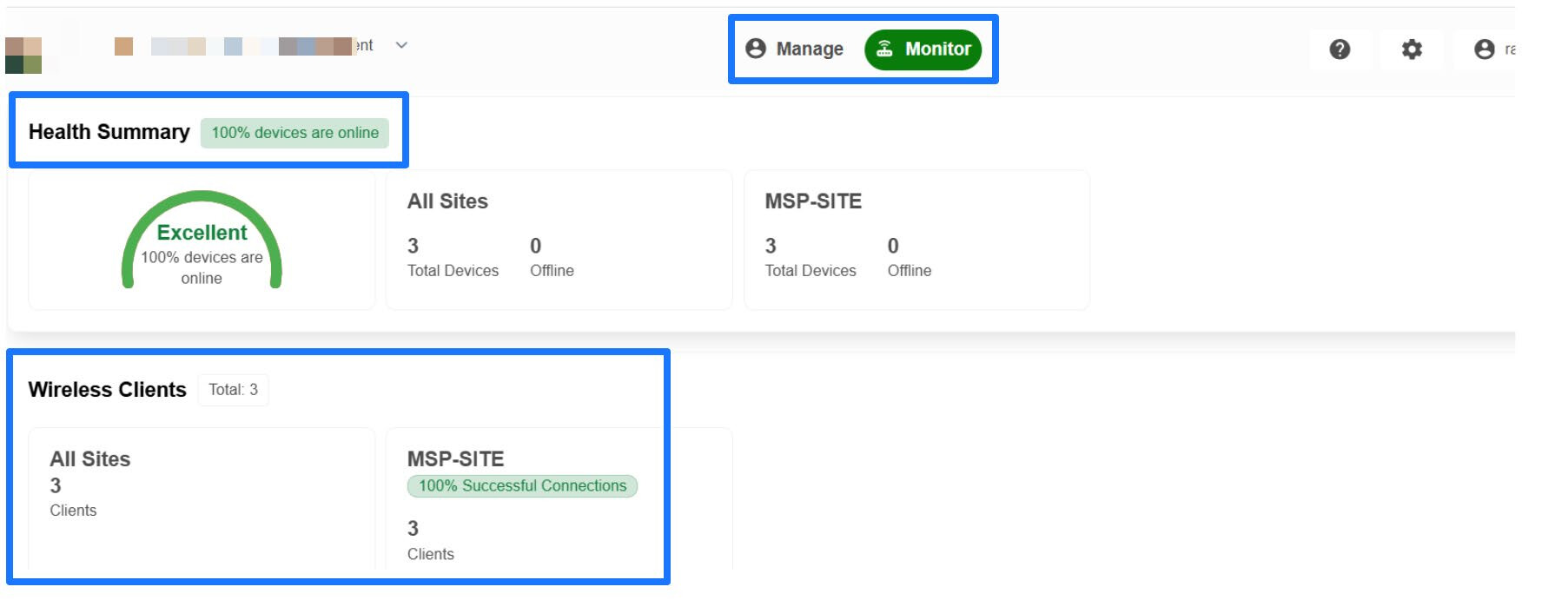
Navigate to the manager portal to see the monitoring details like Health Summary, Wireless Clients, WiFi networks, and Unit Health.
MarketApps: cnMatrix Device Replacement Support in Installer App
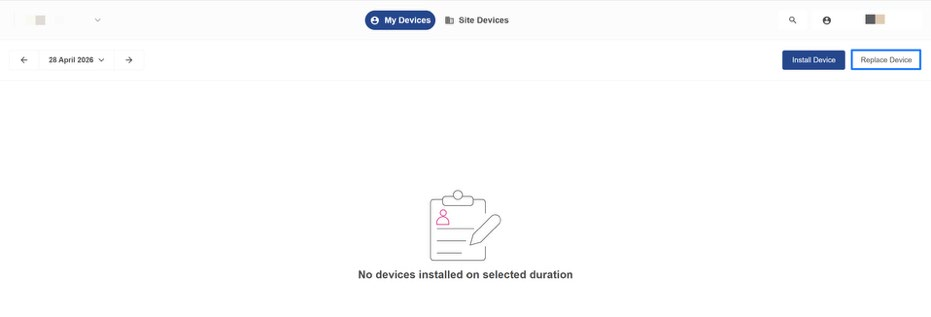
This feature enhances the Installer App by enabling streamlined workflows for replacing existing cnMatrix switches.
With this capability, installers can efficiently replace switches as part of upgrade or maintenance activities without complex manual steps. The workflow is designed to simplify hardware replacement in the field while ensuring continuity of deployment processes and preventing unsupported replacements, cross-site mismatches, and switch model mismatches.
This results in faster device replacement, reduced operational effort, and minimized network downtime, ultimately improving overall deployment efficiency.
MarketApps: Installer App Enhancements
Streamlined Installation Workflow for Pre-configured Devices
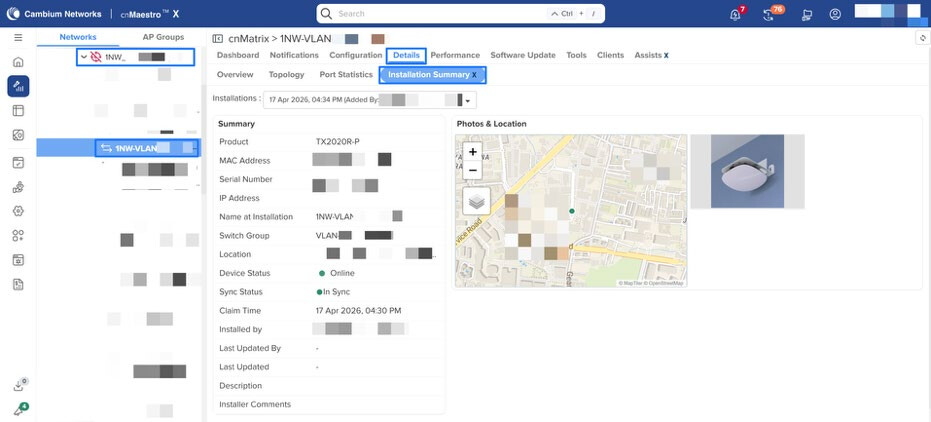
This feature enables installers to capture and submit installation details for devices that are already claimed or pre-configured in cnMaestro.
With this enhancement, installers can use the existing Assign workflow to scan a QR code or manually enter a device serial number, then proceed directly with installation data collection. They can enter key installation parameters such as height, elevation, azimuth, and tilt, upload up to four site photos, run a speed test, and save the details as an Installation Summary.
This workflow does not require installers to search for the device or modify existing configuration, such as AP Groups, device name, or description. If the device is already configured by an MSP, those values are preserved and skipped during the installation flow.
The saved Installation Summary is associated with the device and becomes visible in cnMaestro. This provides simpler field installation experience for both APs and switches while maintaining the existing device configuration.
Installer App Improvements
The enhancements below are introduced to improve scalability and usability for field deployments.
With this update, the Installer App now supports up to 50 users, an increase from the previous limit of 10, enabling better handling of larger teams and deployments.
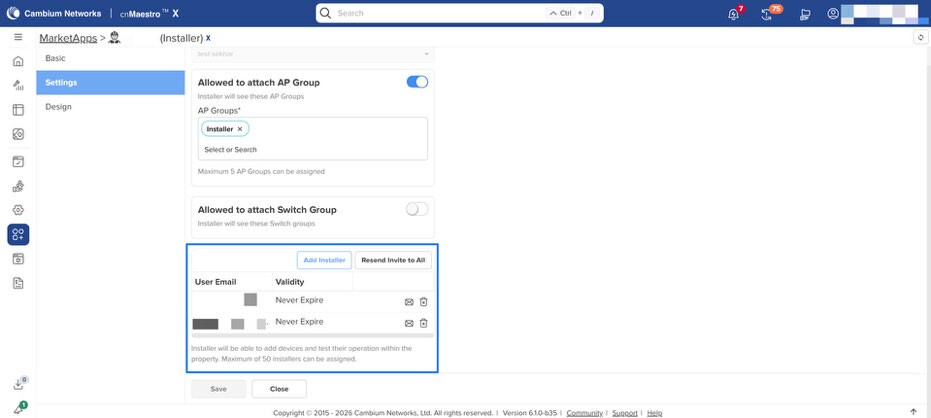
Additionally, the session duration has been extended from 24 hours to 7 days, reducing the need for frequent logins during ongoing installation activities.
These improvements enhance operational efficiency, provide a smoother user experience for installers, reduce login interruptions, and better suit the app for large-scale field operations.
Switch Groups Enhanced with Simplified Port Configuration
This feature improves the Switch Group user experience by simplifying port configuration and reducing confusion between model-level and device-level changes.
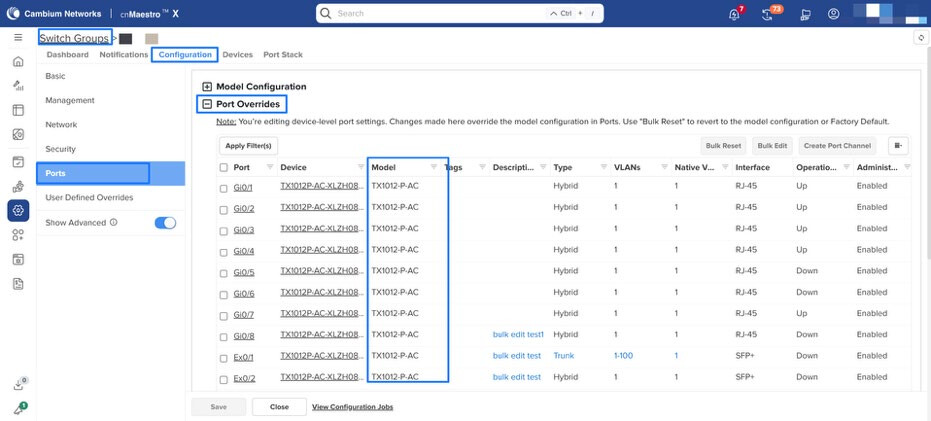
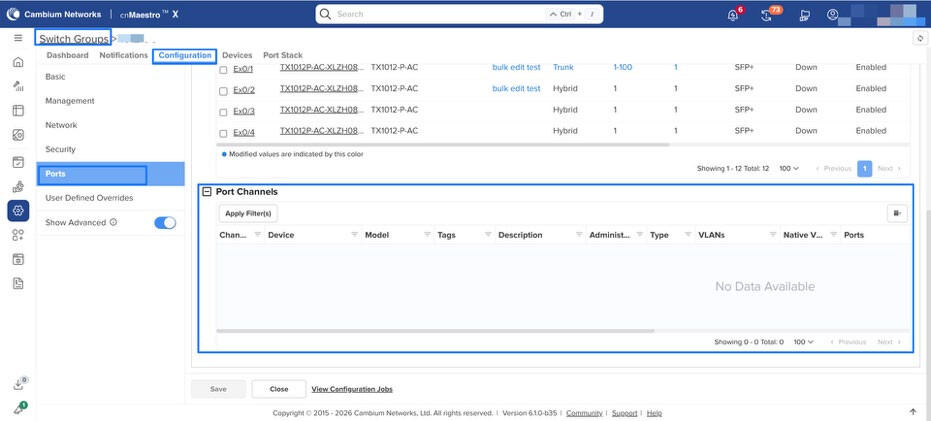
With this enhancement, port configuration (Port overrides and Port channels) is moved under Switch Groups > Configuration > Ports, while the existing model baseline configuration is available in a collapsible section.
The switch group clearly distinguishes between model configuration changes, which apply to all matching switches in the group, and port override changes, which apply only to the applicable switch. The Devices and Statistics views are also consolidated to provide a cleaner experience, and users can jump directly from port statistics to the related port configuration.
When saving changes, the system provides clear feedback about the scope of the changes and the impacted switches.
This enhancement makes switch port configuration easier to understand, reduces accidental bulk edits, and improves the overall configuration workflow.
60 GHz cnWave Enhancements
Inter-POP Insufficient Path MTU alarm
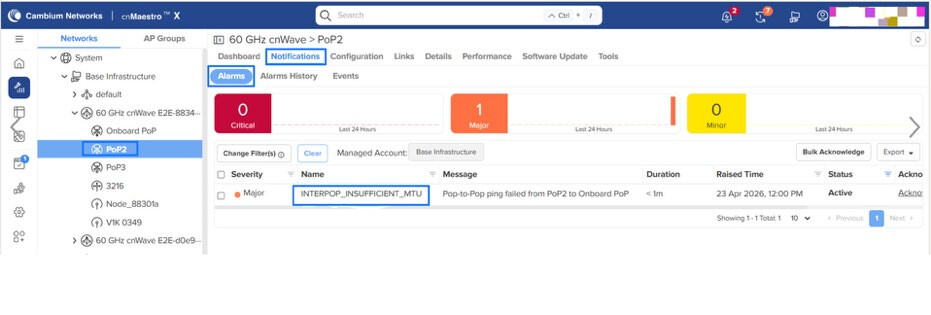
This feature introduces the INTERPOP_INSUFFICIENT_MTU alarm in cnMaestro for cnWave deployments. The alarm is triggered when the effective path MTU between two cnWave PoP nodes is less than 1934 bytes, typically due to an intermediate managed switch configured with the default MTU of 1500.
This enhancement helps operators quickly identify misconfigured MTU settings on switches between PoP nodes, preventing potential fragmentation or loss of subscriber traffic. If the issue is not resolved, the alarm automatically clears after 7 days.
Note: This feature is supported by 60 GHz cnWave PoP devices running firmware version 1.8 or later.
L2GRE Events
The L2GRE Tunnel Events in Notifications feature adds support for displaying cnWave L2GRE tunnel state changes in the Notifications > Events page.
With this enhancement, users can track L2GRE tunnel state changes directly from cnMaestro and review when tunnels go up or down using the following event names:
-
L2GRE_TUNNEL_UP
-
L2GRE_TUNNEL_DOWN
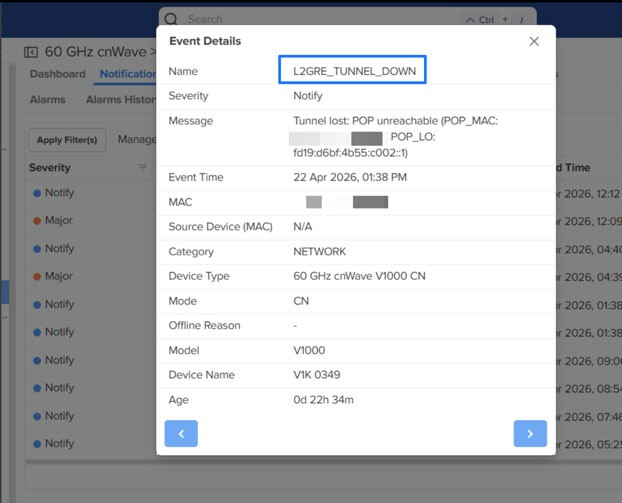
Note: This feature is supported by 60 GHz cnWave devices running firmware 1.8 or later.
PON Enhancements
Temperature graph for PON Ports
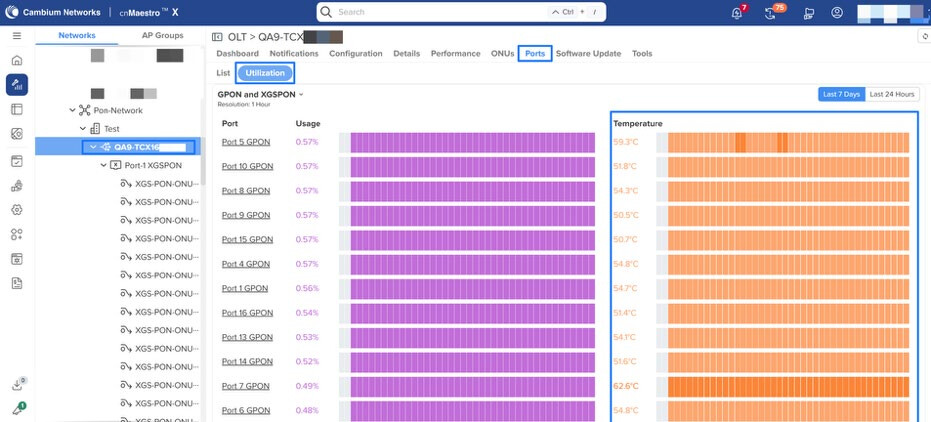
The Temperature graph for PON ports feature adds temperature trend visibility for PON ports in the OLT dashboard.
With this enhancement, temperature data already available in OLT Dashboard > Ports > List is now also plotted in OLT Dashboard > Ports > Utilization. Users can view real-time and historical temperature values for each PON port in a graph format.
Overdraft Reordering
This feature improves how devices are handled when subscription capacity is unavailable and how they transition back to paid subscription slots.
When a device is onboarded for the first time without an active subscription, it is placed in overdraft to prevent onboarding from being blocked. If the same device is re-onboarded later and no subscription is available, it is marked as a slot deficit instead of being allowed into overdraft again, ensuring fair usage.
When subscription capacity becomes available, devices in overdraft are automatically moved to paid subscriptions after completing their overdraft duration in the order they entered overdraft.
These changes make subscription allocation more predictable, fair, and efficient, while improving overall user visibility and experience.
Remote CLI Access Opt-In Consent
This feature adds customer-controlled consent for Cambium Support to execute diagnostic remote CLI commands on Cloud-managed devices.
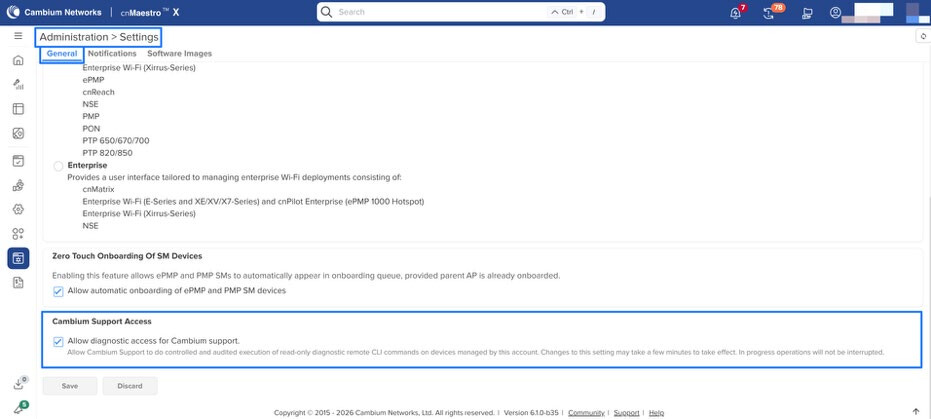
A new system-level administrative setting, Allow diagnostic access for Cambium support, is disabled by default. Customers can turn it ON from the Administration > Settings > General page. When enabled, Cambium Support can perform controlled and audited execution of read-only, allow-listed diagnostic CLI commands for troubleshooting. If disabled, remote CLI operations are blocked.
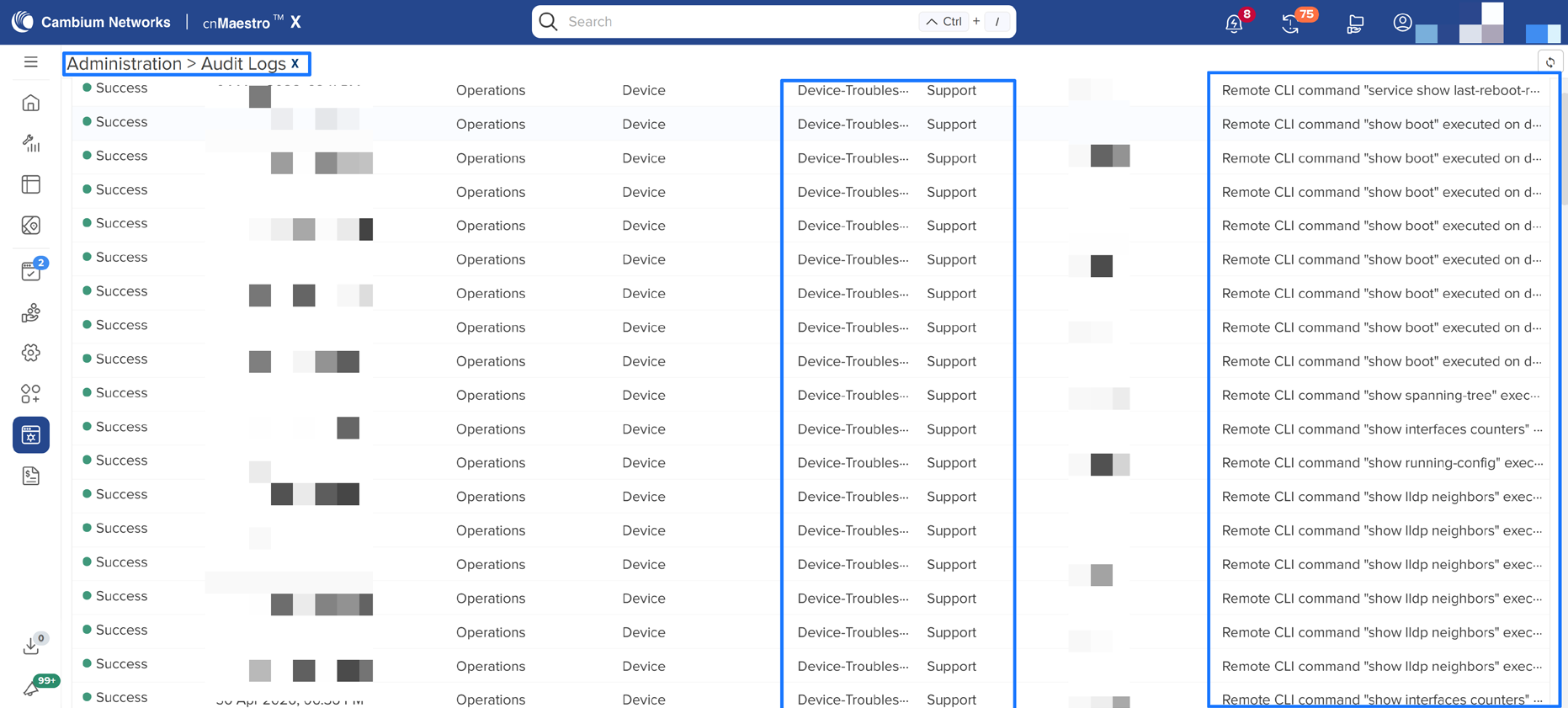
Only Super Administrators have the ability to enable or disable this setting. All changes to consent and executions of remote CLI commands are recorded in the Audit Logs for tracking and auditing purposes. This provides customers with better control and transparency while still enabling faster support diagnostics.
Miscellaneous Enhancements
Archive Expired Subscriptions
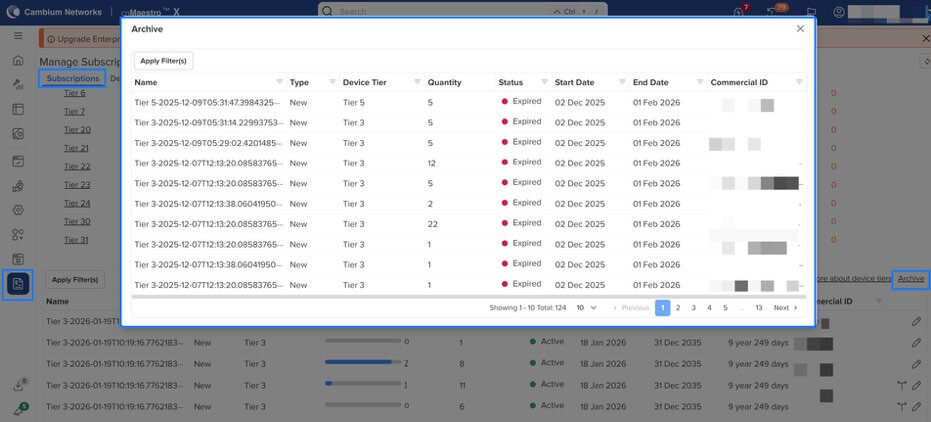
This feature improves how expired subscriptions are managed and displayed within the system. With this enhancement, expired subscriptions are automatically moved out of the active subscription view and archived. This reduces clutter in the user interface and ensures that only relevant, active subscriptions are prominently displayed.
By separating expired subscriptions from active ones, the system improves performance, especially for accounts with many subscriptions, and makes it easier for administrators to manage and review current entitlements.
Enhanced Ethernet Port Statistics
Previously, the system displayed only generic Ethernet or uplink speeds, without indicating which physical port was used for the uplink. This made it difficult to troubleshoot connectivity issues, especially for multi-port access points.
With this enhancement, a new default column Uplink Port Speed is introduced, showing both the port and its speed (for example, 1G (ETH1)). This allows users to quickly identify which port serves as the uplink and its operating speed. The column also includes filtering options based on speed (10M, 100M, 1G, and above), making it easier to analyze network performance across devices.
For more detailed analysis, individual Ethernet ports (ETH1, ETH2, ETH3) are available as optional columns through the column chooser. These columns provide port-specific speeds with filtering and sorting capabilities, enabling deeper troubleshooting when required.
Additionally, the feature includes guidance on applicability, indicating that uplink port visibility is supported on newer firmware versions, while legacy devices can still be analyzed using individual port columns.
Overall, this enhancement provides a clearer, more flexible view of Ethernet Ports performance, helping administrators quickly identify uplink behavior and troubleshoot connectivity issues more effectively.

Note: This feature is supported on APs running firmware 7.1.1 or later.
Site Alias Support
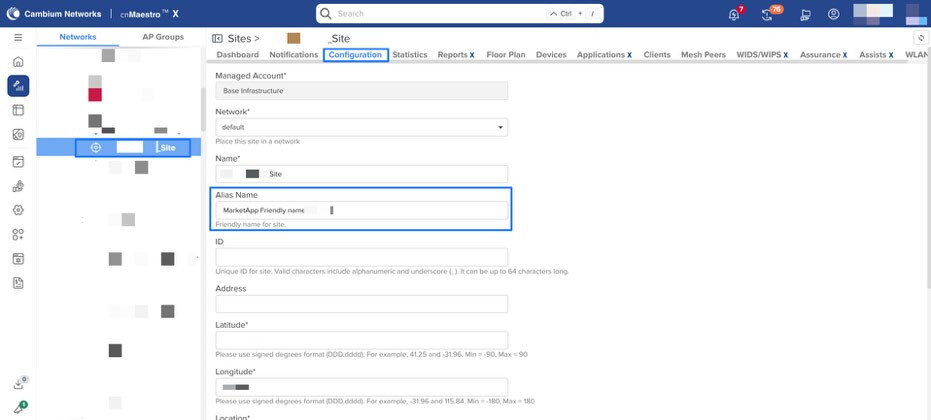
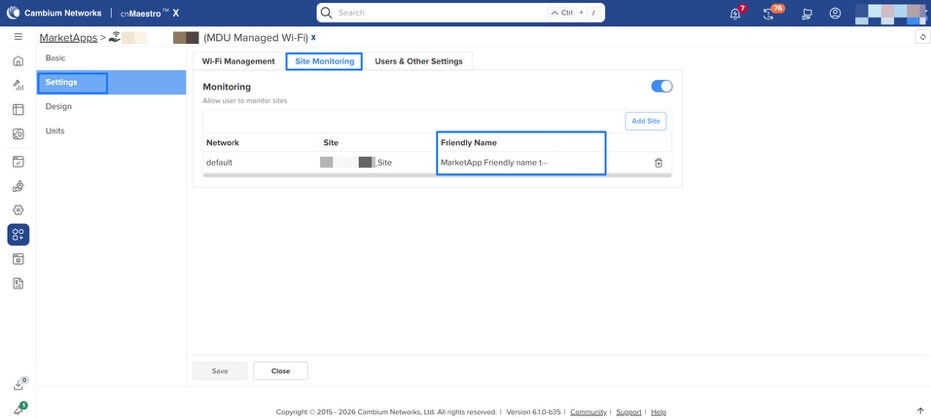
This feature enables assigning a friendly name (alias) to a site, improving usability and integration with applications such as MarketApps.
This enhancement allows administrators to define an optional alias for each site, improving readability and usability, especially in large deployments. The alias can be used alongside the existing site name to make identification more intuitive and aligned with business or operational needs.
In addition, safeguards have been introduced to prevent deletion of sites that are currently associated with applications such as MarketApps, ensuring system integrity.
Overall, this feature enables easier site identification, improves operational efficiency, and reduces the chances of misconfiguration.
PMP 450v Report Enhancements
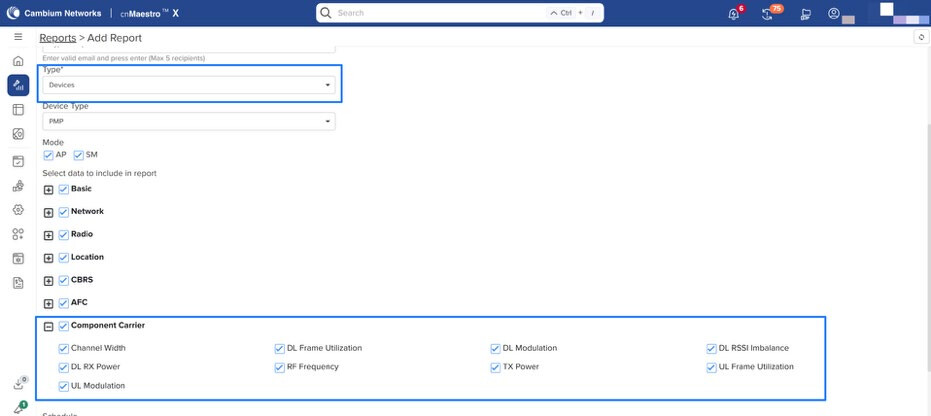
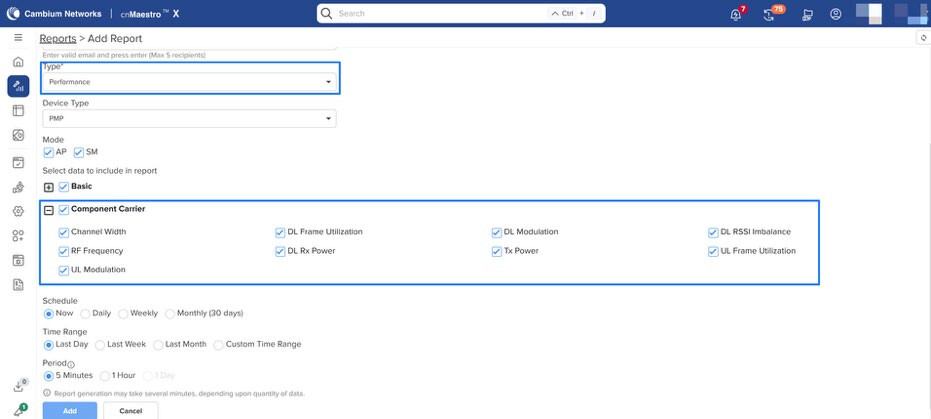
This release adds new reporting fields for PMP 450v 4x4 and 2x2 devices in the Performance and Device reports.
With this enhancement, reports now include additional RF and performance details such as RF frequency, channel width, and Tx power. AP reports include DL frame utilization and UL frame utilization, while SM reports include RSSI imbalance, DL Rx power, UL modulation, and DL modulation.
These fields are generated for all three component carriers, giving users more complete visibility into PMP 450v device performance and radio characteristics directly from reporting workflows.
Temperature Graph for PMP Devices
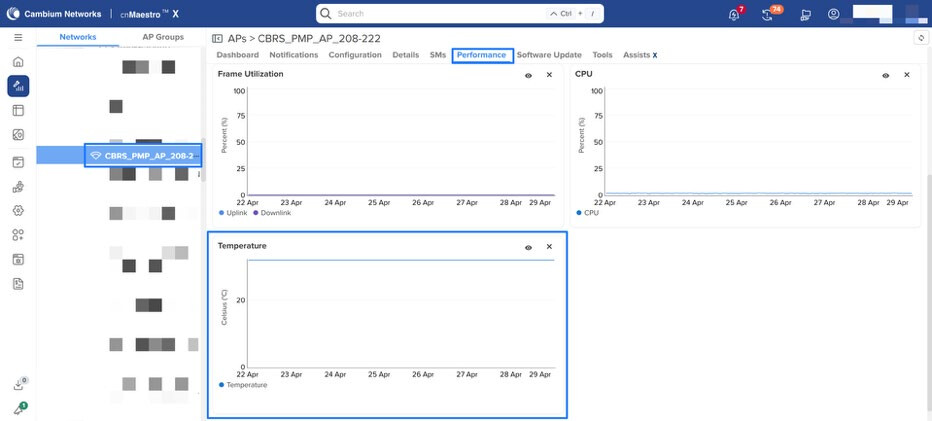
This release adds temperature monitoring and visualization for PMP devices, including 450m, 450i, and 450b.
With this enhancement, supported PMP APs and SMs periodically report temperature data to cnMaestro. cnMaestro stores the temperature values over time and displays them graphically in the Performance section for both APs and SMs.
For devices that report multiple temperature values, such as 450m devices with per-chain temperature data, each value is plotted separately and clearly labeled within the same graph.
This helps users monitor device temperature trends, identify thermal issues, and troubleshoot performance or hardware-related problems more effectively.
Updated Device and Data Grid Icons
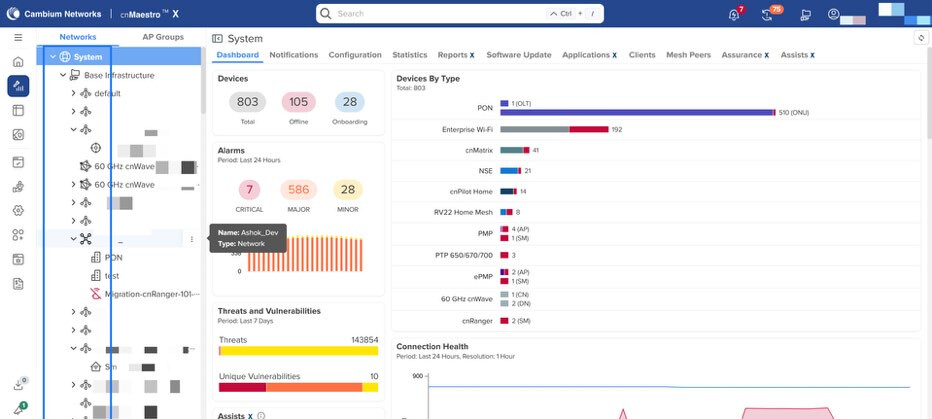
In this release icons across cnMaestro are refreshed to provide a more consistent and modern user experience.
With this update, icons in the network tree, enhanced search, and data grid tables have been revamped for improved visual consistency and easier recognition. This helps users quickly identify device types and actions across different areas of the application.
Tree Search Removal
The older Tree search has been retired. Enhanced search is now the default, offering improved speed, accuracy, and advanced search.
Events Delete Option Removal
The Delete Option Removal under Notifications > Events tab enhancement removes the single and bulk delete actions from the Events tab across all levels.
Notifications Alarm Selection Improvements
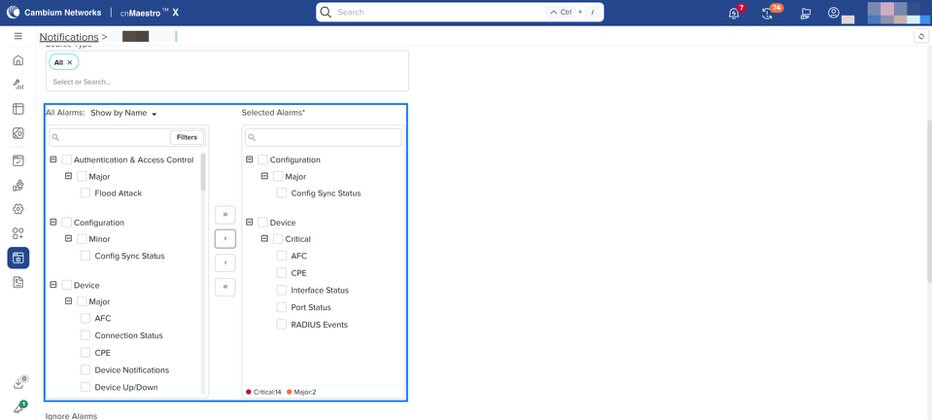
This release improves the alarm selection experience while configuring webhook notifications.
With this update, webhook alarm selection uses a clearer dual-list selection interface, making it easier for users to choose which alarms should trigger webhook notifications. The alarm filter experience has been simplified by adding Select All and Deselect All options, while removing unnecessary filtering from the selected alarms list.
The Notify option has also been removed from the selection workflow to reduce confusion and keep the configuration focused on alarm selection.
The update also improves clarity by separating display preferences from filtering behavior and by refining alarm options, such as listing only relevant alarm conditions (e.g., Offline) rather than including both Online and Offline states.
These changes make webhook notification configuration easier to understand, faster to manage, and less prone to selection errors.