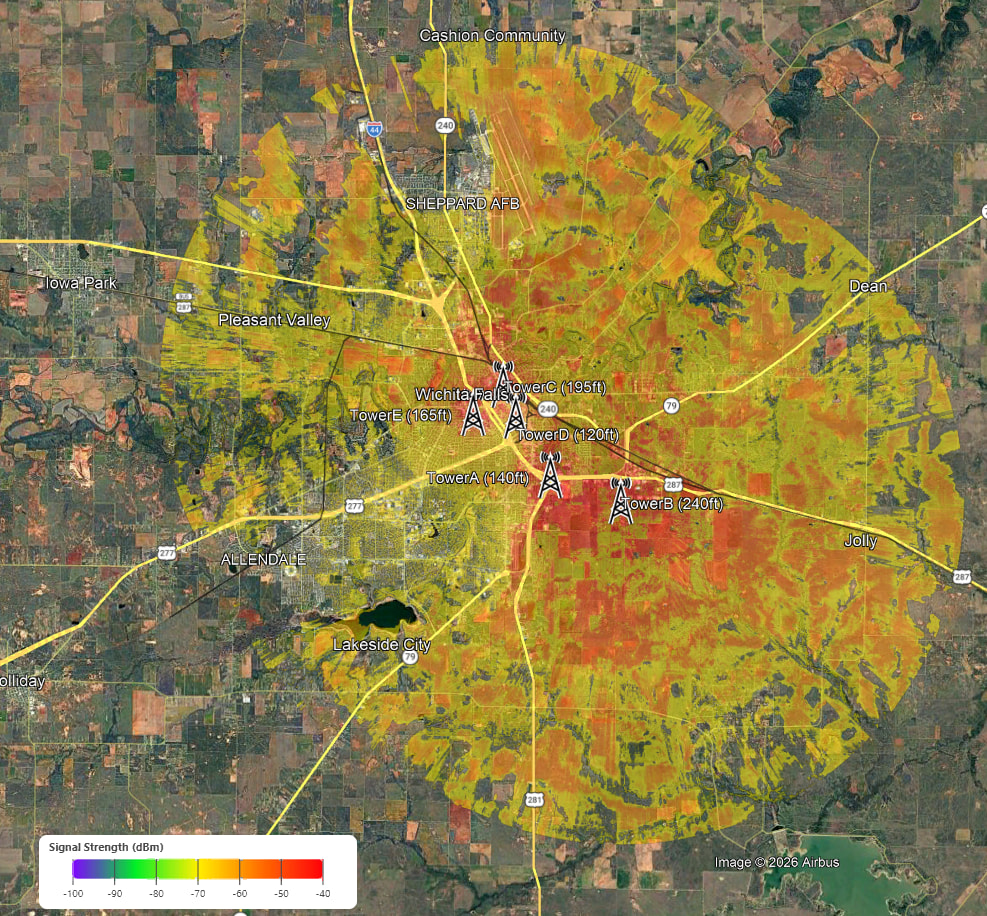
With Release 2.7.0, cnHeat now has the ability to export coverage to either KMZ or Geotiff.
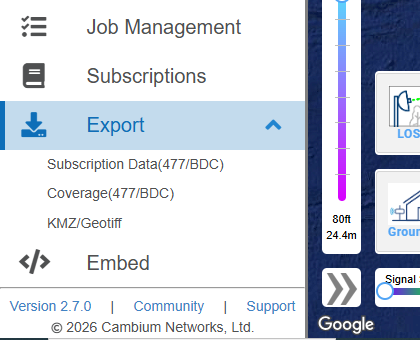
Under the Export menu option users will see KMZ/Geotiff.
In Step 1, select the desired radios from the list in the top and click the Add button.
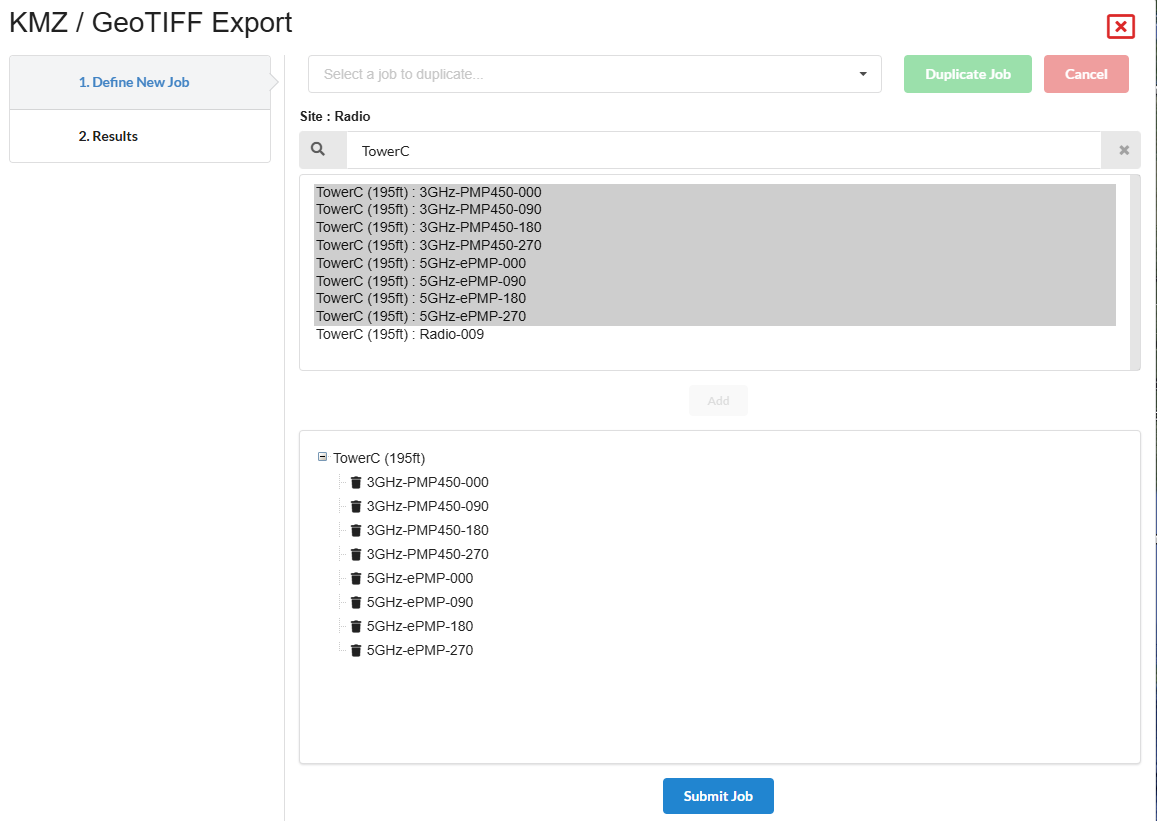
Then click Submit Job at the bottom.
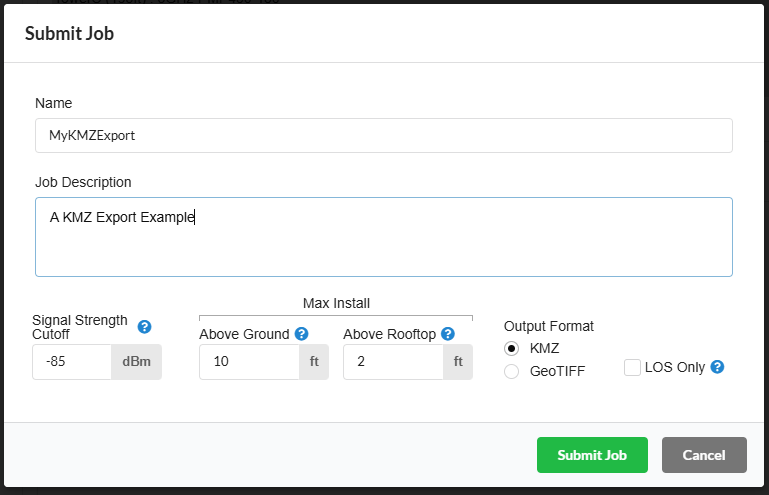
Fill out the form and click Submit Job.
Use the info tooltips as needed.
Note: The Above Ground and Above Rooftop are used in conjunction with each other to create a single coverage map. If there is coverage at either the designated height above ground OR the designated height above clutter, then coverage is shown in the export. (Coverage above rooftop is removed from consideration for a given pixel if that pixel is classified as a tree.) To disable one of these, use a value of “-1”.
Submitted jobs can be monitored in Step 2. When the job is finished the results can be downloaded.

Here is an example of a KMZ export for multiple towers with a signal of -72dBm or better.