Overview
This guide explains how to upgrade the firmware (software image) on a Cambium Networks cnMatrix switch using the device’s built-in graphical user interface (GUI). The process applies to cnMatrix EX and TX series switches and is performed entirely through a web browser - no additional software is required.
Prerequisites
- A PC or laptop with a supported web browser (Chrome, Edge, or Firefox recommended).
- Network access to the switch’s management IP address, or a direct Ethernet connection to the switch’s dedicated MGMT port.
- Valid administrator credentials for the switch GUI.
- The target cnMatrix firmware file downloaded to your PC. Firmware images are available from the Cambium Networks support portal at: https://support.cambiumnetworks.com/files/cnmatrix/
Note: Always confirm the firmware file matches your switch model/family before starting the upgrade. Refer to the release notes published alongside the firmware file for compatibility and known issues.
Step 1: Log In to the Switch GUI
There are two ways to access the switch’s web interface, depending on whether the switch already a management IP address has assigned.
Option A: Switch Already Has a Management IP Address
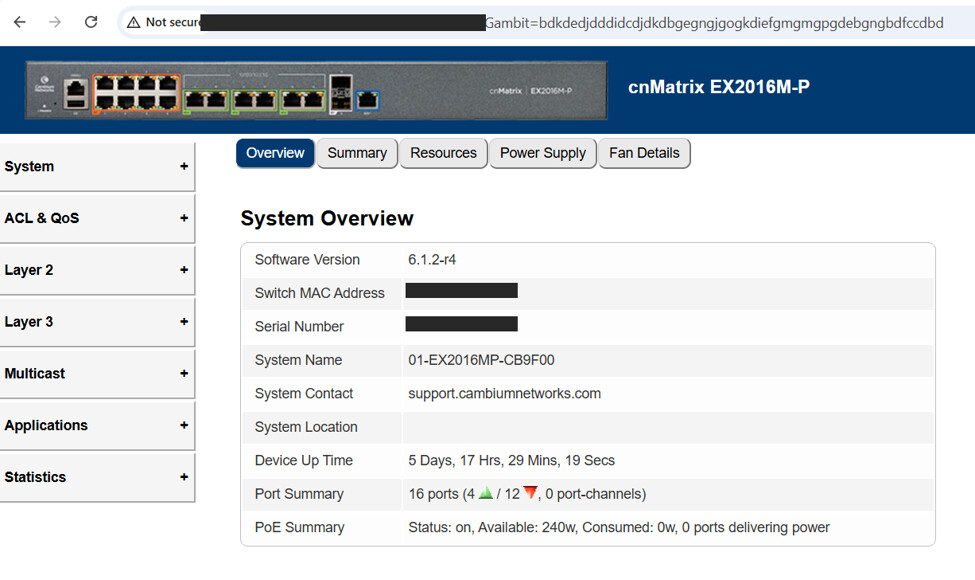
If the switch already has an IP address assigned to Interface VLAN 1 (as shown in the example screenshot below), that address can be used to log in directly.
- Open your web browser and navigate to:
http://<switch-management-IP>(example:http://192.168.100.1)- Enter your administrator credentials and log in to the device GUI.
Option B: New / Unconfigured Switch (No Management IP Assigned)
New switches that have not yet been connected to the network can be accessed using the default Out-of-Band (OOB) management port.
- Connect: Use an Ethernet cable to connect your PC directly to the dedicated MGMT port on the switch.
- Set your PC’s IP address: Configure your computer’s network adapter with a static IP in the same subnet as the switch, for example IP address 192.168.0.10 with subnet mask 255.255.255.0
- Open your web browser and navigate to:
http://192.168.0.1(the factory default OOB management address). - Log in using the factory default credentials: username admin and password admin.
Note: Once logged in using the default username and password, the device will prompt you to change the default login credentials.
Once logged in, the device GUI homepage is displayed, showing the system overview for the switch.
Step 2: Navigate to the Software Upgrade Page
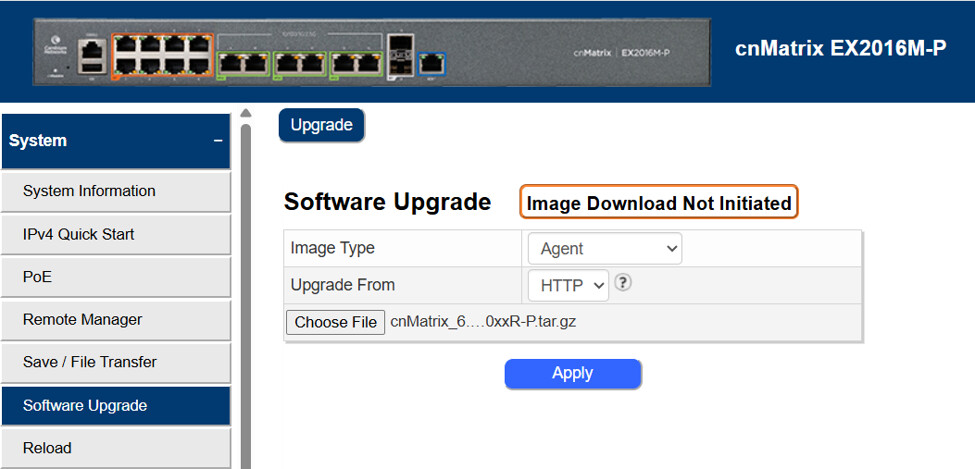
- From the left-hand navigation menu, click System.
- Select Software Upgrade.
- Click Choose File and select the cnMatrix firmware file previously downloaded to your PC.
Step 3: Apply the Firmware Update
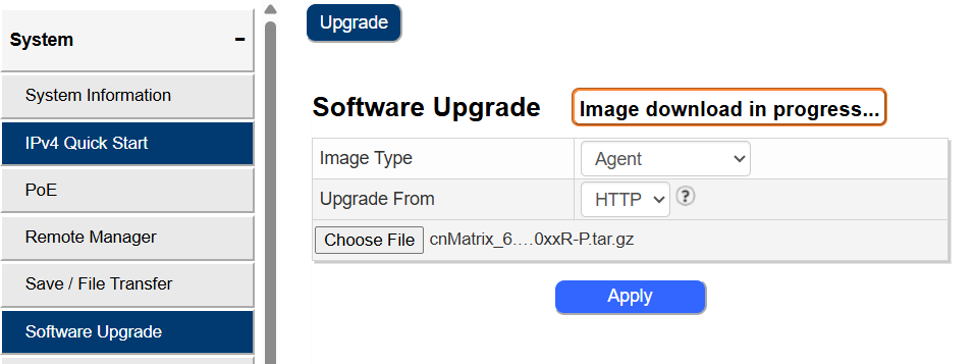
- Click Apply to begin uploading the firmware image to the switch.
- The status banner will change to “Image download in progress…” while the file is transferred to the switch.
Note: Do not close the browser tab, refresh the page, or power off the switch while the image download is in progress. Doing so may corrupt the upload and require recovery steps.
Step 4: Confirm Successful Download and Reboot of the Switch
- Once the firmware file has finished copying to the switch, the status banner will update to confirm the download was successful and that a reboot is required to load the new image.
- Click the Reboot button in the top-right corner of the page.
- Confirm the reboot when prompted. The switch will restart and load the new firmware image.

Important: A switch reboot typically takes approximately 3 minutes. Network connectivity through the switch, including PoE to connected devices, will be temporarily interrupted during this time.
Step 6: Verify the New Firmware Version
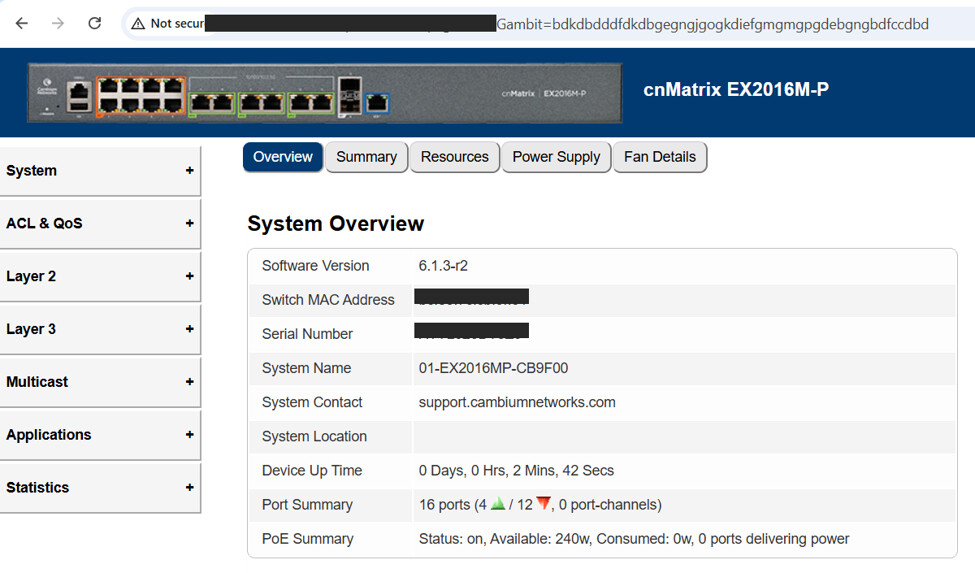
After the switch finishes rebooting, log back in to the device GUI using the same management IP address used previously. The System Overview page will display the updated Software Version, confirming the upgrade was successful.
Summary
The cnMatrix firmware upgrade process via the device GUI involves: logging in to the switch, uploading the new firmware image through the Software Upgrade page, applying and confirming the download, rebooting the switch, and verifying the new version on the System Overview page.
Troubleshooting & Tips
- If the GUI is unreachable, confirm you are using the correct IP address, that your PC is on the same subnet as the switch (or connected to the MGMT port), and that no firewall is blocking access.
- If the firmware upload fails or stalls, verify the firmware file was fully downloaded and is uncorrupted, then retry the upload.
- If the switch does not come back online after rebooting, allow additional time (some platforms can take longer than 3 minutes), then attempt to reconnect.
- Always review the firmware release notes prior to upgrading for version-specific compatibility notes or required upgrade paths.
- For further assistance, contact Cambium Networks Support or visit the Cambium Networks Community.