LINKPlanner online has been updated to version 6.3.4
The key features of the 6.3.4 release are:
New Features
Use existing PTP Link, PMP Network Device, or PMP Link as a template
The PTP Links, PMP Network Device, PMP Links, and Subscriber Modules tables allow a device (row) to be used as an equipment template, which can be applied to create new ones using that configuration.
To create new PTP Links, Network Devices, or PMP Links, click  , then select the required equipment template from the Configure From Existing dropdown list in the pop-up window.
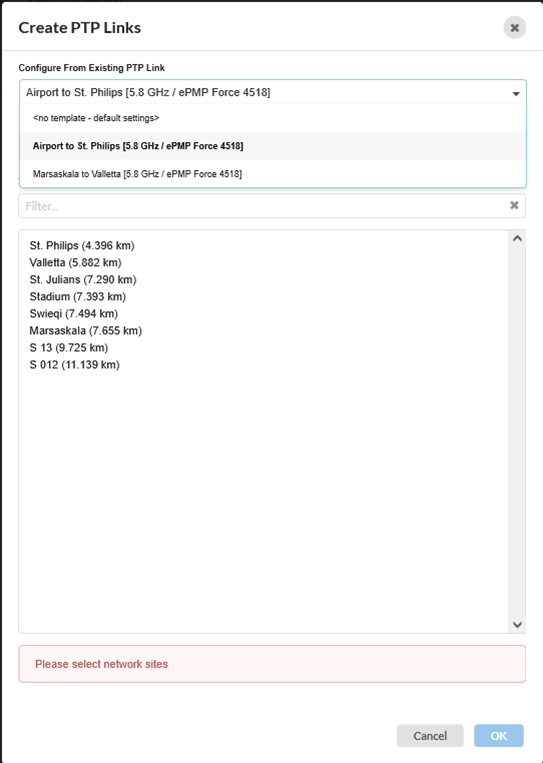
Same method can be applied when creating PTP Links, Network Devices, or PMP Links using map tools.

In the PMP Links view, the subscribers will only be updated if the equipment template is valid on the Network Device the subscriber is connected to.
Address search feature added for quick location lookup
To search for an address and create a Network or Subscriber Site at that location, click  icon located at the top-left corner of the map, then enter an address or latitude/longitude to search.
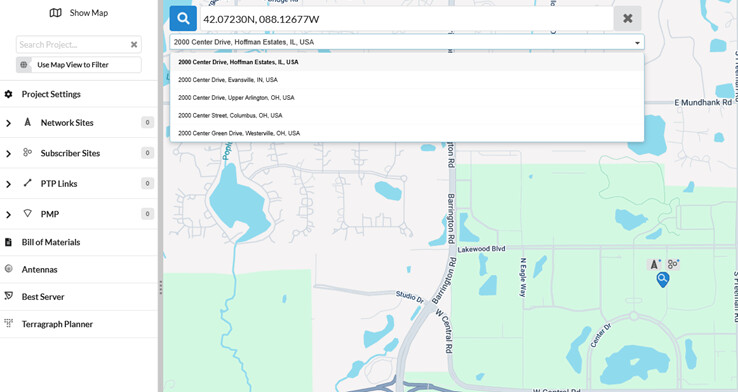
To add Network site at the searched location, click  . To add Subscriber site at the searched location, click
There is a limit of 50 searches per hour. Please note that partial searches are also counted toward this limit.
Import Geometry layers into the map
LINKPlanner now supports importing and visualizing GIS layers on the map from KMZ/KML files. Each geometry layer type (polygon, line, and point) can be styled and displayed individually.
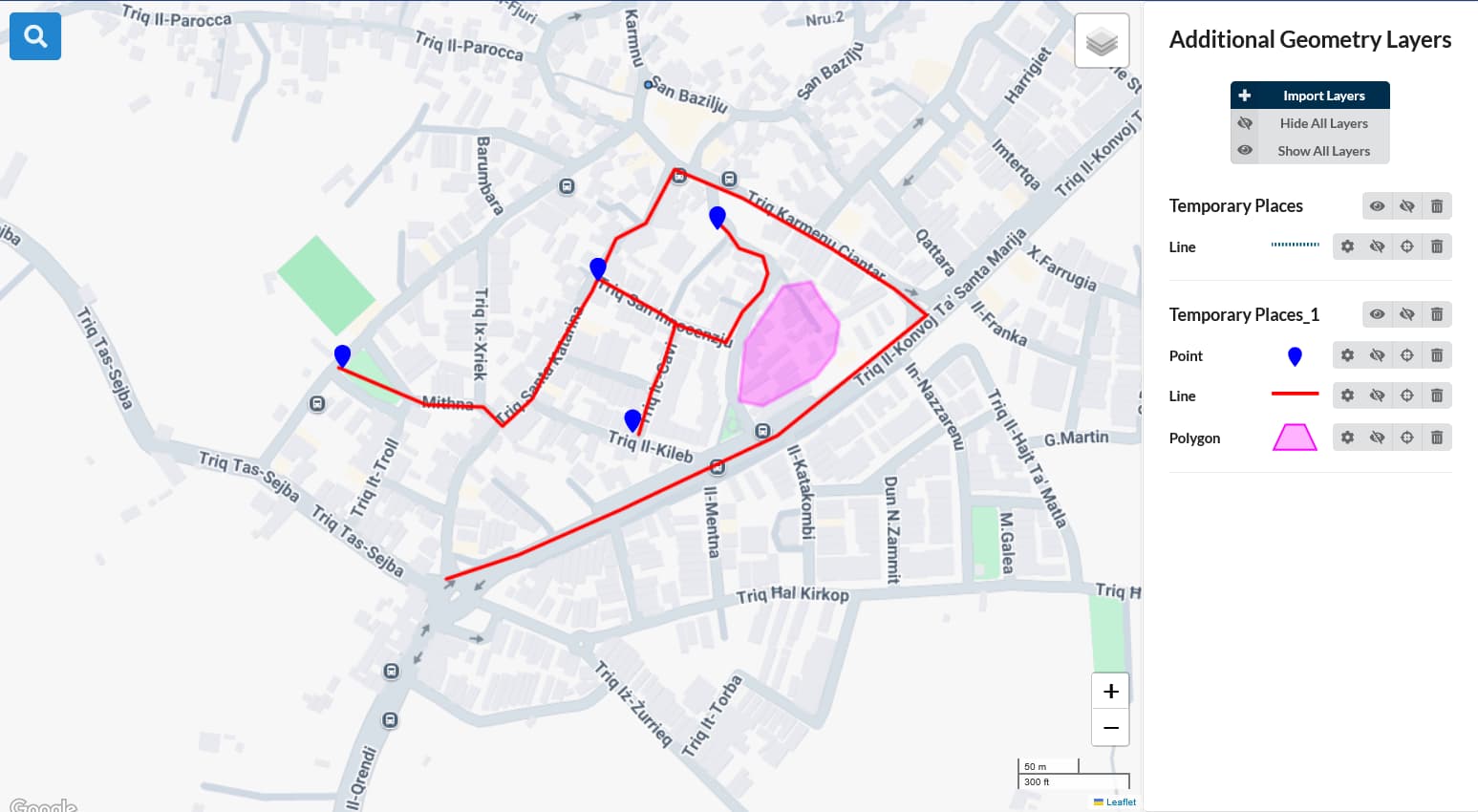
To import GIS layers, click  icon in the right hand map menu bar. This opens the Additional Geometry Layers window. Click
  button to browse and import GIS layers from KMZ/KML file.
Once the import has finished, the menu in the Additional Geometry Layers will be populated with an entry for each imported file. This menu contains a list of geometry files that have been previously imported. Use the radio button  to display the desired geometry layer or select
  to hide the geometry layer.
Click  to locate the geometry layer in the map. This command causes the layer to be visible.
Click  to delete the geometry layer.
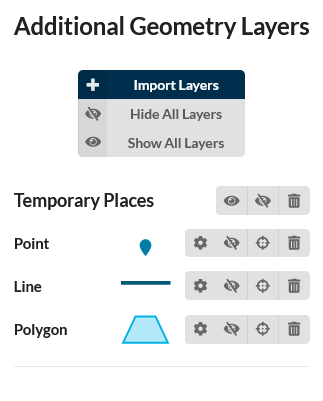
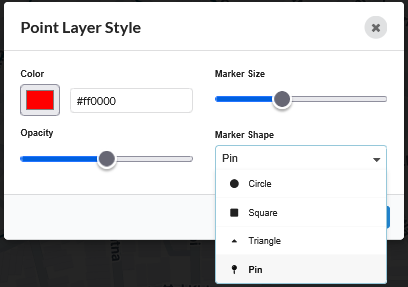
Individual layer types within the imported file can be styled for better visualization. To set the layer style, click the  icon. The Style Edit window will open. For the Point layer, color, marker size, opacity, and marker shape can be customized. For the Line layer, color, line thickness, opacity, and line style can be customized. For the Polygon layer, color and opacity can be customized.
Added Import Profile option to the profile editor
To import the profile from a csv file or Pathloss file, select the  button on the profile and select the file and click OK.
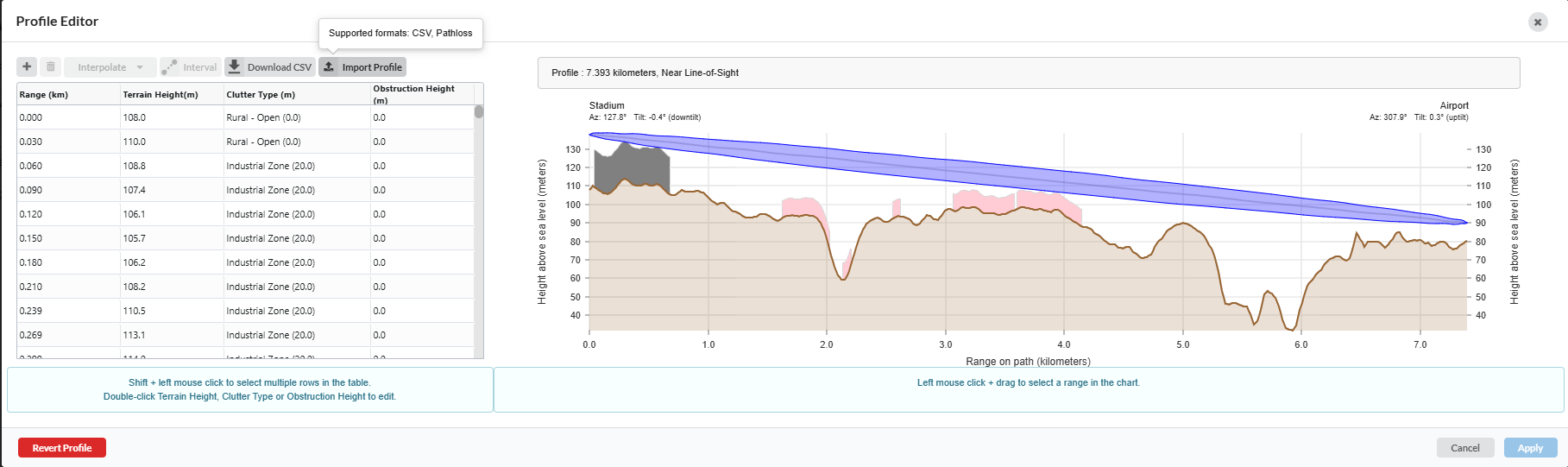
For easier manual editing of an existing profile, you can download the profile, make the necessary changes in a spreadsheet, and then import the edited profile back into the Profile Editor. This streamlines the editing process.
Paths can be defined in a CSV file created using Excel or a text editor. The first row must include headers with units, for example, range in (km) or (mi), height and clutter in (m) or (ft). If units are missing or unrecognized, preferred units will be used. The range value increments from zero at the local (left hand) end of the path to the maximum path length.
Path profiles can be imported from Pathloss text reports, using the Terrain profile listing which will give the name and co-ordinates of each site and the path profile including obstructions between the sites. Pathloss reports may contain multiple links, however LINKPlanner can only import one profile per file.
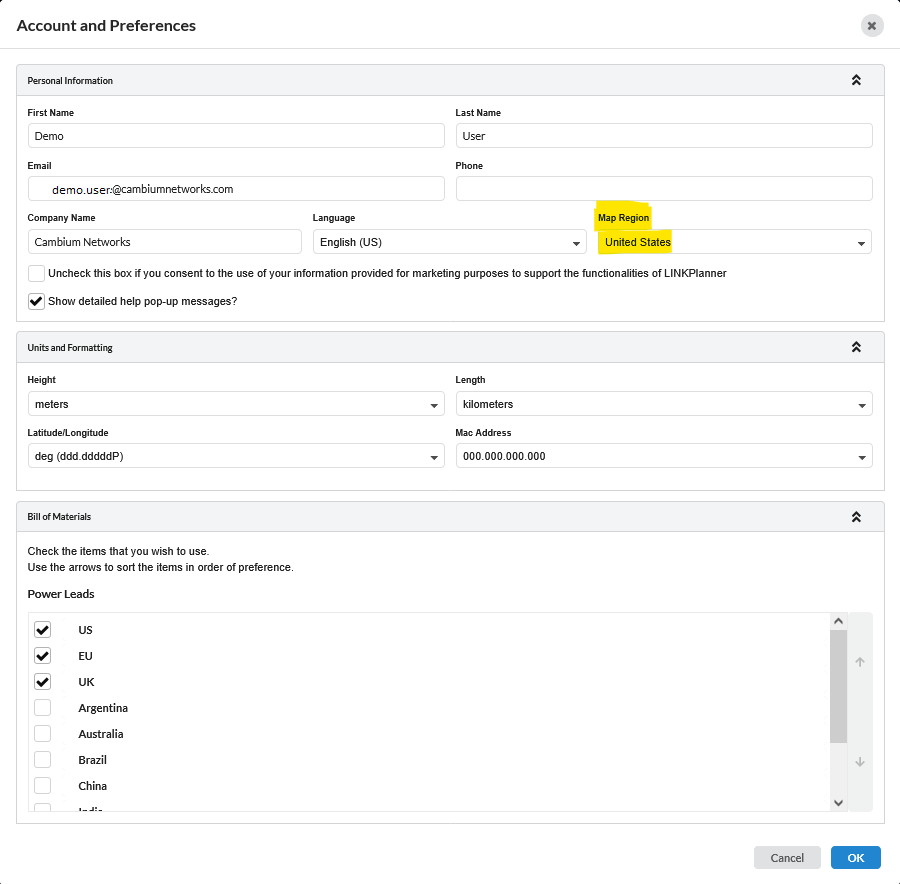
Added option to set Map Region in Preferences
Set the required Map Region in the Preferences window to display the correct regional map.
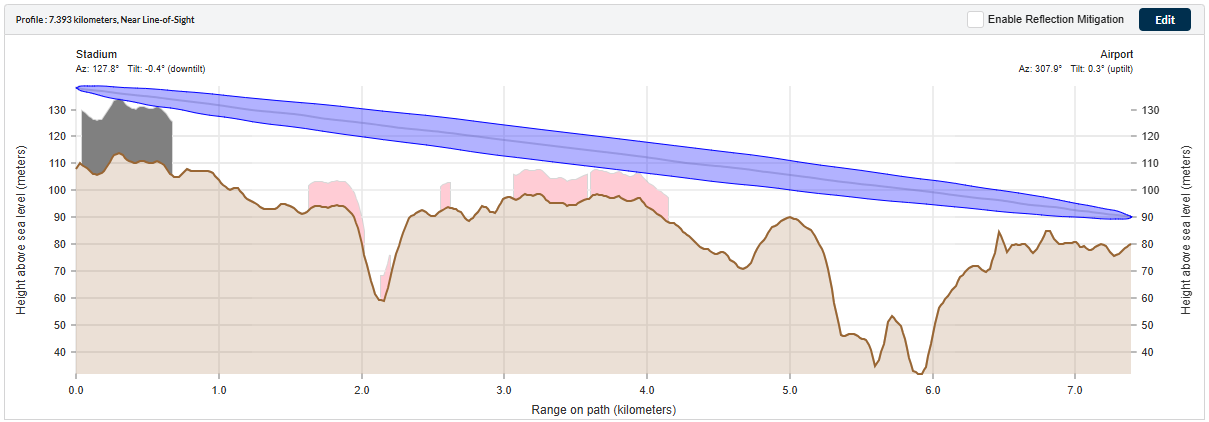
Profile view now shows antenna azimuth and tilt
The Profile View now displays the antenna azimuth and tilt for each side of the link. Tilt is displayed in red when the link is obstructed.
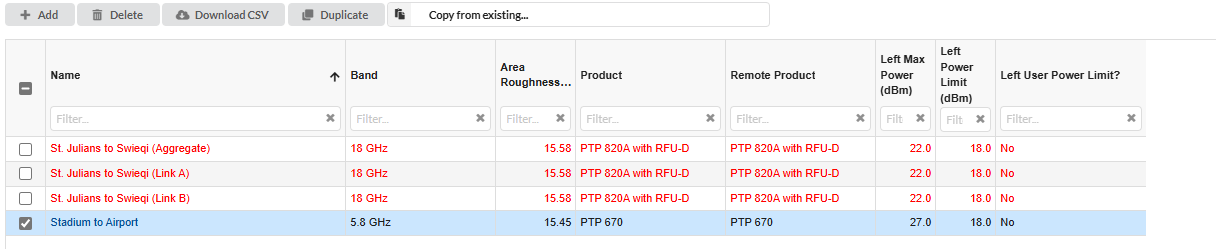
Added Duplicate button to the PTP table view
To duplicate PTP links, select one or more links in the table view and click  icon. The new versions will have the same attributes as the original links.
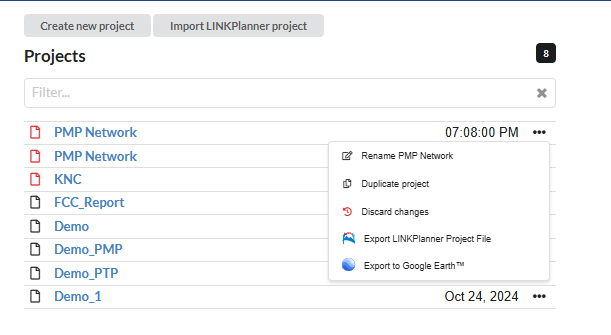
Reintroduced the ability to export a project from the project list in LINKPlanner.
To export a LINKPlanner project from the Project List window, click the “…” next to the project name, then select Export LINKPlanner Project File.
General
Updated Gaseous Absorption Loss calculations to ITU-R P 676-13
Updated to latest ITU standards.
AFC
AFC Support Added for Australia
AFC support is now available for Australia. Please note that the results are currently tentative and subject to change.
Extended AFC Support to FCC Regions
PTP 820/850
Added PTP 850CX Support in 11 GHz and 18 GHz Bands
Added PTP 820A with RFU-SX in 11 GHz and 18 GHz Bands
1+0 link type and PoE power is supported in this release.
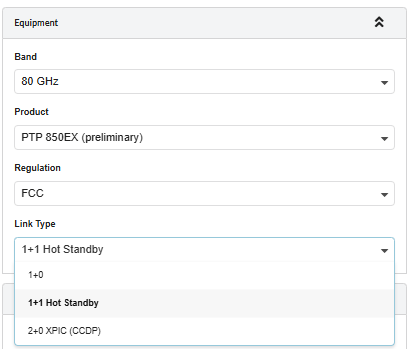
Added 1+1 Hot Standby Link Type for the PTP 850EX and PTP 850EX-P
Support for 1+1 Hot Standby link configuration has been added for PTP 850EX and PTP 850EX-P, enabling enhanced link redundancy and reliability in network designs.
Extended TX/Rx frequency range for PTP 850C in 7 GHz band
Tx/Rx 161F parts are added to the PTP 850C in 7 GHz band.
PSU Parts Added to Default BOM for PTP 820/850 with DC Power
When DC power is selected, appropriate PSU parts are now automatically included in the default BOM for PTP 820/850 products.
ePMP
Added DL MU MIMO support for the ePMP 11ax products
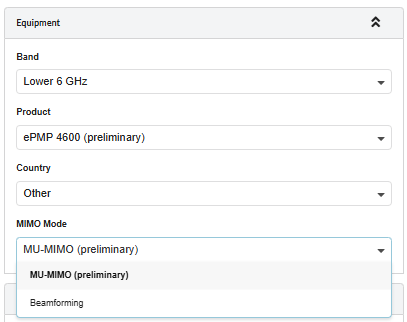
Downlink MU-MIMO is supported on the ePMP 4600 and ePMP 4500 APs.
To use Downlink MU-MIMO mode, select MU-MIMO from the MIMO Mode dropdown list in the AP page.
Added support for the ePMP Force 4518 in FCC/IC regions
Added support for ePMP Force 4616 in PTP and PMP modes for ROW regions
The ePMP Force 4616 is available in both PTP and PMP modes. In PTP mode, this product is compatible with 6 GHz ePMP 11ax products. In PMP mode, this product available as a Subscriber Module for the ePMP 4600 series Access Point. In this release, the ePMP Force 4616 product is only available for ROW regions.
Replaced ePMP 3000L and Force 300 CSM ROW radio parts with FSR radio parts in 5.1 GHz to 5.9 GHz band
Added ePMP 3000 FSR radio parts to the optional extras of the BOM
Retired ePMP Force 180
Retired ePMP Dual Horn MU-MIMO antenna
PMP 450
Added PTP 450v 4x4 and PTP 450v 2x2 to the PTP mode
In this release added support for 2 Carriers and 2 Component Carriers.
Retired 450i ATEX/HAZLOC product in both PTP and PMP mode
PTP 670/700
Updated PTP 670 products to Release 670-04-25
Removed preliminary tag from Indonesia regulatory in 5.8 GHz band
Added OTA license key C000070K013 as an extra to the PTP 700 and PTP78 700 HCMP products
Retired PTP 670 ATEX/HAZLOC and PTP 670 HCMP ATEX/HAZLOC products
Bug Fixes
- Ensured that the correct line cords are added for the C000000L141 PoE when included in the BOM.
- Fixed PMP 450v power allocation when multiple carriers and component carriers are selected.
- Replaced PoE part N000000L142 with C000000L141 in the default BOM of PMP 4x4 AP.
- Ensured that the correct surge suppressor part is added to the default BOM of PMP 450v 4x4 AP.
- Fixed the issue where remote products could not be selected for PTP 450b products.
- Fixed the issue where incorrect performance details are shown for the AP when changes are made to the SM on the AP properties page.
- Ensured that the user entered cable length is always displayed when Calculate Cable Loss is enabled.
- Fixed the Y-axis and X-axis labels of the path profile to display whole numbers when the units are in feet and miles, respectively.
- Ensured no error occurs when switching from a PTP 700 2+0 link to PTP 820A products.
- Removed Optical MPO cables from optional extras of PTP 850EX/EX-P.
- Corrected the V2000 bracket part number under the optional extras