LINKPlanner online has been updated to version 6.4.1
The key features of the 6.4.1 release are:
New Features
Added TDD Sync feature for PTP 670/700 products.
PTP 670/700 products now support external synchronization in LINKPlanner. Once external synchronization is enabled, a new TDD Synchronization Sub-Panel appears, allowing you to view and adjust the TDD settings for individual links.
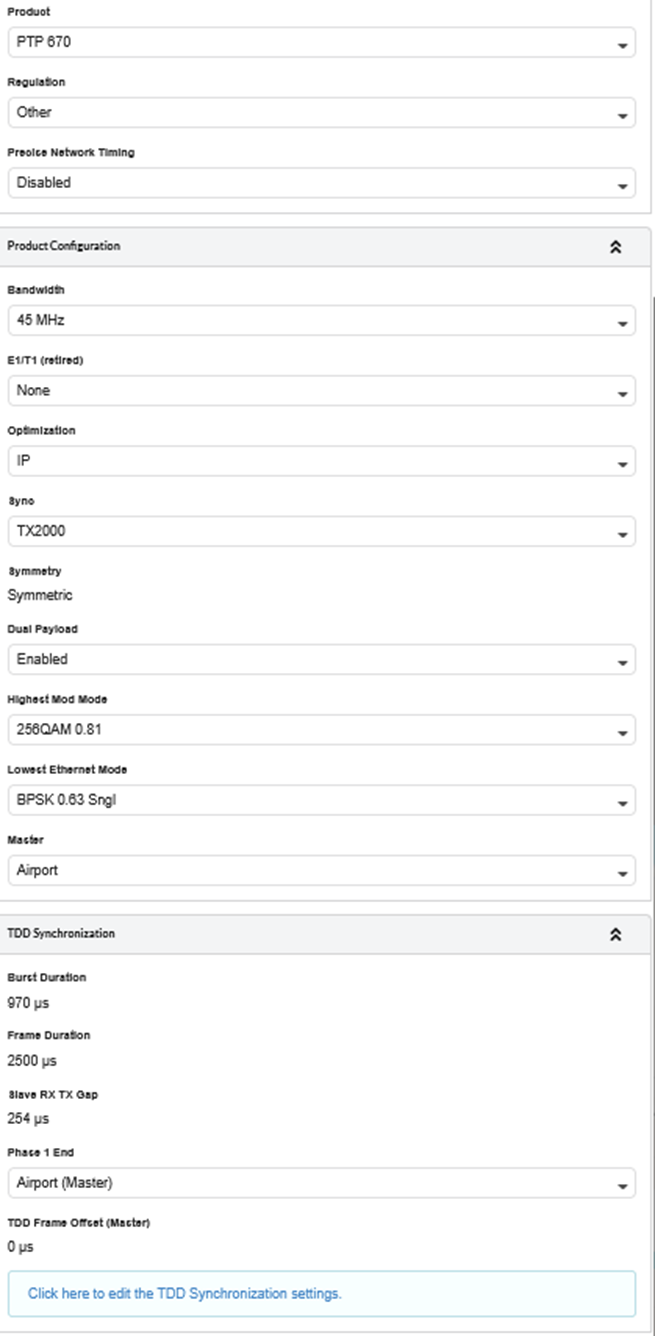
When TDD Synchronization is enabled for one or more PTP links in a project, they populate the TDD Synchronization List. To view this list, click the icon  in the left menu bar.
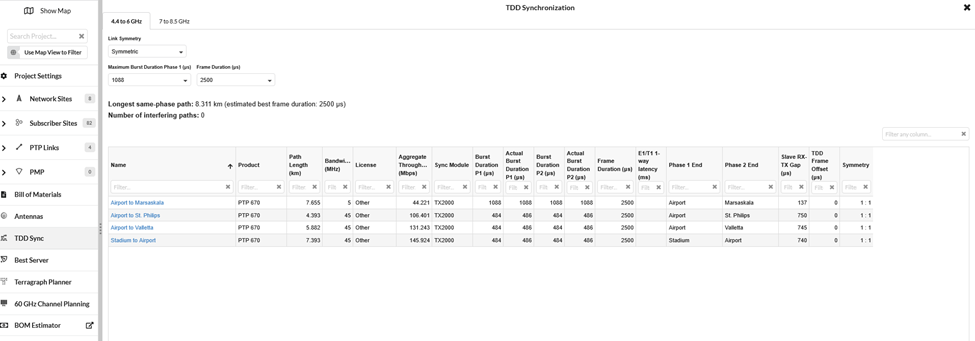
The list will then display in the right-hand panel. The network is divided by frequency bands into two separate tabs: one for links using radios that support 4.4 to 6 GHz and another for 7 to 8.5 GHz radios. Each tab manages link synchronization independently. If you select a tab that has no sync-enabled links for that frequency range, the following message will appear
This project has no synchronized links in this band
Use the TDD Sync list to set the Link Symmetry and adjust the Maximum Burst Duration and Frame Duration. When the network is symmetric, only the Maximum Burst Duration for Phase 1 needs to be configured. For asymmetric networks, the Maximum Burst Duration must be set for both Phase 1 and Phase 2.
For data rates to be accurate, they must first be valid. If the TDD synchronization settings are invalid, the link will be highlighted with a pink background, and the Aggregate Throughput will drop to zero.
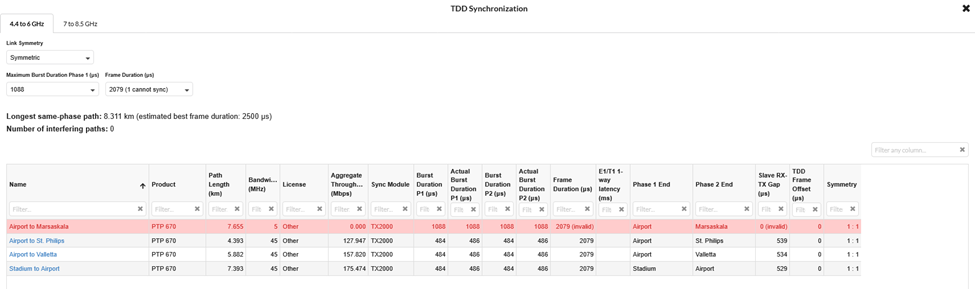
Please note that the available options for Maximum Burst Duration and Frame Duration depend on the bandwidth selected for each link. The number displayed in brackets within each drop-down list indicates the number of links that are NOT satisfied by the currently selected value.
Added support for UTM and MGRS coordinate systems
To use UTM/MGRS coordinate references in the LINKPlanner project, navigate to Preferences. In the Latitude/Longitude field under Units and Formatting section, select the UTM/MGRS option.
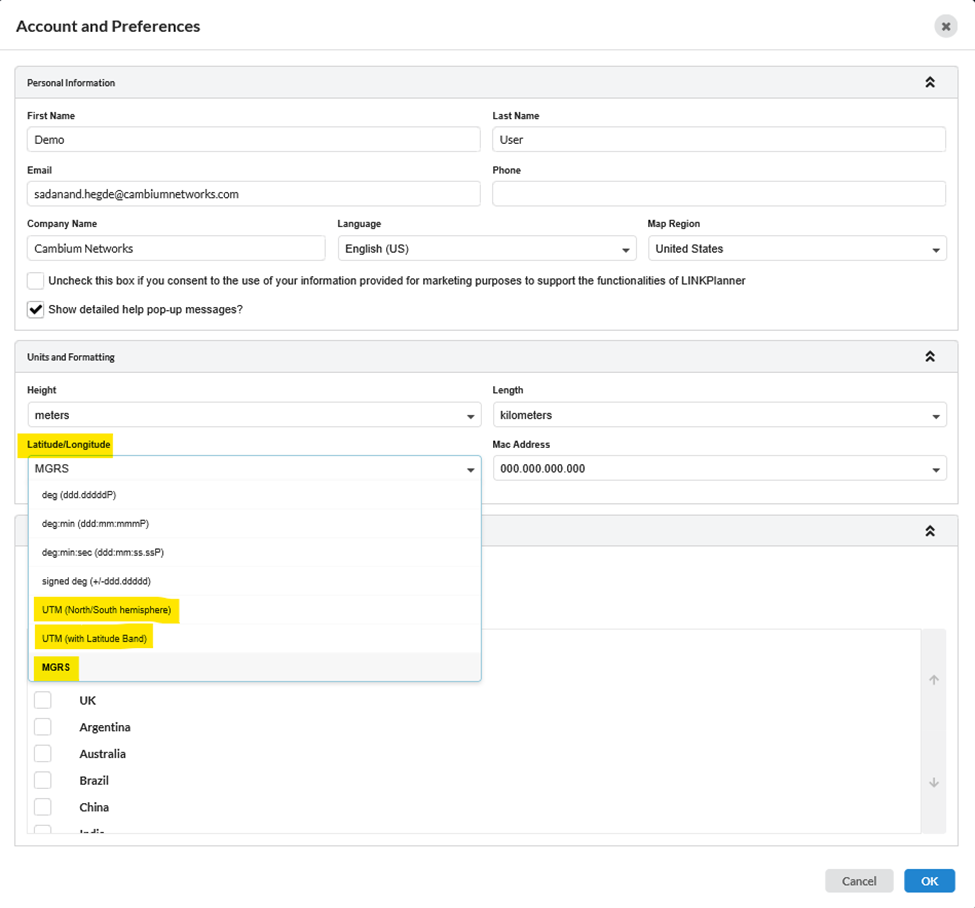
UTM (North/South hemisphere): In this format, the first two digits indicate the UTM zone number, while the third character represents the hemisphere (N for North or S for South). The following numbers specify the Easting and Northing coordinates in meters.
Example:
- 33N 453153.6E 3967848.3N
- 33: UTM zone number
- N: Northern Hemisphere
- 453153.6E: Easting in meters
- 3967848.3N: Northing in meters
UTM (with Latitude Band): In this format, the first two digits represent the UTM zone number, and the third character denotes the Latitude Band. Latitude bands are designated using 20 letters, starting with ‘C’ at 80°S and progressing alphabetically northward to ‘X’ (excluding the letters ‘I’ and ‘O’ to avoid confusion). The following numbers specify the Easting and Northing coordinates in meters.
Example:
- 33S 453153.6E 3967848.3N
- 33: UTM zone number
- S: Latitude Band (indicating the geographic region within the UTM zone)
- 453153.6E: Easting in meters
- 3967848.3N: Northing in meters
MGRS (Military Grid Reference System): In this format, the first three characters represent the Grid Zone Designation (GZD), which combines the UTM zone number (1–60) and the latitude band (C–X, excluding I and O). This is followed by a two-letter Square Identifier, and then the numeric values for Easting and Northing coordinates in meters.
Example:
- 33SVV5315367848
- 33S: Grid Zone Designation (UTM zone 33 and latitude band S)
- VV: Square Identifier (100 km x 100 km square within the GZD)
- 53153: Easting in meters
- 67848: Northing in meters
When these options are selected, the coordinate values must be entered in a single field.

All coordinates are stored as latitude/longitude to 5 decimal places. This may mean that the displayed UTM and MGRS values are slightly different to the input value. All the differences will be < 1 m, and the difference will increase as the latitude moves away from the equator.
PTP 820/850
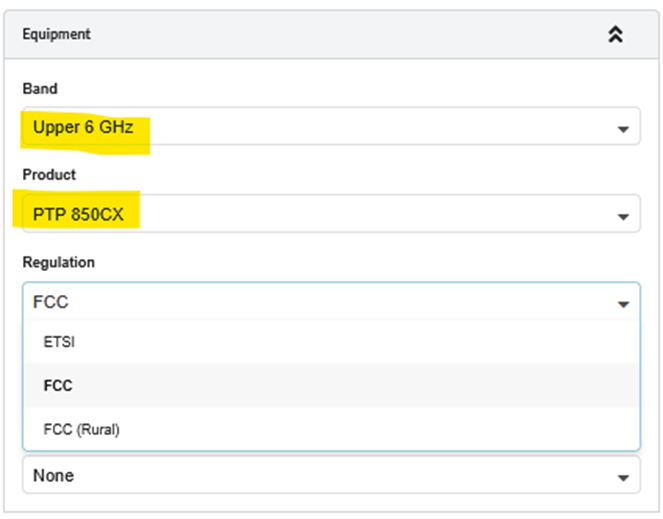
Added support for PTP 850CX in the 6 GHz band.
The PTP 850CX is now available in the Lower 6 GHz, Upper 6 GHz, and 7 GHz (FCC) frequency bands.
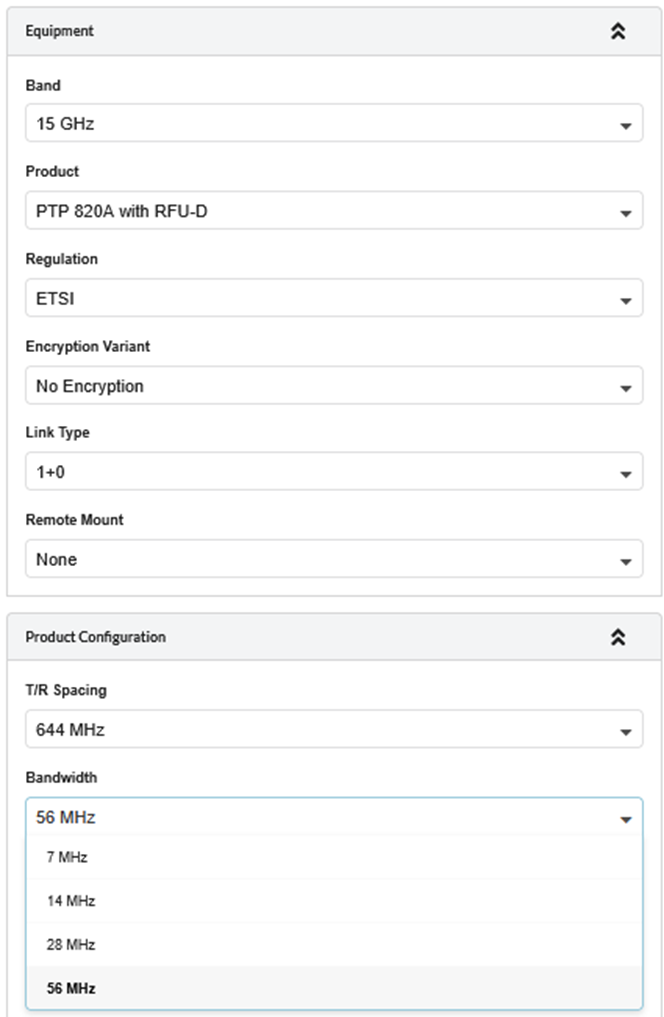
Added T/R Spacing 644 MHz to PTP 820A with RFU-D in the ETSI 15 GHz Band
To use 644 MHz T/R Spacing for PTP820A with RFU-D HP in15 GHz band, select “ETSI” Regulation and then select the 644 MHz T/R Spacing option. Available bandwidth options are 7, 14, 28 and 56 MHz.
Added ETSI Regulation to RFU-SX in the 18 GHz band
Retired PTP 820S across all bands
Retired Alive Telecom (Radiowave) Antennas
PTP 700
Added PTP 700 BSA HCMP as a slave (SM) product.
PTP 700 BSA HCMP product is now available as a slave product for below AP products,
- PTP 700 BSA HCMP
- PTP 700 C+I HCMP
- PTP 700 C-Only HCMP
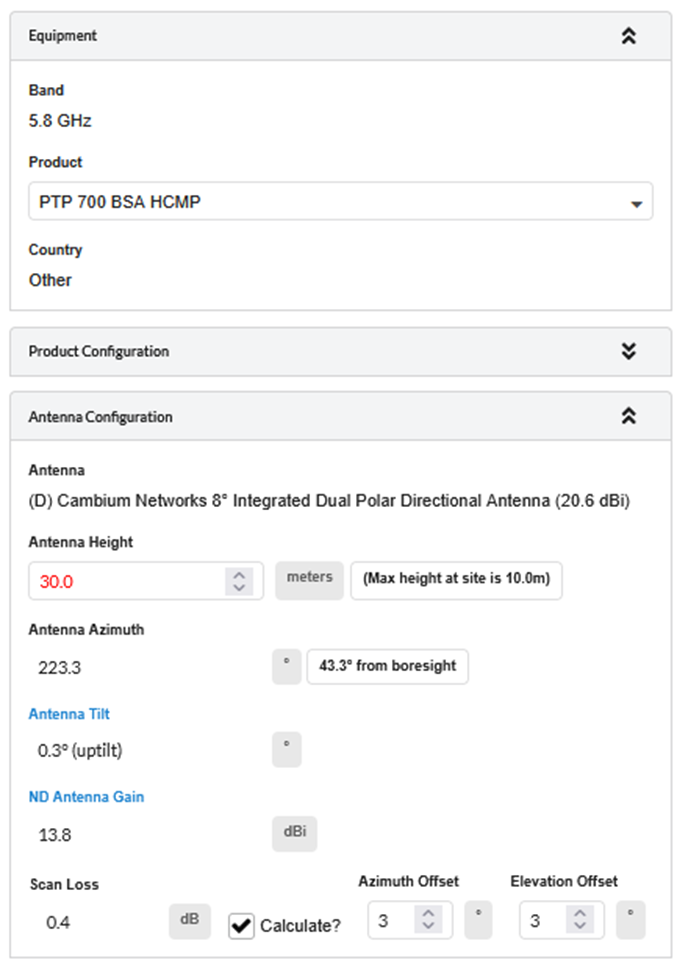
On the SM side, users can now select to automatically calculate Scan Loss for the PTP700 BSA HCMP antenna based on alignment error angle.
To calculate the Scan Loss automatically, check the “Calculate” box next to the Scan Loss field and enter the Azimuth and Elevation Offset angles from the boresight, in degrees.
Added TAA description to the TAA antennas.
Added “TAA” to the antenna descriptions to easily identify TAA-compliant antennas during selection.
ePMP
Added FCC/IC regulatory support for ePMP Force 4616.
Updated ePMP 11ax (4K series) regulatory to Release 5.11.0
60 GHz cnWave
Configured “00:00:00:00:00:00” as the default MAC Address for cnMaestro cnWave exports.
General
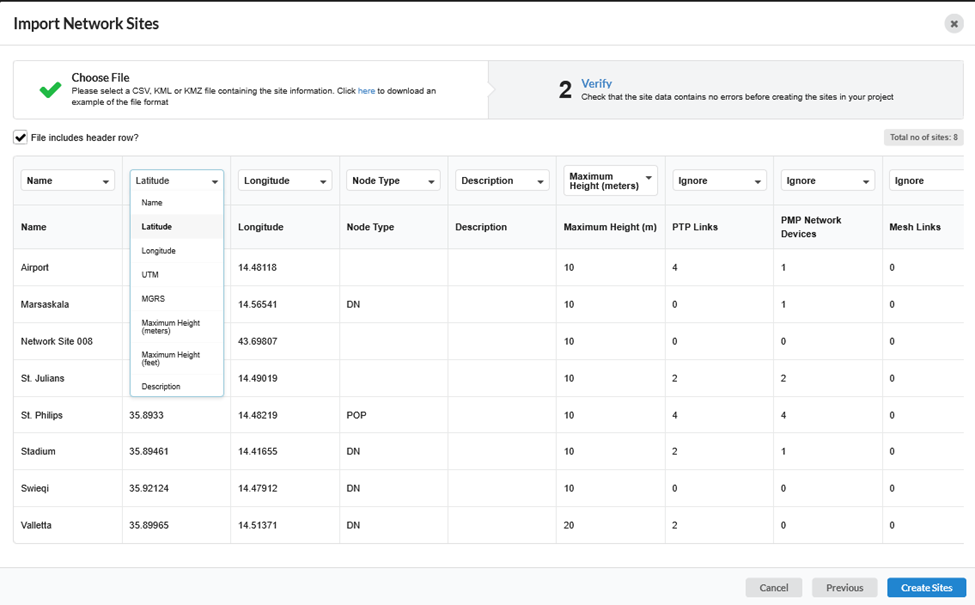
Enhanced CSV Site Imports with Column Selection
Importing your site data into LINKPlanner just got a lot more flexible! We have added new column selection options to the site CSV import process. This means you can bypass the hassle of strictly formatting your spreadsheets before importing. Simply upload your CSV file and use the options to choose exactly which columns correspond to your site details (such as Name, Latitude, and Longitude).
Bug Fixes
- Resolved an issue preventing the creation of 7/8 GHz custom antennas for the PTP 700.
- Corrected SFP+ quantities in the BOM for 1+1 HSB links on PTP 850E, PTP 850EX, PTP 850EX-P.
- Corrected PSU quantities in the BOM for multicore radios 850C, 850CX, RFU-D and RFU-D HP.
- Fixed an issue where the ePMP Force300-19R was erroneously listed as retired.
- Ensured RJ45 Connectors parts correctly appear as a multipack in the BOM.
- Fixed an export issue with 60 GHz cnWave cnMaestro for PTP links.
- Corrected the Optional Extras listed for PTP 820G with RFU-C.
- Removed the Sentinel description from licensed antennas description.
- Resolved an issue where the 20 MHz bandwidth was missing in the 8 GHz NTIA band for PTP 850C.
- Fixed project-level BOMs timing out.
- Fixed an issue causing an incorrect “Max CN Registrations Allowed” value after creating 60 GHz cnWave AP from a template.
- Ensured PDF reports include fonts that support an extended range of Unicode glyphs.
- Resolved bugs related to the reverse link feature.
- Fixed an incorrect layout in the frequency selection menu.
- Resolved an issue where the shared projects failed to load when a user’s last name was set to null.
- Fixed an error that occurred when creating a viewshed on a new site.
- Corrected site naming behaviour when creating a PTP link using coordinates.