LINKPlanner online has been updated to version 7.0.0
New Airspan LINKPlanner domain
LINKPlanner online has moved to a new domain https://lp.airspan.com
The old domain, https://lp.cambiumnetworks.com, will continue to work until Monday, 9th Nov. After that it will no longer be available, so please update your bookmarks to the new address.
Your account is the same on both domains, so you can sign in to lp.airspan.com with your existing credentials. For the next couple of weeks, you may still see the Cambium sign-in (SSO) page when you sign in to lp.airspan.com. This is expected, and you can sign in there as usual. All of your projects are available on both domains.
Points to note when opening the same project on both domains:
- When a project is opened on lp.airspan.com, it is updated to Airspan products.
- When a project that was opened on lp.airspan.com is then opened on the old domain, the project is recalculated. The same happens the other way round: a project last opened on the old domain is recalculated when it is opened on lp.airspan.com.
- We recommend that you use lp.airspan.com for all of your projects from now on. This avoids extra recalculations and keeps your projects on the Airspan products.
The key features of the 7.0.0 release are:
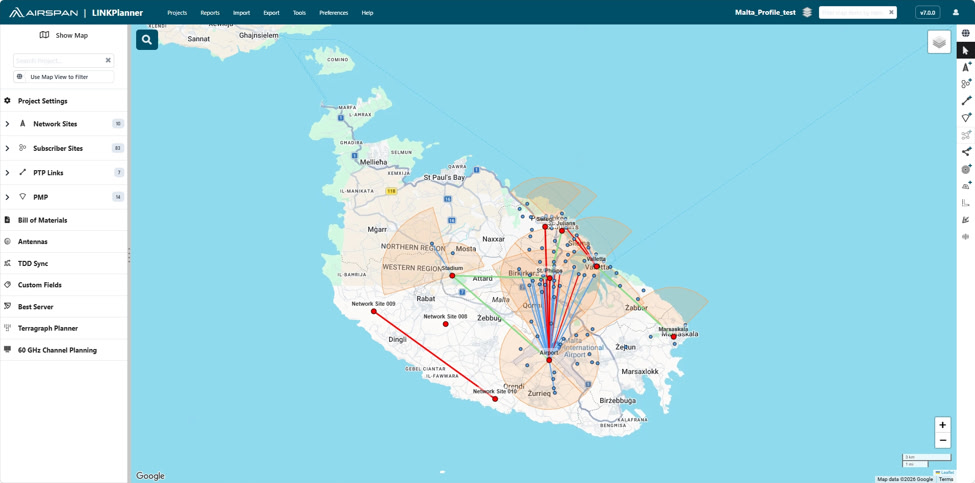
Rebranding to Airspan LINKPlanner
LINKPlanner has been rebranded from Cambium Networks LINKPlanner to Airspan LINKPlanner. The new branding is used throughout the application, including the header, the products and antennas, and the generated reports.
As part of the rebranding:
- Products, antennas and reports now use the Airspan branding.
- cnWave 60 GHz products are now branded as Wave 60 GHz.
- cnMaestro has been renamed to anMaestro.
- The links to the BOM Estimator have been removed.
Removed products
The following products are no longer available in Airspan LINKPlanner:
- ePMP products: these can no longer be selected. The ePMP antennas and the ePMP products in the AFC configurations have also been removed.
- Tower switches: these can no longer be added to network sites or subscriber sites.
- QoE products and their associated parts.
Projects containing unsupported products
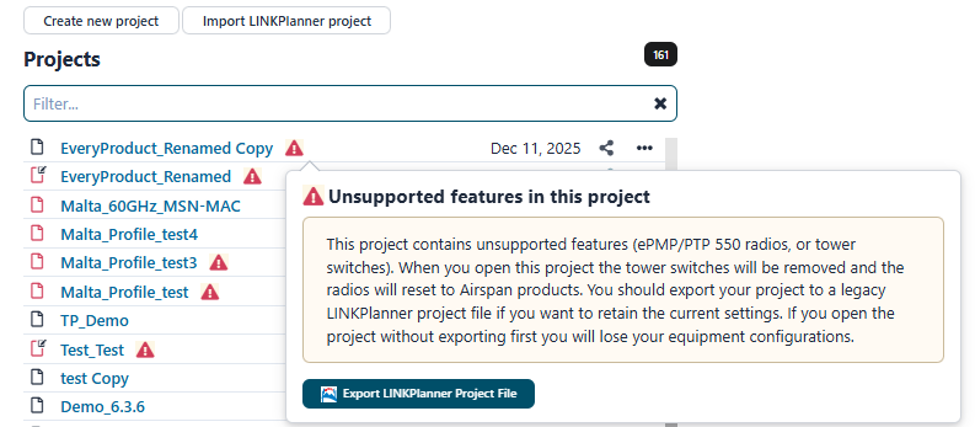
Existing projects that contain products which are no longer supported, such as ePMP radios or tower switches, are tagged, and a warning is shown before such a project is opened.
These projects can still be downloaded. However, when such a project is opened in Airspan LINKPlanner, the tower switches are removed and any unsupported radios are replaced with default Airspan products. To keep the current equipment configuration, export the project to a LINKPlanner project file before opening it.
Wave 60 GHz
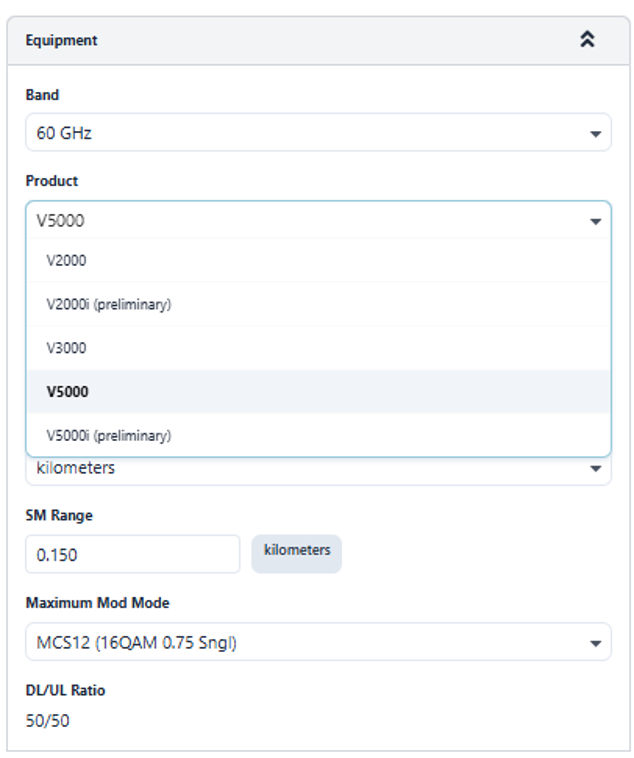
Added V2000, V2000i and V3000 as Network Devices
V2000, V2000i and V3000 can now be selected as Network Devices (DN) on the PMP side, alongside the V5000 and V5000i. These products can be configured to create Mesh Links, so that a 60 GHz mesh network can be planned using the most suitable radio at each site.
To use one of these products, open the required Network Device and, in the Equipment section, select 60 GHz as the Band and then V2000, V2000i or V3000 as the Product.
Points to note when using V2000, V2000i or V3000 as a Network Device:
- These products have a single radio and sector, so only Sector 1 is shown.
- The narrow beam integrated antennas are used, and mesh links on these devices use the point-to-point antenna pattern and gain.
- Each device supports either 1 CN or 1 mesh link. If more connections are added, a warning is shown on the Network Device page describing which connections to remove.
- A new 60 GHz Network Device still defaults to the V5000.
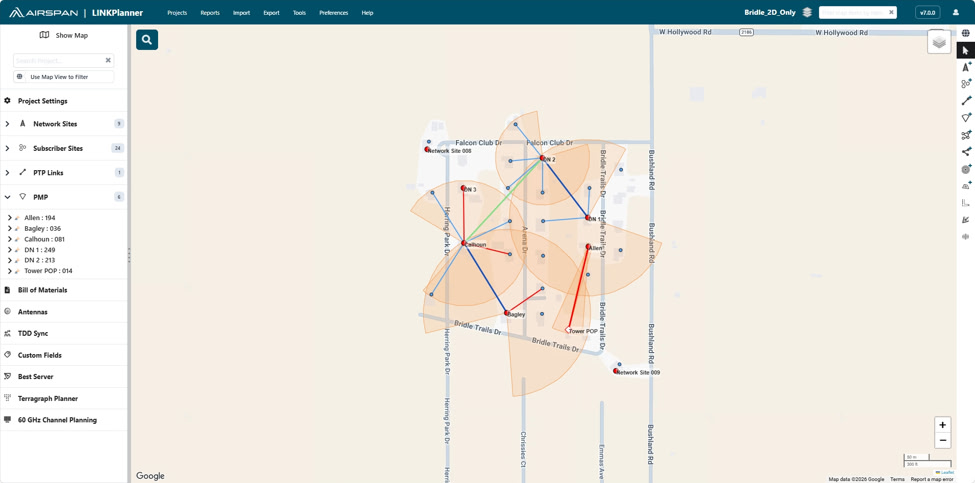
Terragraph Planner currently supports only the V5000 as a POP/DN. Support for the V2000 and V3000 as DNs will be added in future releases.
Added Convert to Mesh Link for Wave 60 GHz PTP links
A new Convert to Mesh Link option is available on Wave 60 GHz PTP links (links not involving V1000). This converts the PTP link into a Mesh Link between two Network Devices, so that a link planned as PTP can be brought into a mesh network without re-creating it manually.
To convert a link, open the required 60 GHz PTP link and click Convert to Mesh Link in the toolbar. The option is disabled for when one end of the link is V1000. Option is not visible when the products are other than Wave 60 GHz.
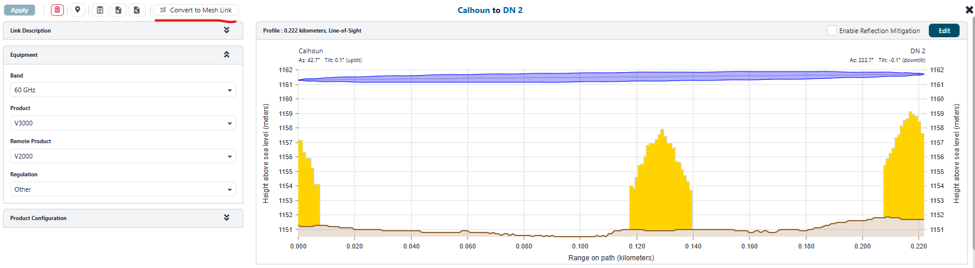
In the Convert to Mesh Link window, choose for each end of the link whether to create a new Network Device or to use an existing Network Device on that site. The window shows the existing connections of each Network Device and lists any PTP settings that are not carried over to the mesh link. Click Convert to replace the PTP link with the mesh link.
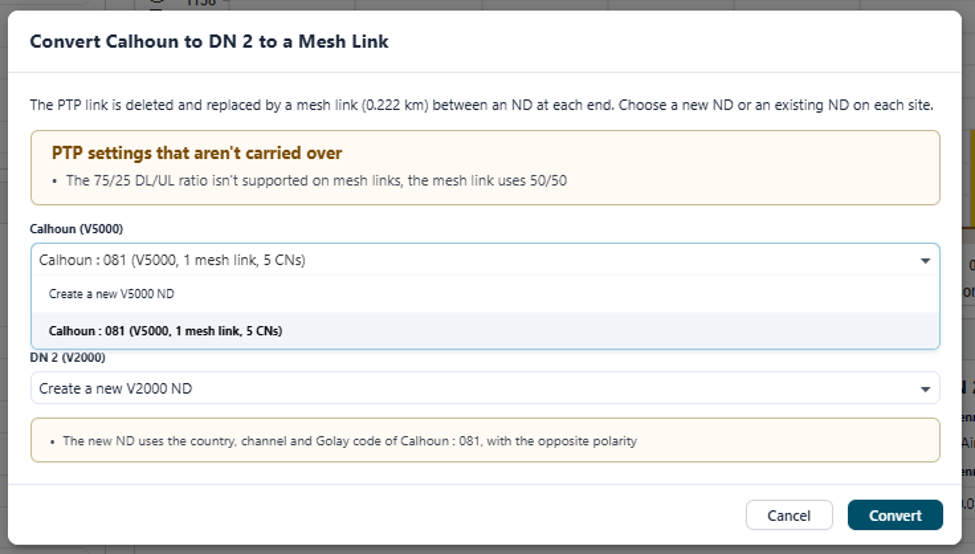
PTP link is deleted when it is converted, and the mesh link uses the settings of the selected Network Devices.
New Feature
Align for Network Devices
A new Align feature has been added for Network Devices. Align points the sector of the Network Device at the Subscriber Modules and Mesh Links that are connected to it, so that as many of them as possible fall within the sector.
This removes the need to work out the best antenna azimuth by hand, which is particularly useful when subscribers are added to or removed from a sector over time.
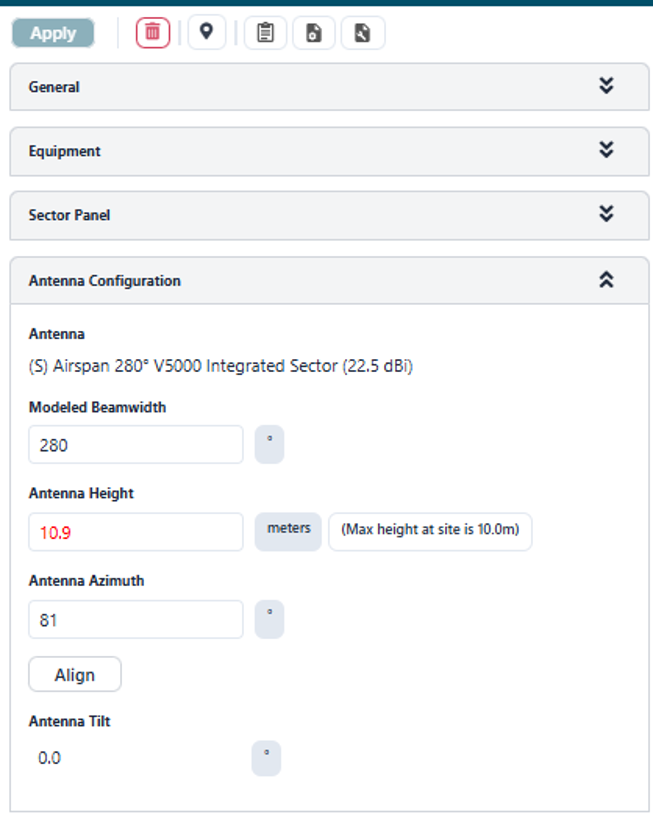
To align a sector, open the required Network Device and click Align below Antenna Azimuth in the Antenna Configuration section.
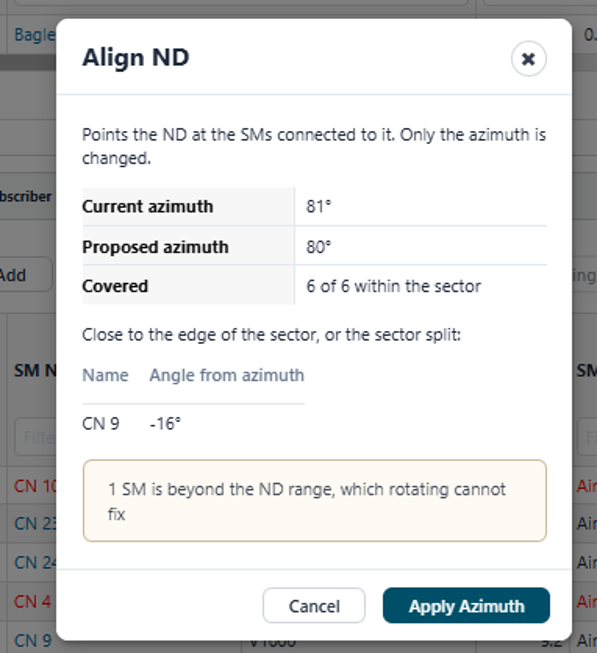
The Align ND window shows the current azimuth, the proposed azimuth and how many of the connected Subscriber Modules are covered within the sector. Any Subscriber Modules that cannot be brought into the sector are listed with their angle from the azimuth. Click Apply Azimuth to use the proposed azimuth. Only the azimuth is changed.
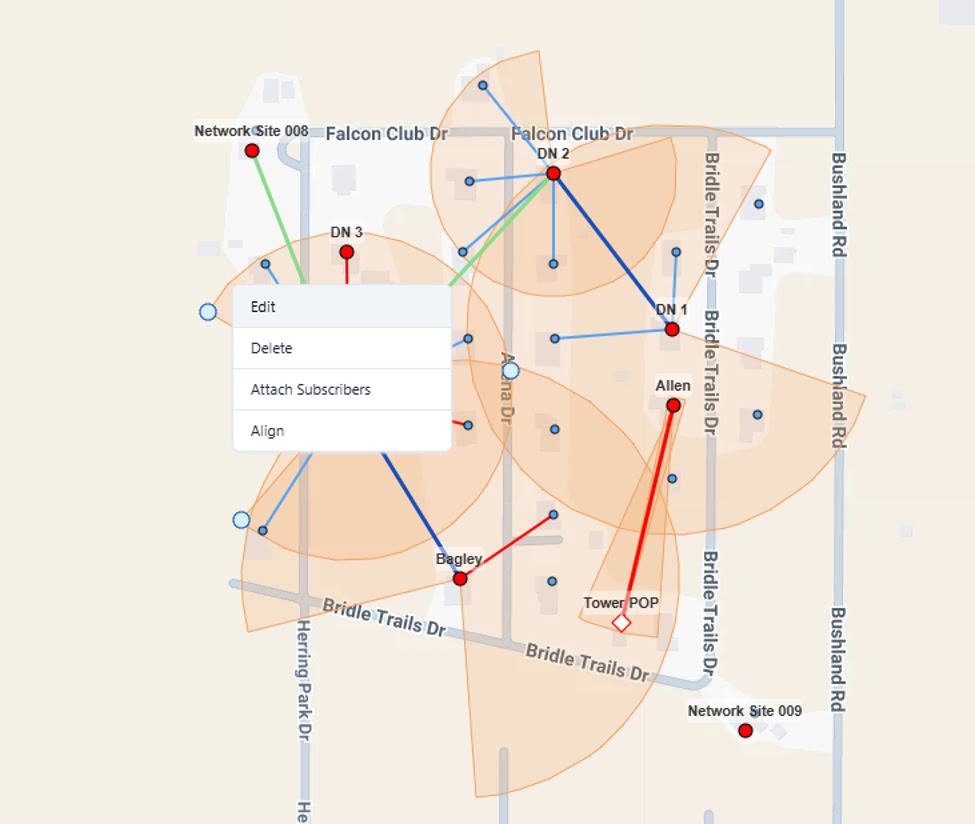
The Align feature is also available in the Map View. Right-click on the ND sector and select the Align option.
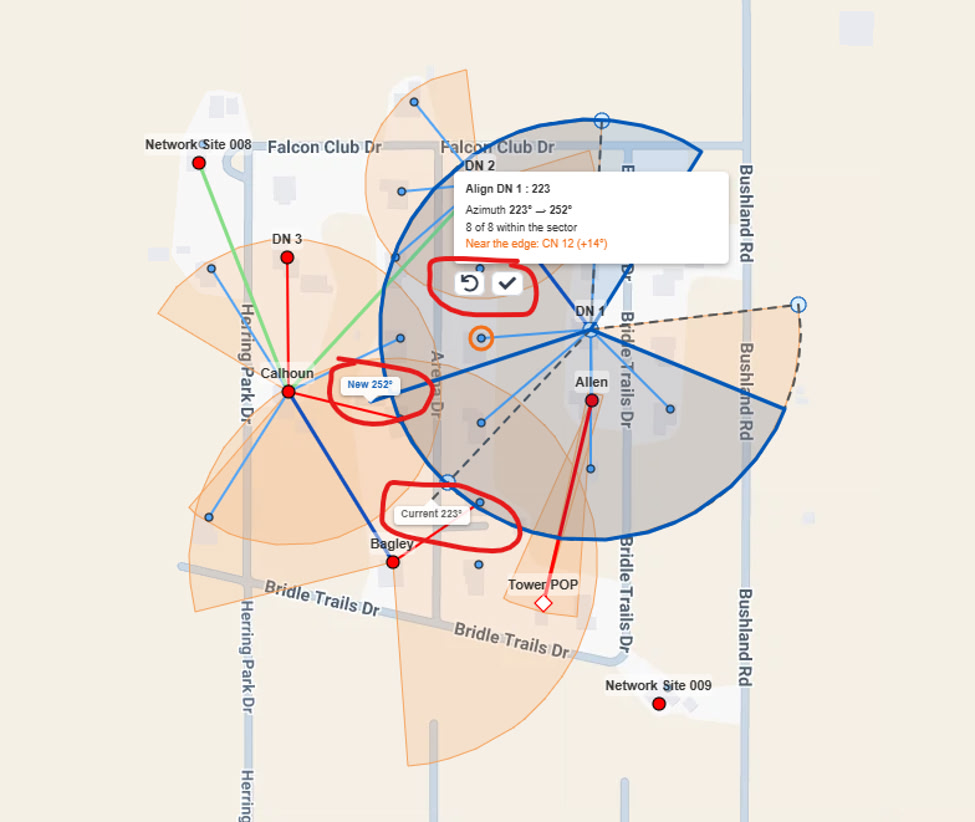
This action shows the current and proposed azimuths. Users can accept or discard the changes using the available buttons.
PTP 820/850
Updated the PTP 850E 2+0 XPIC L1 Link Bonding BOM for 20 Gbps
The bill of materials for PTP 850E 2+0 XPIC L1 Link Bonding configurations has been updated to include the correct parts for 20 Gbps operation.
General
Import summary for LINKPlanner projects
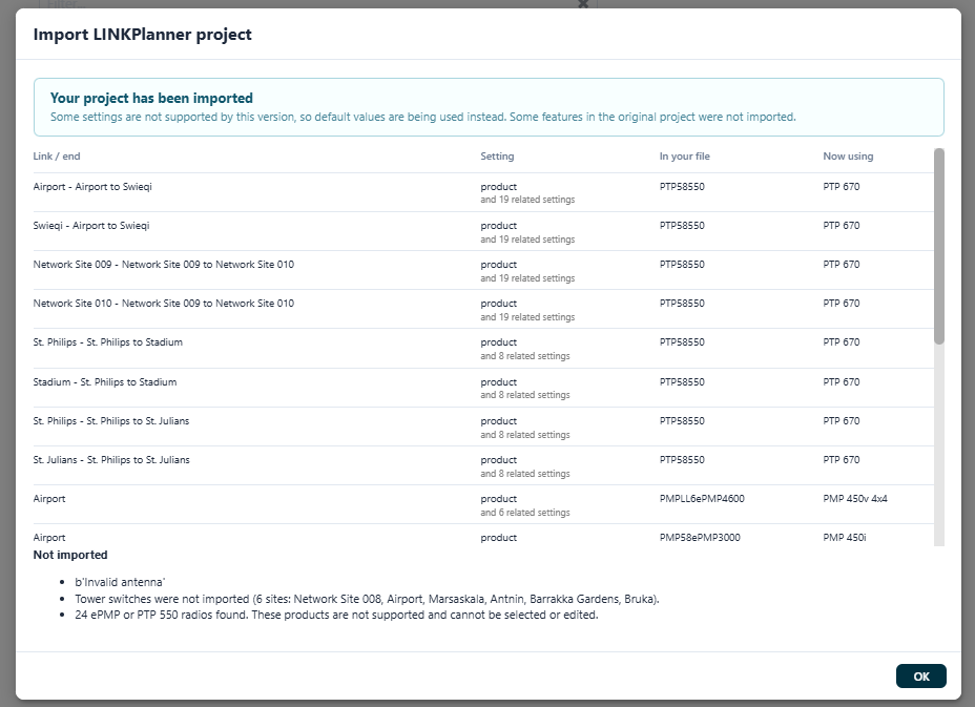
Importing a LINKPlanner project now shows a summary of what changed during the import before the project is opened. For each link or end, the summary lists the setting, the value in the imported file and the value now being used, for example where an unsupported configuration has been replaced with a default. Features that are not imported, such as tower switches, are also reported.
This makes it easy to see which parts of the project should be reviewed after the import.
Power from switch option
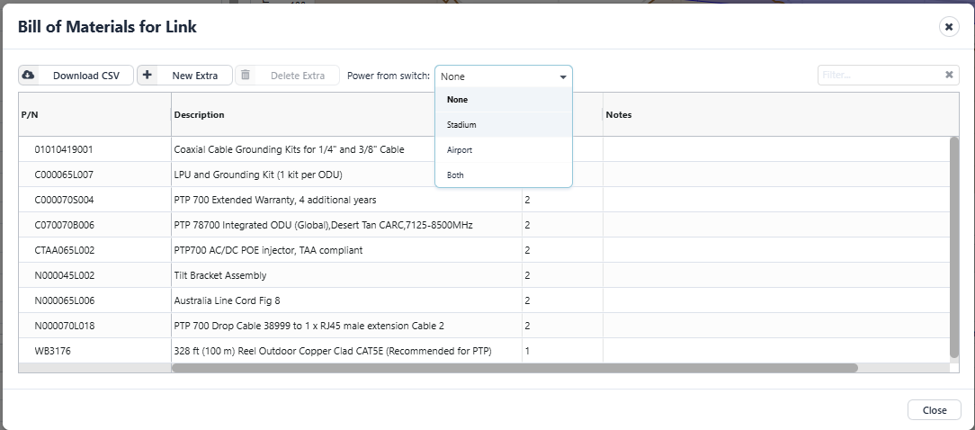
The Power from switch option can now be enabled whenever the selected product supports it. As tower switches are no longer part of LINKPlanner, the switches must be sourced separately.
The option is available in the Bill of Materials window of the Network Device, Subscriber Module or PTP link, and the bill of materials is updated to reflect the power source.
Bug Fixes
- Project export no longer fails when path profiles are missing.
- Fixed an issue in the PTP 850E BOM where the activation key name was added to the Parts column, causing the BOM table to become misaligned.
- Antennas outside the range of the band centre frequency are now included in the antenna table.
- Fixed an issue where editing a Network Device sector left dashed lines when it was dragged outside the window.
- Fixed an issue where the Modeled Beamwidth was incorrectly reported as invalid after changing to a lower-beamwidth antenna.