What is IdP Role Mapping?
IdP Role Mapping is a feature of cnMaestro X Cloud that aims to simplify user management within a cnMaestro account by allowing you to map groups or roles within your SSO Identity Provider to roles within the cnMaestro account. Once you have set up a role map within your cnMaestro account, users that log in via SSO and belong to groups mentioned in the role map will automatically be granted the appropriate role in cnMaestro.
For example, imagine you had a set of groups in your Identity Provider called cnmaestro-super-admins, cnmaestro-admins, cnmaestro-operators and so on. You could create a role map like this in your cnMaestro account:
| cnMaestro Role | IdP Groups |
|---|---|
| Super Administrator | cnmaestro-super-admins, global-it-admins |
| Administrator | cnmaestro-admins |
| Operator | cnmaestro-operators |
| Monitor | cnmaestro-monitors |
| CPI | cnmaestro-cpi |
Now, when a user who is a member of either the cnmaestro-super-admins group or the global-it-admins group logs in, they will automatically be granted the Super Administrator role in your cnMaestro account.
Configuration
Role mapping requires configuration in the Identity Provider, in the Cambium SSO system, and in the cnMaestro account.
Identity Provider Configuration
The Identity Provider needs to be configured to send the list of groups to which the user belongs when they log in. The steps for this vary depending on the Identity Provider platform. Here are some links for common Identity Providers:
- Microsoft Entra ID: Configure Group Claims
- Okta group attributes
- Google Workspace group membership mapping
Cambium SSO Configuration
You need to ensure that the Attribute Mapping in your Cambium SSO configuration includes an entry for the Groups attribute.
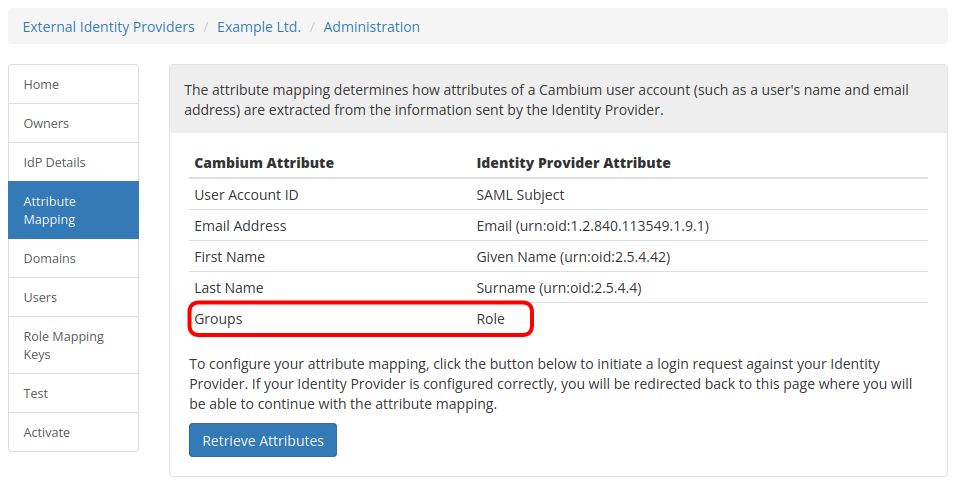
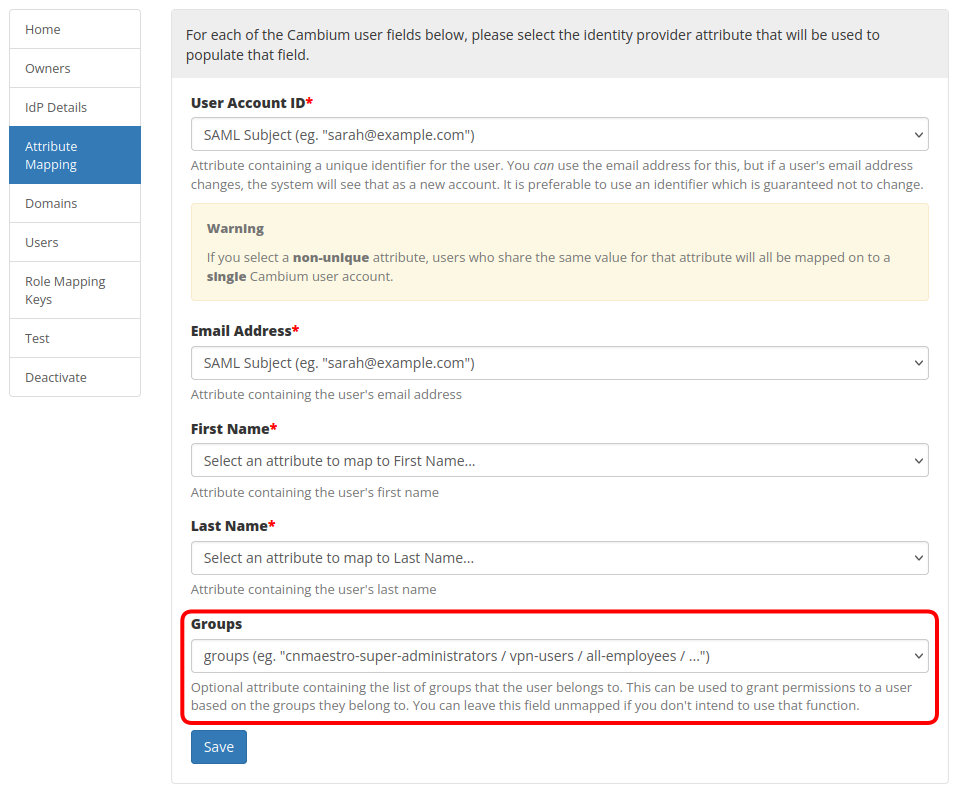
At this point, you may want to check the Single Sign-On section of your user preferences to see what groups your IdP has sent for your user account.
Create a Role Mapping Key
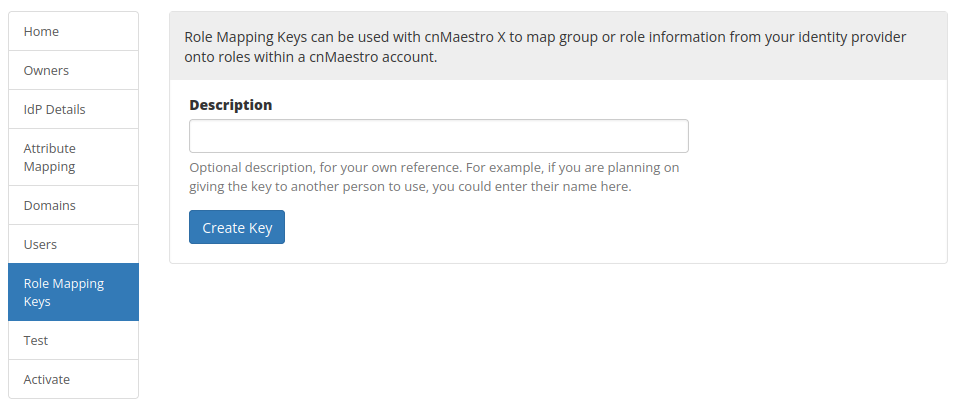
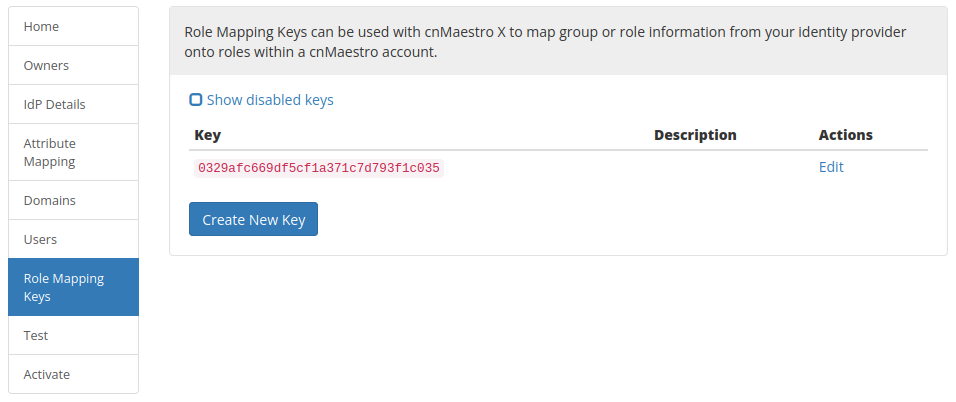
The Role Mapping Key is a token that allows a user to set up a Role Mapping that uses your Identity Provider. This can be useful if the person who is responsible for the overall SSO configuration is not the same person that is responsible for cnMaestro configuration.
You can create a role mapping key from the Cambium SSO admin page:
cnMaestro X Configuration
To create the role map, log in to your cnMaestro account, navigate to Administration → Users → IdP Role-Mappings and click on Add IdP Role Mapping:
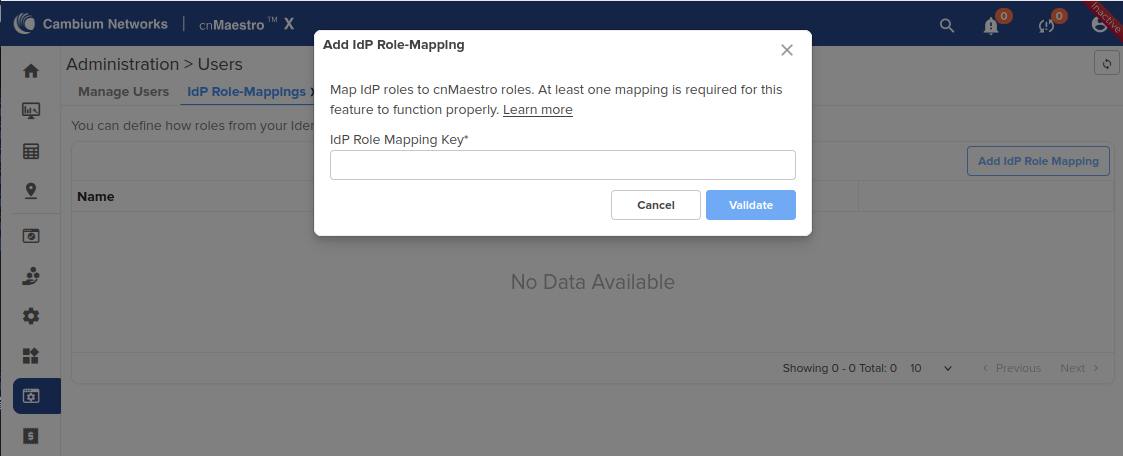
Enter the Role Mapping Key that you created earlier. You will see a new form where you can enter your desired group names for each of the cnMaestro roles.
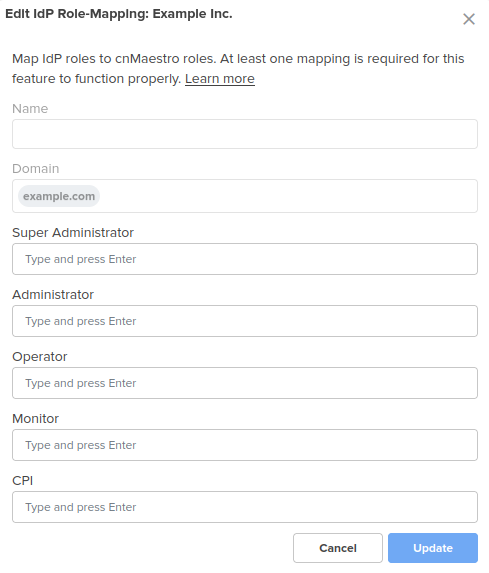
- You can leave a role blank. The role mapping system will not assign that role to any users.
- You can enter multiple groups for a role. The role will be granted if a user belongs to any of those groups.
- If a user matches multiple roles, they will be granted the “highest” role.
- You can continue to use the invitation mechanism to invite users into your account, but it is not necessary to invite users who are members of the role-mapped groups; they will automatically have access.
- Role maps are case sensitive. The group names in the role map must match the group names sent by your IdP exactly.