We have been moving all our Wi-Fi APs, bridges and PTP products over from the cloud to on-prem without losing any configurations. When it comes to the cnMatrix switches, what steps has everyone been taking to on-board the switch to the on-prem controller and maintain the port configurations? When I apply the switch group it wipes the port settings and when I create a template and import the switch config, it works but then is out of sync. The switch functions correctly and has all the port settings but we lose the ability to sync global changes. Looking to have help figuring out the correct process to on-board and maintain port config if possible. Thanks for your help!
I am having the same problem.
When I apply the switchgroup which will overwrite the template that was exported from Cloud the switch loses connection for a while then reverts back, which is nice. But I want in sync + template also so I can change my switch group configuration.
I’m guessing that you, like us, have configured your switches in the Cloud side using “per-device port overrides” (I’ll say PDPO for short), which is what you get when you click the “Edit Ports” link from the Configuration tab in cnMaestro.
As you’ve found, those PDPO are not actually stored as part of the Switch Profile / Switch Group (“SG”), and so they don’t get exported. (Side note: it’s confusing, but cnMaestro uses two different names for the same feature in different places. At the main “Settings” gear on the left side you see “Switch Profiles,” but within that actual page, they are called “Switch Groups”.  )
)
It is possible to configure switch port settings at the Switch Group level so they do get exported… it’s just counter-intuitive how you do it. A lot of how you proceed hinges on how many switches you have in a given SG, and how many of them are “special snowflakes” that need their own config, vs. identical clones of everything else in the group.
Most of our sites have one or two different types of switches, and one is in the MDF or is the main “uplink” switch that connects to a router or a PtP link that eventually hits a router. That main switch usually has some different settings from the rest. In those cases, I find it works better to put the “main” switch into its own switch group for migration, and that way you can migrate all of its unique settings to a new SG.
When you have a site with multiple switches with similar/identical config it’s a lot easier. I start on the cloud side, and basically “convert” all of the PDPO settings into a proper SG-level port config. You do this by going into the SG, going into “Ports” on the left side. If your setup is PDPO-centric like ours has been, you’ll see the “Port Overrides” section expanded… but up above it is a collapsed “Model Configuration” section.
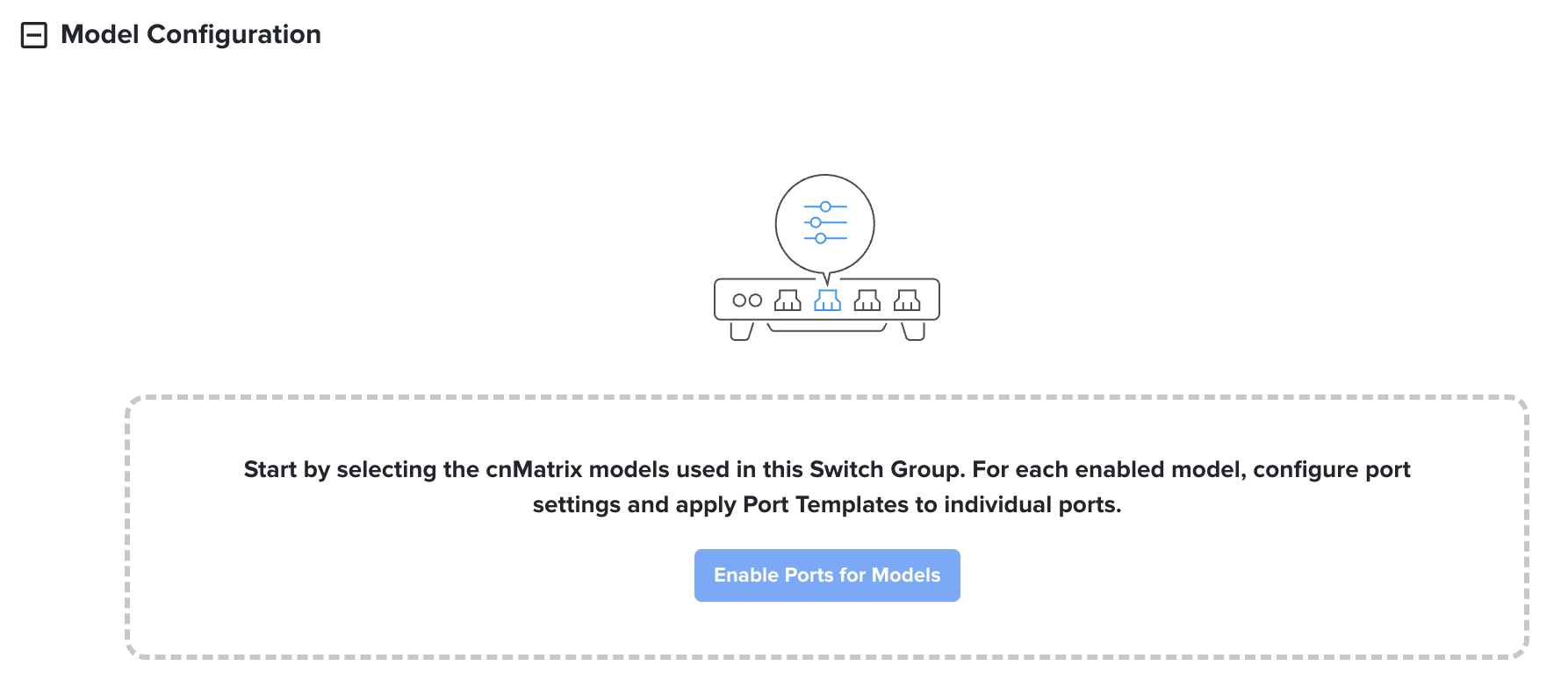
You need to expand “Model Configuration,” and then you may need to “Enable Ports for Models,” and select the switch types you want to use in the SG:
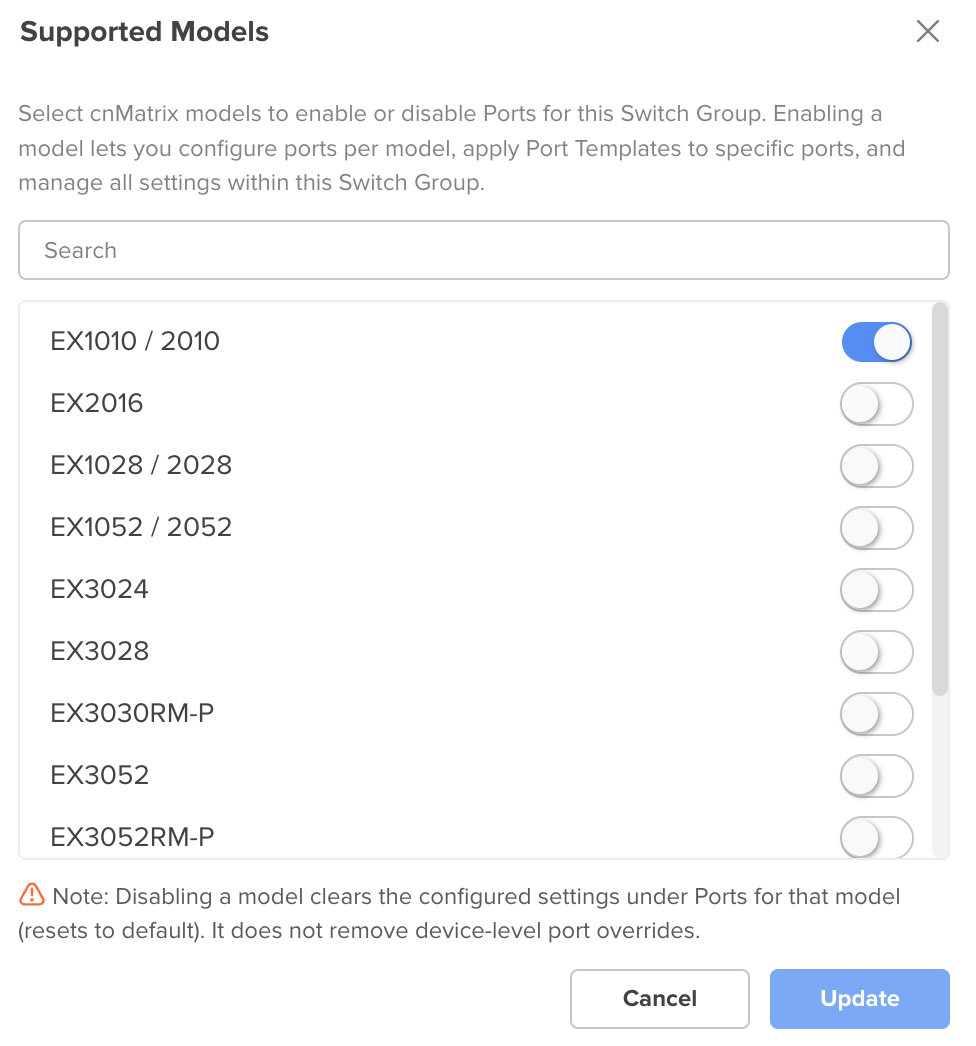
Make sure to scroll through this list because there are other models not displayed on one screen, and you might not want them enabled but they might be on by default (why they couldn’t dynamically size the popup to the tab/window you have open, IDK, the whole list would fit on my screen if the popup was bigger). For example, in the screenshot above, the TX2020R-P was also enabled for some reason… I shut it off. You can also delete a Model Config in the screen below by hitting the trash can next to it, but it’s easier to just not add one to begin with.
After you click Update, now you’ll have a screen with tabs across the top, one for each model of switch, and a whole extra set of port configuration settings. This works just like the Port Overrides do, but it works at the SG level. I have been manually going through and basically “copying” what I have from the “Port Overrides” section up to the “Model Configuration.”
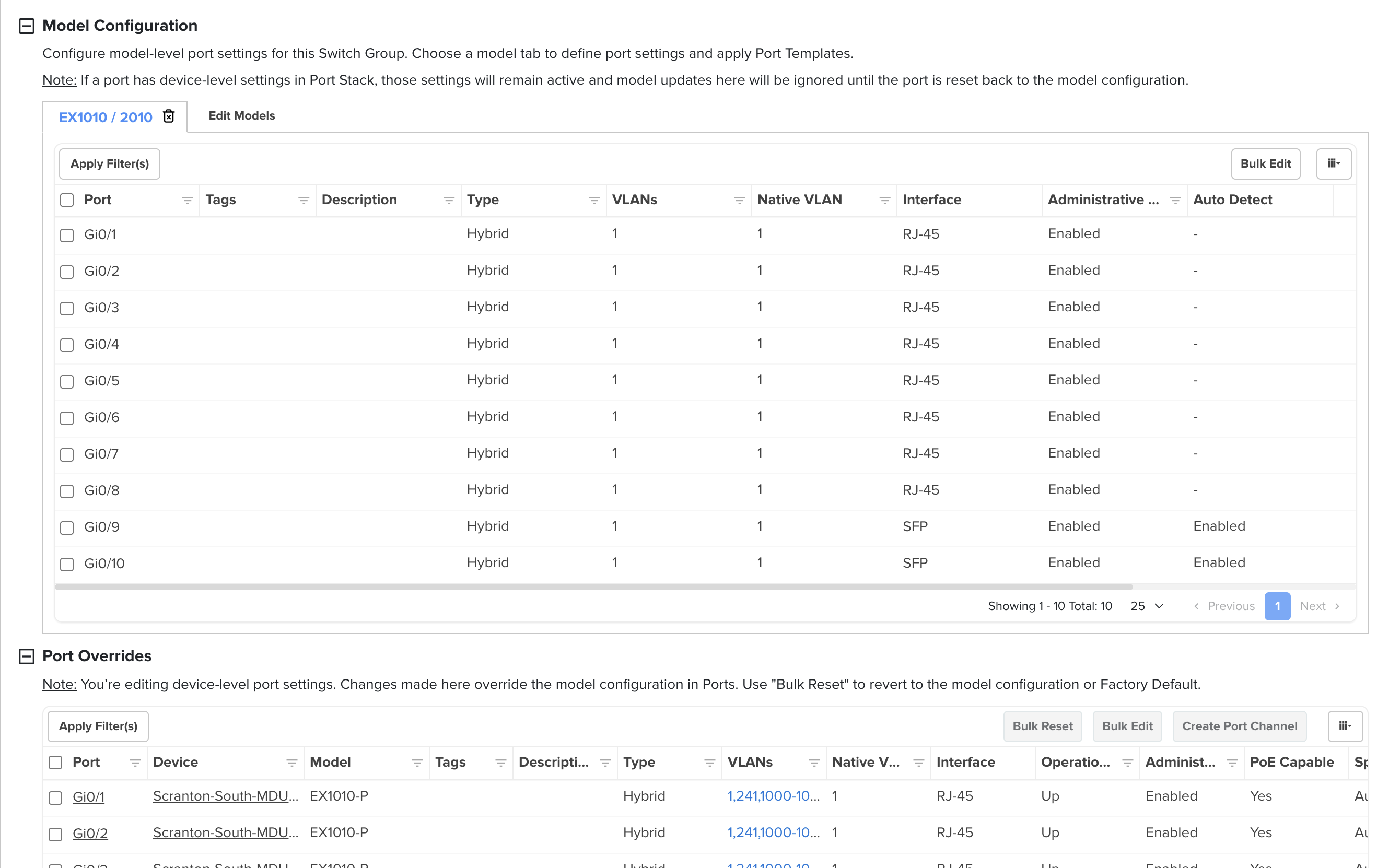
The “nice” part is that if you have a PDPO in place for a given switch and port, whatever you do on the “Model Config” should “lose” to the PDPO. So you can setup the SG-level config, and even should be able to sync it to the switches, and nothing should actually change, because the PDPOs “win” over the Model Config. The only thing to be careful of is if you put something into the Model Config that previously was NOT Overridden for a specific switch, and then you sync, you might lose access to that switch (say something with the uplink port and what VLANs are allowed in Hybrid mode or whatever). The good part is that after 15-30 minutes of not talking to cnMaestro, the switch will auto-rollback the change and it should eventually “come back to you” through Cloud cnM, but it will reboot itself during that process so it is disruptive to end users.
I’ve been using this process this to “migrate” my PDPOs to SG level config (which does get exported). Then I make a final tweak to the SG to add the cnMaestro override URL to point the switch to my onprem server. Finally, I export the SG from Cloud, and I import it to Onprem.
When the switch shows up in the Onboarding section onprem, I set the name, Location, and then I go over to Configuration, and pick the SG that I just imported. If the switch had a static IP, you have to go down to “Advanced” below Configuration and re-set the static IP in there again as well.
Because I already “copied” all of the PDPOs down to the SG “model config” level, when I apply/sync that config, it matches what is already on the switch and nothing really changes. The PDPOs are all “gone” and the switch is reset back to the SG “model config,” but since I made the model config match what I had done as PDPOs in the past, everything is happy.
I save the Onboarding section, then go back over to Cloud and Delete the device, and wait 15-30 seconds for it to ACTUALLY disappear from Cloud, before going back to OnPrem and hitting “Approve.” (If you don’t wait long enough, when you Approve onprem it will fail and say the device is in a different controller and you basically have to delete it and redo your work at the onprem side.)
If you have a site with 4 switches of the same model all with wildly different config, then this probably won’t work as well for you. In that case, I think you would need to apply PDPO during the Onboarding process, which is not something that I have tried to do (but I believe it is possible). Alternatively, make a separate SG for each of the switches, and put all of the port config back to the SG level instead of using PDPO.
I hope all of my rambling was at least somewhat helpful. If anything doesn’t make sense feel free to ask and I’ll try to explain better. I’ve migrated 36 cnMatrix switches at this point with another 15 to go, thankfully those 15 are broken up into 3 separate SGs already with basically matching config in each group though.
Thank you for the detailed response Braden! Yes, you were exactly correct on how I had these switches set up. We only have under 10 of them at the moment and I think I will create a new Switch Group for each and setup the ports, as a lot of our switches have special setups for ports. I appreciate your reply and the guidance. Thx Aaron
I’ve only got 4 switches. I’m tempted to just remove them from cnMaestro Cloud and leave them as “unmanaged” and just configure then individually directly on the switch. Any issues with that or missing features apart from quick view monitoring?
Andy, here is what we ended up doing where we only had 5 switches to move…
- Follow what @BradenMcG_DC posted above, create a new switch group template on the cloud controller and add the switch ports to that template. (I made a new template for each switch since our ports were different on every switch)
- Sync the switch on the cloud controller to the new template with all the ports configured in that template from step 1.
- Once in sync on the cloud controller with the new template, export the template to the on-prem controller and import it.
- Delete the switch from the cloud controller
- Claim through On-boarding with MAC address to the on-prem controller
- Remote onto the IP address of the switch and under the system–> Remote Management, set the address of the on-prem controller and apply
- Configure the switch in on-boarding to point at the new template that you imported and then appove
- From there it should be on your -on-prem and synced up
I hope this helps. It will depend if you have Port-Channels or other settings that will need to be configured during the edit part of step 7 as to what other editing will need to happen. Braden’s post up above explains a lot of it.
Aaron
Also, yes you can manually configure the switches without issue. If you are comfortable with doing that, then there is no issue. The quick view or templates are where down the road it may save you some time setting up new switches or quick view of an issue. Aaron
One trick I used to save time here was to set the onprem URL via the “User Defined Override” in the switch group level.
I setup the SGs with the port config and got it all in sync. Then if the SG had been using auto-sync, I turned it OFF and hit Save. Then I go into “User Defined Overrides” on the left side of the SG, and add this:
!
cnmaestro url "cnmaestro.mylocaldomain.example"
no cnmaestro validate-cert
!
I’m not 100% sure if the leading and trailing ! are necessary, but it was how I found this done elsewhere on the Cambium forum so I just copied it exactly. Theoretically you should not need no cnmaestro validate-cert either, as the default behavior is supposed to be to not require a valid cert for anything other than the official Cambium cloud… but again, I didn’t mess around and just went with what was documented.
After adding that to the SG, save the SG one last time, and then export it so you have it for your local side. When you’re ready to actually move the devices, Sync each one on the Cloud side.
Within about 5 minutes of syncing, the switch should go “offline” from the cloud side and show up in the Onboarding section of your onprem. You still have to manually delete each switch from Cloud before you can “Approve” onprem though, and this operation is time-sensitive, because you have to “Approve” onprem before the device’s timeout hits (I think it’s 15 minutes). If it doesn’t talk to a controller in that period of time, it rolls back the last sync (which we had just used to change the controller URL). If you’ve already deleted it from the cloud side, it then potentially becomes a hassle to recover if you don’t know its local IP or can’t access it or whatever. But I was able to go through it this way for both switches and APs and it has saved me a LOT of time poking around directly on each device to set the URL, etc. It’s slightly more “risky” and you don’t want to get distracted and forget about one during the process, but it has been a huge time saver when moving hundreds of APs. (they use a slightly different set of lines in the “overrides” section but it’s the same idea.)
One interesting gotcha I found with this cnmaestro url override is that it doesn’t persist in the switch’s startup config (I booted it without network and checked through serial), it applies after each boot when it contacts the controller. Not a great outcome as once cnmaestro cloud is gone and can’t redirect the switch to your local instance all the switches will go offline the next time they reboot. Obviously, the DHCP method is an option, but this doesn’t help us as we have devices on client sites where we have no control of DHCP.
In the end, the horrible hack I arrived at was the below.
config terminal
cnmaestro url "<url>"
end
write startup-config
end
I don’t really like this fix and there might be a better way to achieve this, but it at least works. If anyone knows of a better solution, I’d be interested to know.
Chris, I’m curious to know your exact sequence of events for that check, because as best I can tell the override does persist in the config. Is it possible that you applied/sync’d a config from cloud, and then powered off the switch, prior to getting it to “onboard” to onprem, or to check back in with the cloud to fully finalize the sync?
Here’s copy-paste from “View Device Existing Configuration” of a switch connected to our onprem controller:
hostname "REDACTED-A-1351-SW01"
system location [SNIP]
!
username [SNIP]
no pba
pba auto-vlan-status disable
no cnmaestro validate-cert
cnmaestro url "cnmaestro.ourdomain.example"
end
The way that “sync” seems to work with switches / cnMatrix at least, the new config is pushed to the device, but it is NOT saved immediately. There’s a timeout window (I believe it’s 15 minutes) after the config push, and if the switch does not get final “confirmation” from cnMaestro, the change is never actually saved/written to startup-config. After 15 minutes of no-contact from cnMaestro, the switches will actually self-reboot to “back out” the last config change (and return to the prior saved startup-config). Note that “contact from cnMaestro” just means “switch is talking to any copy of cnMaestro and has been ‘approved’ there,” not necessarily that it has “talked to the original cnMaestro that pushed the ‘sync’ command.”
When you use my process above, the 15 minute clock starts ticking after you’ve hit Sync on the cloud side. You can take the switch into the Onprem side and hit “Approve” without any Switch Group configured onprem, and this stops the auto-reboot, but I’m not sure if it actually writes the config at that point. It leaves you with the switch running and talking to your onprem controller, but the onprem controller has never done a “Sync” to that switch.
If you use my process to “migrate” a device, it’s important that the Switch Group you import or create in the onprem Maestro also has the same “User Defined Override” for the cnM URL. Once you apply that switch group and the sync “completes” (the onprem cnM console says “In Sync”), the new URL is “burned in” to the config, and every time the switch boots that is where it will try to go for cnMaestro (it won’t touch the cloud URL at all AFAIK).
I haven’t done as much testing with APs to know how they handle “rollback” but I believe they do something similar to switches.