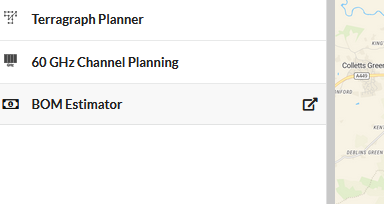
Cambium Networks is excited to announce the launch of the new, standalone LINKPlanner BOM Estimator (Bill of Materials Configurator). This powerful, purpose built tool is designed to accelerate project lifecycle, enabling rapid configuration and precise material procurement.
This initial release of the BOM Estimator focuses exclusively on our Enterprise product line. Users can now generate a single, consolidated Bill of Materials (BOM) list encompassing the entire Enterprise network stack, including WiFi, Switches, and NSE (Network Security and Edge) products. This critical consolidation streamlines ordering and may assist in leveraging volume purchasing across diverse product lines.
Accessing the BOM Estimator
The BOM Estimator tool is provided by Cambium Networks as a complimentary resource, engineered for simplicity and immediate use.
The tool is accessed directly online, eliminating the need for local software installation or system compatibility checks. To begin using the tool, simply navigate to the following secure URL:

While the tool is accessed via the web, it is designed with usability in mind. Once the page is fully loaded and remains open in your browser, core configuration can proceed even if internet connectivity is interrupted
Supported products in release v1.0.0
Below Cambium Enterprise products are available in this release,
- WiFi Products: Full support for all WiFi product categories with automatic category switching based on country availability
- EX Series Switches: Support for EX1000, EX2000, and EX3000 switches with comprehensive configuration options
- TX Series Switches: Support for TX1000 and TX2000 switches comprehensive configuration options
- Security Products: Support for NSE 3000
Using the BOM Estimator and Key Features
The BOM Estimator offers a clean, streamlined interface optimized for quickly generating an accurate bill of materials.
Project Setup and Identification
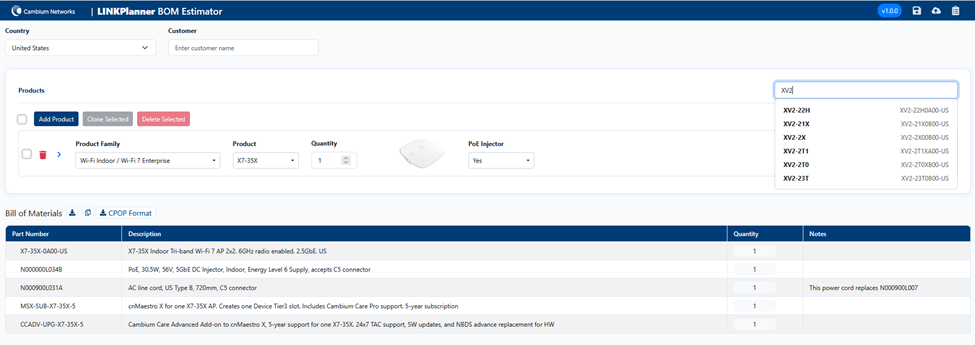
Upon accessing the tool, the home page is displayed. Set the required “Country” in top leftmost corner of the page. This step is crucial as it ensures the configurations reflect accurate regional options and parts.
While optional, completing the “Customer” field is recommended for easy organization and identification of the BOM configuration later on.
Product Configuration
To begin defining product requirements, click the  button.
- Product Selection: Choose the desired Product Family (e.g., cnMatrix/EX Series, WiFi Indoor/ WiFi 7 Enterprise) for the configuration.
- Configuration Details: Subsequent configuration fields are dynamically populated based on the Product Family selection, which define the specifications that impact the Bill of Materials.
- Adding Multiple Items: Quickly add additional configurations of different products by clicking the button again, or by using the integrated search field provided on the right side to find specific products or part numbers.
Advanced Settings and Optional Extras
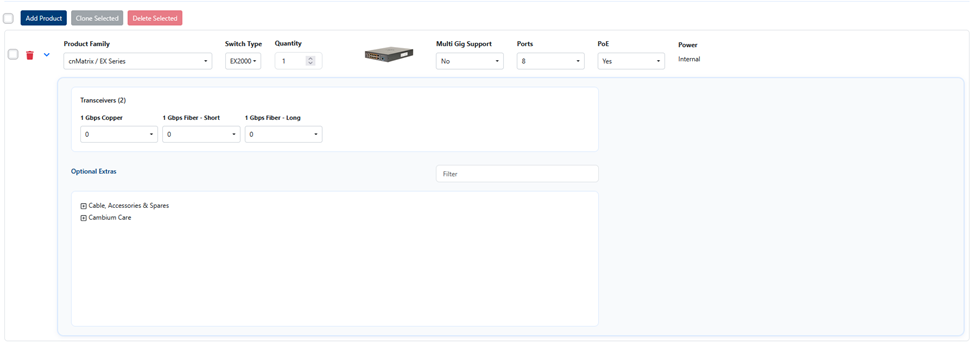
For detailed component selection, such as power supplies, mounting kits, or fiber modules:
- Click the icon
 (located beside the Product Family field) to access more detailed configuration options such as transceiver configurations and antenna selections, depending on the chosen product.
 - Select the parts from the “Optional Extras” section to manually add optional components not automatically included in the default configuration.
Viewing and Exporting the BOM
The Bill of Materials section provides a consolidated list of all required parts across all configurations.
- BOM Consolidation: Items are aggregated by part number and quantity, providing a single, clean list.
- Editing Quantity: Individual parts quantity can be edited if required. When the default quantity is edited, parts are shown in different colors (red when decreased and green when increased). Quantities can be reset to default quantity using the reset button
 .
. - Export Options: The aggregated BOM can be easily exported for distribution and analysis. Users can:
- Copy the consolidated list directly to their clipboard.
- Download the list to a .csv file (spreadsheet).
- Export the data in CPOP Format for direct import into the CPOP.
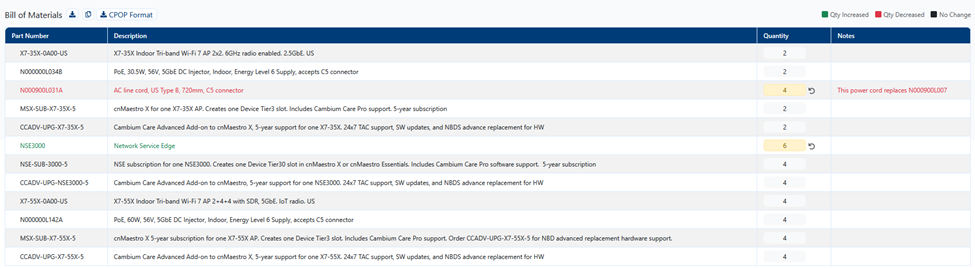
The BOM Estimator displays the total number of individual items required, not the number of physical packs users need to order.
Managing Configurations
The tool includes convenient features for managing estimates over time
- Saving: Use the
 icon in the top right corner to save the current BOM configuration for future reference.
 - Loading: Use the
 icon in the top right corner to retrieve and load a previously saved configuration back into the BOM Estimator.