LINKPlanner online has been updated to version 6.4.0
The key features of the 6.4.0 release are:
New Features
Added support for multi-user editing (beta)
Now LINKPlanner support for multi-user editing (beta). This allows a team to collaborate on projects more efficiently. It eliminates the need to duplicate projects or wait for collaborator to finish their session before making changes.

As this is a beta feature, we welcome your feedback.
To start collaborating, the project “Admin” must first grant access to other team members.
- Navigate to Project Settings and then Permissions section
- Enter the email address of the user you wish to invite in the Permissions box
- Once shared, multiple users can open the project at the same time. Changes made by one user are synchronized and visible to others in the project.
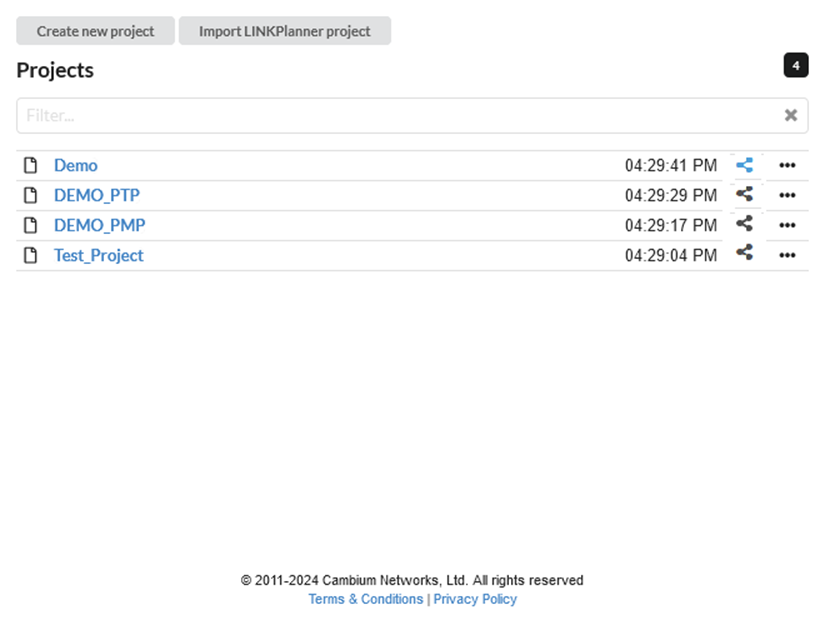
To access the Permissions in the project list window, click  icon to the right of the file name. The project’s sharing status is indicated by the icon’s color: it turns cyan blue when the project is shared, and it remains black when it is not
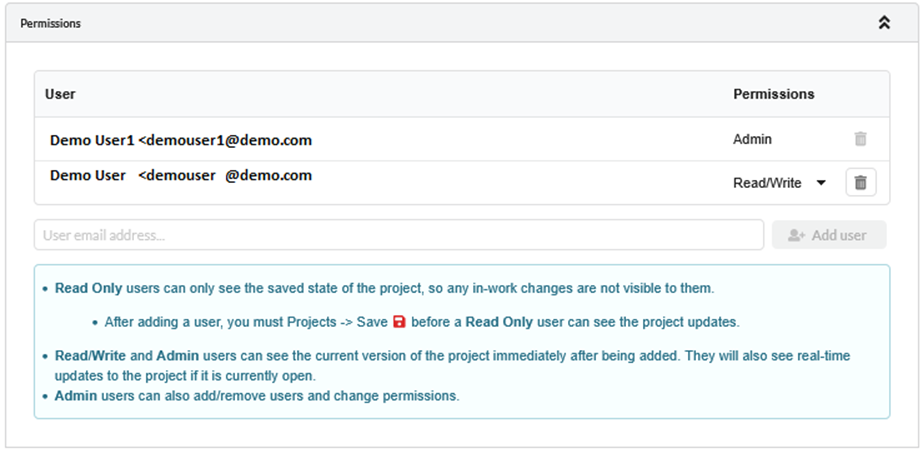
There are three types of permissions available for collaborators.
- Read Only: Collaborators can only see the saved state of the project; in progress changes are not visible to them.
- Read/Write: Collaborators can see the current version of the project immediately after being added. They will also see real time updates to the project if it is currently open. Collaborators can make changes to the project.
- Admin: Along with Read/Write permission, collaborators can also add or remove users and change permissions.
The user must have a valid LINKPlanner account to add to the project.
Added menu option for LINKPlanner BOM Estimator
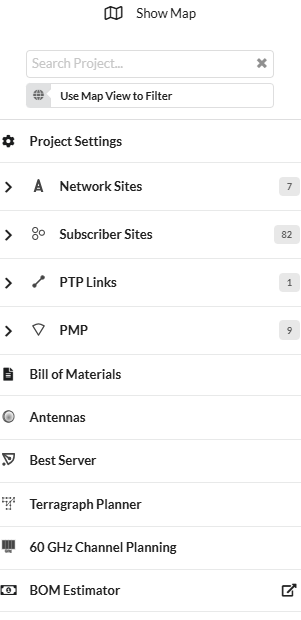
A new menu option has been added to link directly to the LINKPlanner BOM Estimator tool. To access the BOM Estimator tool, click the BOM Estimator option in the menu. The page will then be redirected to the external BOM Estimator site.
To know more about LINKPlanner BOM Estimator, refer Introducing the LINKPlanner BOM Estimator: Rapid Configuration for Enterprise Solutions
Added option to select between “AGL” and “AMSL” height types for AFC requests
Enabled selection between “AGL” (Above Ground Level) and “AMSL” (Above Mean Sea Level) height types when initiating AFC requests, giving more flexibility in AFC reporting.

60 GHz cnWave
Added Channel Planning for 60 GHz cnWave PMP Networks.
The 60 GHz Channel Planning tool enables the allocation of specific channels and polarities across a 60 GHz cnWave network directly within the map interface. This feature provides a visual method for configuring sector parameters to optimize network performance and mitigate interference.
To use the tool, click 60GHz Channel Planning option in the sidebar menu. Channel Planning window is displayed.
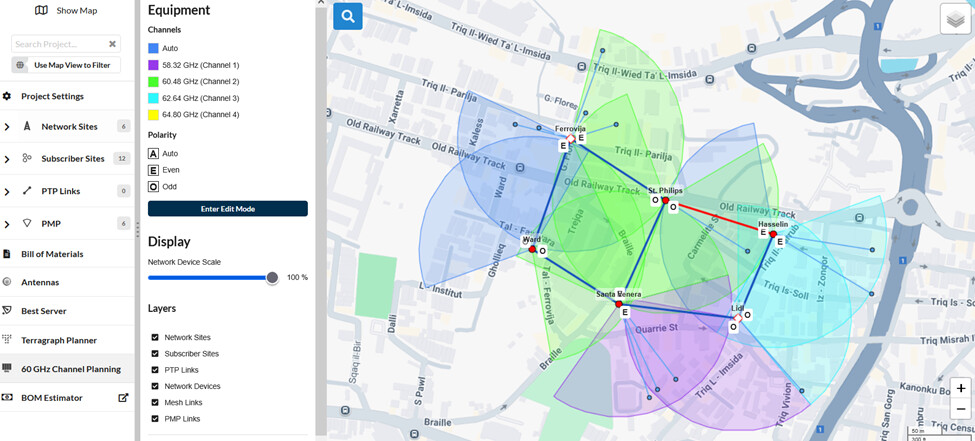
To configure the channel plan, click Enter Edit Mode, then click the Select button next to the required Channel or Polarity option. This activates the selection. The example below shows how to set the Polarity to Even.

Click on required sector in the map view to set it to the chosen value. Sector colors update dynamically to correspond with the Selected Channels Legend, providing an immediate visual reference for frequency plan. Assigned polarity is indicated on the sector as E (Even) or O (Odd).
If there is a planning error, such as a polarity mismatch, the Mesh Link is displayed in red.
Golay code assignment is not supported in this release.
Added cnWave 60 GHz PTP links to 60GHz cnWave cnMaestro Export
The 60GHz cnWave cnMaestro Export function for 60 GHz cnWave now includes data for PTP links.
PMP 450
Added three Component Carriers support for PMP 450v 4x4
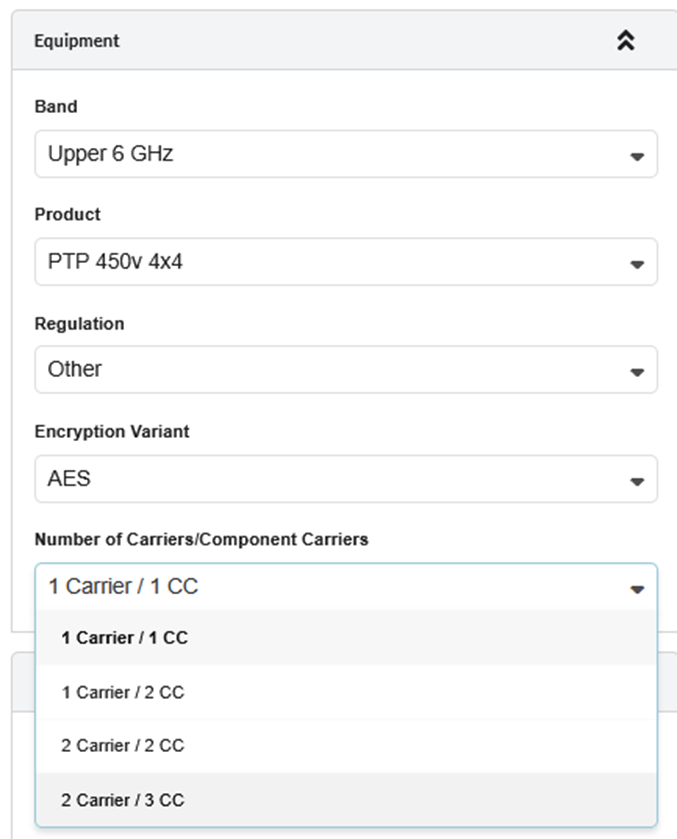
PMP 450v 4x4 product now supports three Component Carriers. This allows the radio to utilize three distinct carrier frequencies simultaneously to increase total throughput and capacity.
In PTP mode, set the Number of Carriers/Component Carriers field to “2 Carriers/3 CC ” to configure three Component Carriers
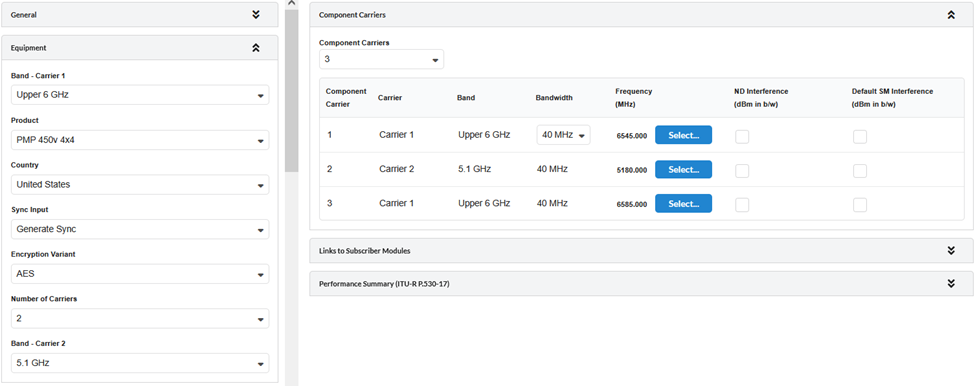
To select 3 CCs for a 450v AP, set Number of Carriers to ‘2’ and Component Carriers to ‘3’ in the Component Carriers section.
Added Australia and New Zealand regulatory for PMP 450 products
Added regulatory definitions for Australia and New Zealand across the PMP 450 product line.
PTP 700
Added new 7.1 to 8.5 GHz 2ft and 3ft parabolic grid antennas for PTP 700
PTP 820/850
Added PTP 850C NTIA Regulatory in 7 GHz, 8 GHz and 15 GHz band
Added 2+0, 2+2 and 4+0 ACCP/ACAP Link Types for PTP 850CX
Added 2+0 and 1+1 HSB Link Types for PTP 820A with RFU-SX
Added 2+0 XPIC Link Type for PTP 850EX-P
Added 20 MHz bandwidth for Canada regulatory in 11 GHz band for RFU-D/RFU-D HP
Replaced PTP 850EX radio part with radio with activation keys in the default BOM
ePMP
Added Bridge in a Box part numbers for ePMP Force 4518 PTP links
Added ALGcom antennas for ePMP Force 4600C and ePMP Force 400C products
The following ALGcom antennas are available for the ePMP Force 4600C and ePMP Force 400C products,
- UHP-6500-27-03-DP
- UHP-6500-31-06-DP
- UHP-6500-33-09-DP
- UHP-6500-36-12-DP
Updated performance parameters for ePMP Force 4518 and ePMP Force 4616
Updated sensitivity values for ePMP Force 4518 and ePMP Force 4516
Retired ePMP 3000 MicroPOP AP
Retired ePMP Force 300-19
Bug Fixes
- Fixed case-sensitivity issue with email addresses during project sharing
- Ensured that 60 GHz cnWave AP have the correct beamwidth when created from a template
- Removed tilt bracket N000045L002 from PMP 450v BOM
- Fixed an issue with importing projects containing cloned antennas
- Resolved second site selection issues when creating PTP links in map view