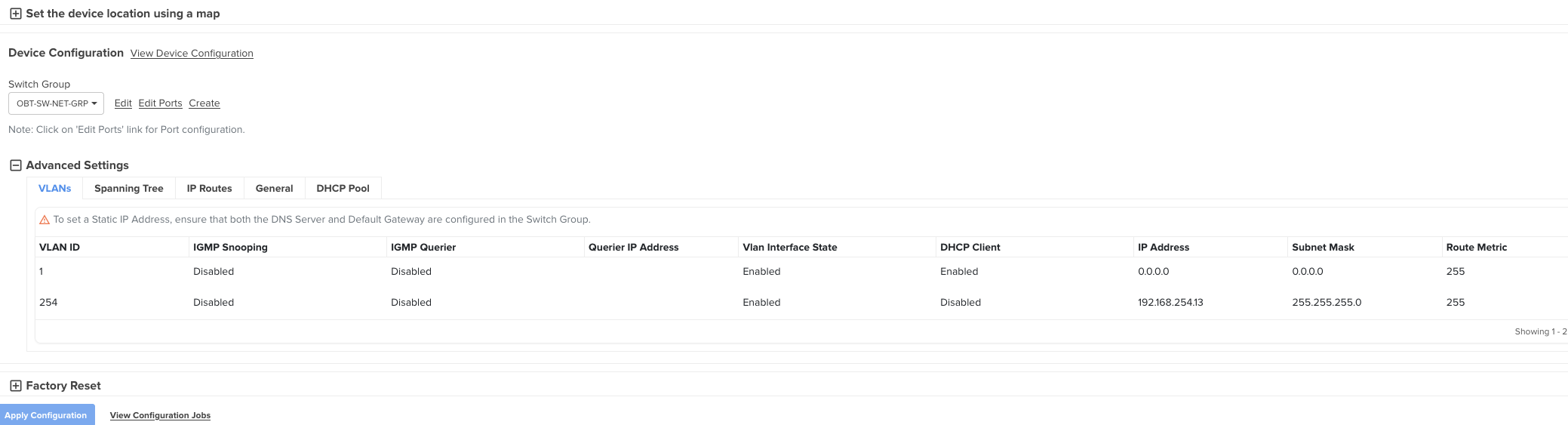
It works perfectly with the EX1028 or EX1010 switches. I’ve configured dozens of them, but I can’t with the EX2028.
Firmware 6.1.2-r4
Does it depend on the fact that the EX2028 is L3 while the others are L2?
I need to set a static IP and would like to do it from cnMaestro, but if there’s a different way, WebGui or CLI is fine. Then I’ll onboard on cnMaestro. Can anyone help me?
Funny enough you post this. I just setup a new EX2028-P switch and had similar issues setting static IP on the switch using cnMaestro. Took me over an hour to get the config right….
I feel it would have been faster for me to manually create the base config and upload the .txt
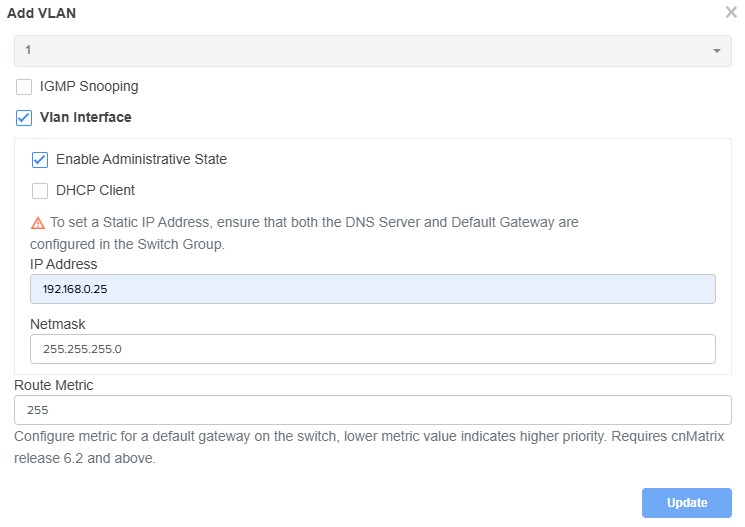
You have to add new SVI [vlan interface], give it static IP and then remove the old vlan 1 interface - this is done under Device >> Config >> ADVANCED
If your setting up the new switch IP and management VLAN, and it is also handing out DHCP on that same subnet. I had to get creative…. I configured VLAN 1 to be random IP address in different subnet, Then I could configure the new SVI with proper IP address… then APPLY the settings for it to sync.
IE: VLAN 1 is untagged [native]. My new “mgmt” VLAN is also untagged - so it was complaining about the address received being in same subnet as the new SVI that was being created.
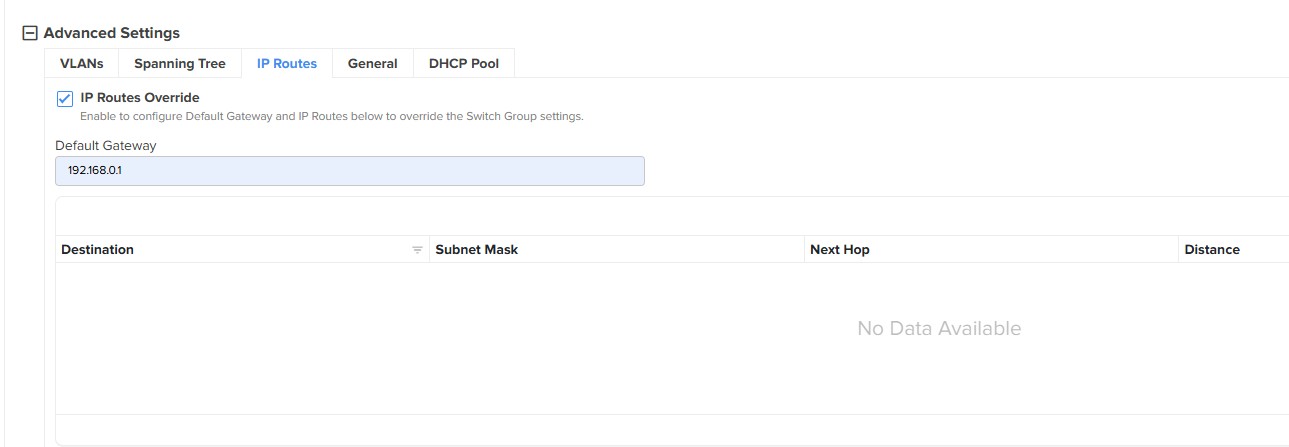
Note: You also need to configure the default gateway IP within Switch Group >> Networking
Setting a static IP address on the switch follows the same procedure for all cnMatrix models. If the switch is rebooting after the configuration sync, it’s likely due to a temporary loss of connectivity with cnMaestro. Can you please raise a customer ticket so we can assist you further? Thanks.
I don’t have any particular configuration, the client network is 192.168.0.0/24, its DHCP starts from .200 and all the other switches (n.4 EX1028-P that power some XV2-21X APs and some PCs) are from 192.168.0.21 to 192.168.0.24.
If I understand correctly, it is not possible to change the IP of Vlan 1 directly from cnMaestro if the DHCP Server is on the same network?
I’ve already been contacted by a colleague of yours and added it to my cloud account for verification.
I can confirm that everything is fine in the switch group; in fact, switching on the EX1000 models works perfectly.
From what I understand, since it’s L3 and the router’s gateway and DHCP are on the same LAN as the Management, you need to do the same thing @ntox .
@ntox My current IP is 192.168.0.201. If I change this IP to, for example, 192.168.10.201 and run “Apply Configuration,” the switch updates, but then how does it reconnect to cnMaestro?
The gateway on the switch group is 192.168.0.1. Will it still connect even if I set a different IP?
Perhaps I need to disable auto-update?
Thanks
Yeah, if the device sync is failing is because your default gateway is still incorrect. That has to be adjusted to be the proper gateway that matches your new management VLAN.
Go ahead and disable auto-sync for the switch group.
After auto-sync is disabled, make the config changes to switch-group and to the switch device [advance settings] for new SVI.
Within switch group config – set the default gateway.
Once all saved. Go ahead and manually sync the switch config
The procedure as informed by Tam is the same for all model of switches. But in your case since the vlan ip address is in the range of 192.168.0.x/24 which is conflicting with the default mgmt address of 192.168.0.1, we had to adopt the below workaround:-
Change the mgmt address to a dummy ip address say 10.10.10.1 via the user defined over rides
!
int mgmt0
ip address 10.10.10.1 255.255.255.0
no shut
!
Now sync the switch. This will change the mgmt ip address and allows us to use 192.168.0.x/24 subnet for the vlan.
Configure the static ip for the vlan and sync the switch.
This helped over come the problem. If it was a non 192.168.0.x/24 subnet, the change would have been straight forward.
Thanks for the clarification.
Basically, this procedure should only be performed if the network on which you’re setting the static IP is 192.168.0.0/24, as it conflicts with the mgmt network. In all other cases, the standard procedure is the one to follow.
Thanks again to everyone at cambium network support for your help. I’m happy to use your products.