With the release of cnHeat 2.7.0, users in the United States will now notice a gray “Setup In-App Purchases” button either on the Subscriptions menu screen or the “Choose a Credit” screen.
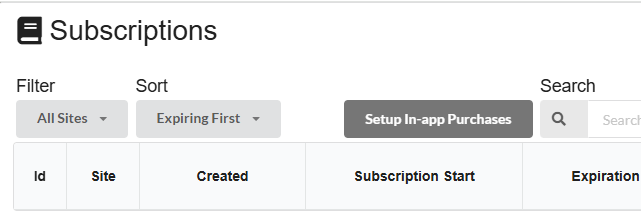
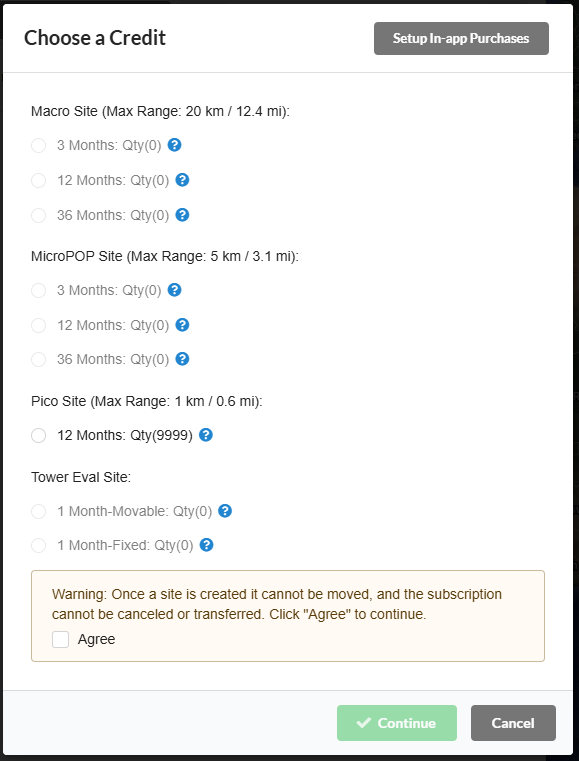
By clicking this button a user can enroll themselves to enable in-app purchases.
If the user has already added information into the Cambium Payment Portal for other services (e.g. CBRS,…) then they may be presented with a dropdown where they select an existing payment account/method.
Otherwise the user will need to set one up by clicking the Visit Billing Portal button.
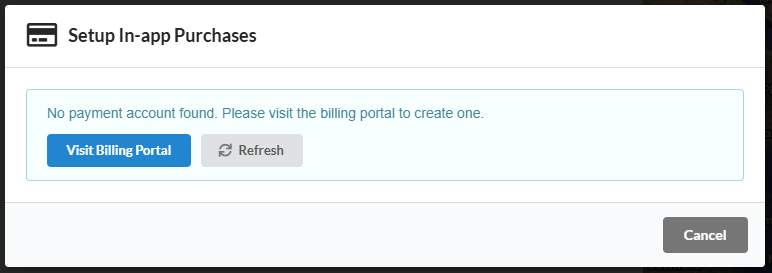
Here are instructions from another post for setting up payment information.
Upon returning to cnHeat click the Refresh button next to the Visit Billing Portal button and select your new account from the drop-down. You will then be redirected to Purchase Credits page where you can add parts to a cart, review your order, and then place your order. Upon success the initial payment is made, and credits are applied to your project.
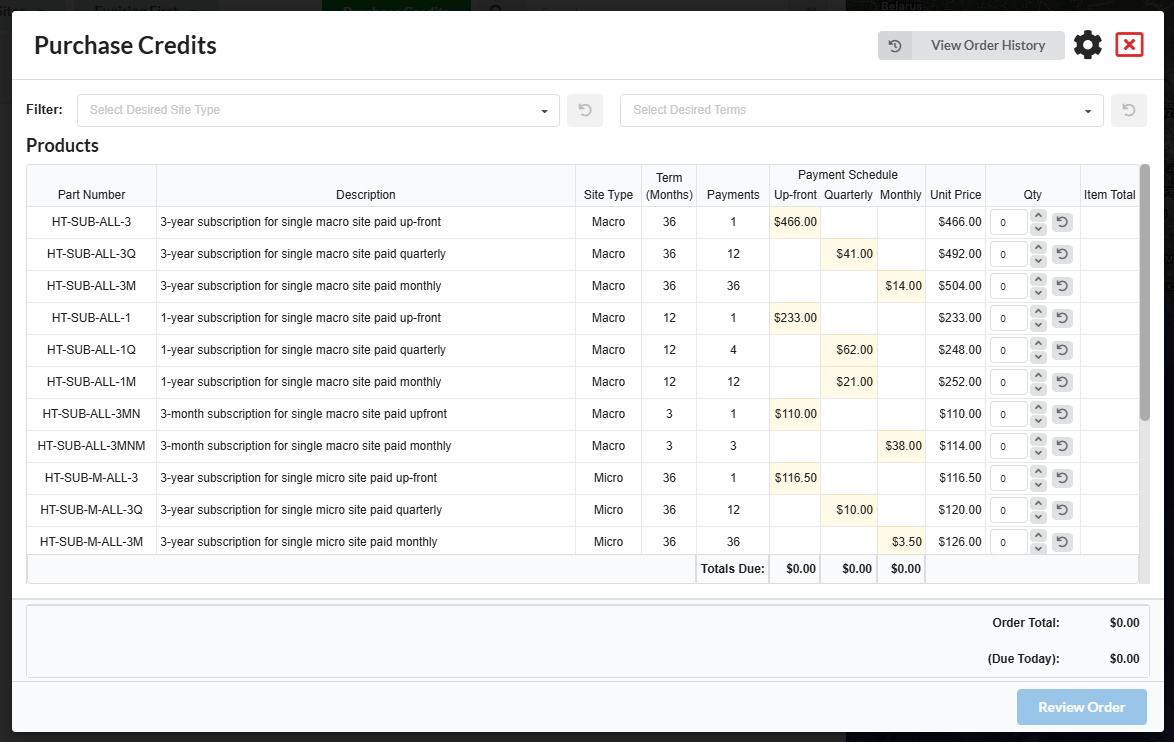
Additionally there is a settings icon (gear) in the upper right corner. These allow the user to change their payment account and to assign their payment account to other users. The first is used if the user has setup more than one payment account. The second allows a user to delegate their payment account to OTHER users to make purchases. (This should only be done with extra care as the additional user will have full control to make purchases against the original user’s account.)